
Full reference for the three AgroDex planning tools: Crop Schedule, Area Converter, and Crop Planner Editor. Each section matches one screen or one feature.
New here? Start with Farm Tools Quick Start.
1. Overview
| Tool | Address | Best for |
|---|---|---|
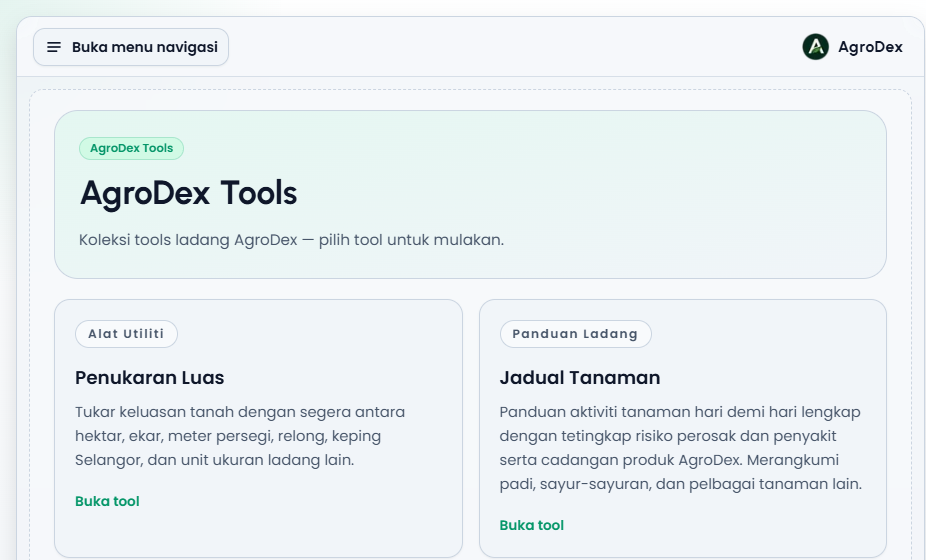
| Crop Schedule | /tools/calendar | Reading official or vendor schedules day by day |
| Area Converter | /tools/area-converter | Converting land area units quickly |
| Crop Planner Editor | /planner | Building or editing your own crop schedule |
All three work without an account.
Which tool to use
- Crop Schedule - you want to know what to do on a given day after planting, and which products are suggested.
- Area Converter - an area is recorded in one unit but you need it in another, for example relong on a form but hectares in your records.
- Crop Planner Editor - you want to assemble your own schedule, attach products with doses, then save it as a file or publish it to AgroDex.
The tools live in the Planning group in the sidebar:
| Menu | Goes to |
|---|---|
| Farm Tools (group) | - |
| Crop Calendar | /tools/calendar |
| Schedule Editor | /planner |
| Area Converter | /tools/area-converter |
| All Tools | /tools |
3. Crop Schedule
Crop Schedule presents one crop schedule as a timeline. Each schedule contains phases, activities, pest or disease targets, and suggested products.
3.1 Schedule selector panel
The panel has three parts:
| Part | Function |
|---|---|
| Select Crop | Crop chips that have schedules, for example padi |
| Select schedule | Schedules for that crop |
| Load from Device | Opens a .json schedule file from your computer |
Every schedule card shows the schedule name, the provider (Prepared by), the Plan Code, the crop, and an Official badge for schedules published from official sources.
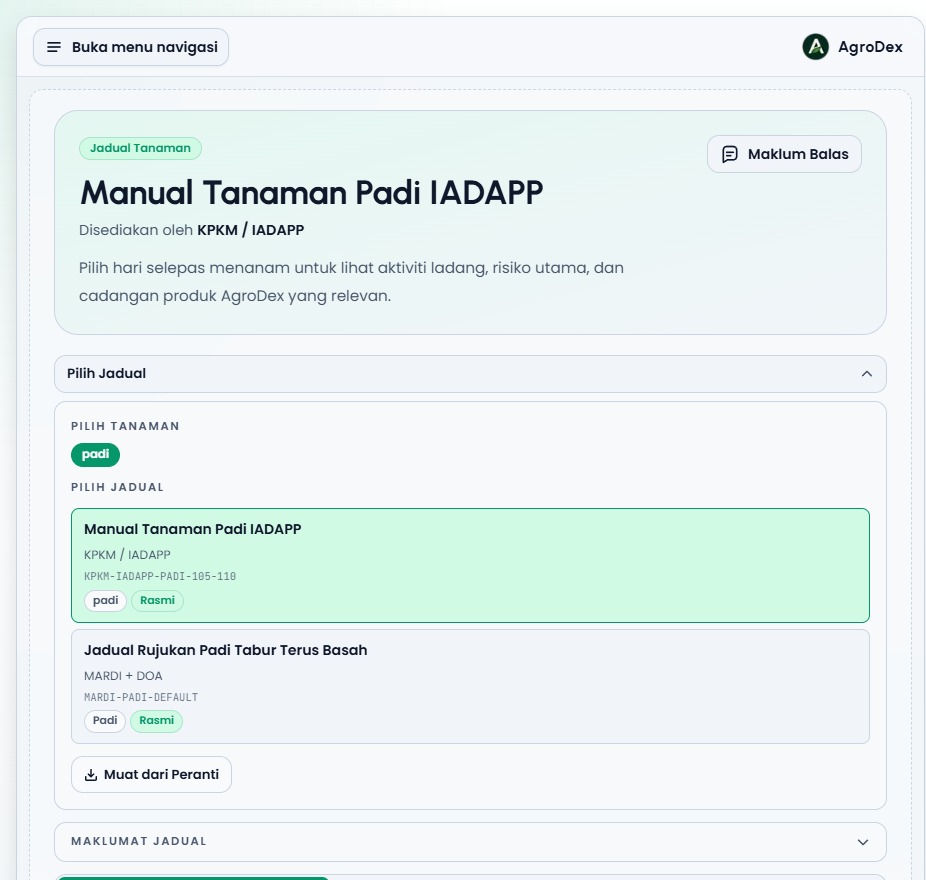
Changing the crop automatically selects the official schedule, or the first one available, for that crop.
3.2 Schedule Info
The Schedule Info panel shows the details of the open schedule:
| Field | Meaning |
|---|---|
| Vendor / Company | The provider or compiler of the schedule |
| Crop | The target crop |
| Variety / Cultivar | A specific variety, if any |
| Farm Name | The reference farm, if any |
| Area (ha) | The reference area, if any |
| Official source documents | The references used to compile the schedule |
The panel also offers Export JSON, Print Full Table, and a Planner Editor link that brings this schedule into the editor for changes.
3.3 Calendar view
The Calendar tab is the default view. It contains:
- A Week or Month toggle.
- A day bar showing the start day, the number of days and activities, and the end day. The text below the bar tells you whether the schedule is complete or what percentage has passed.
- The calendar grid. Days with activities are marked, and today's date is labelled Today.
- The activity list for the selected day.
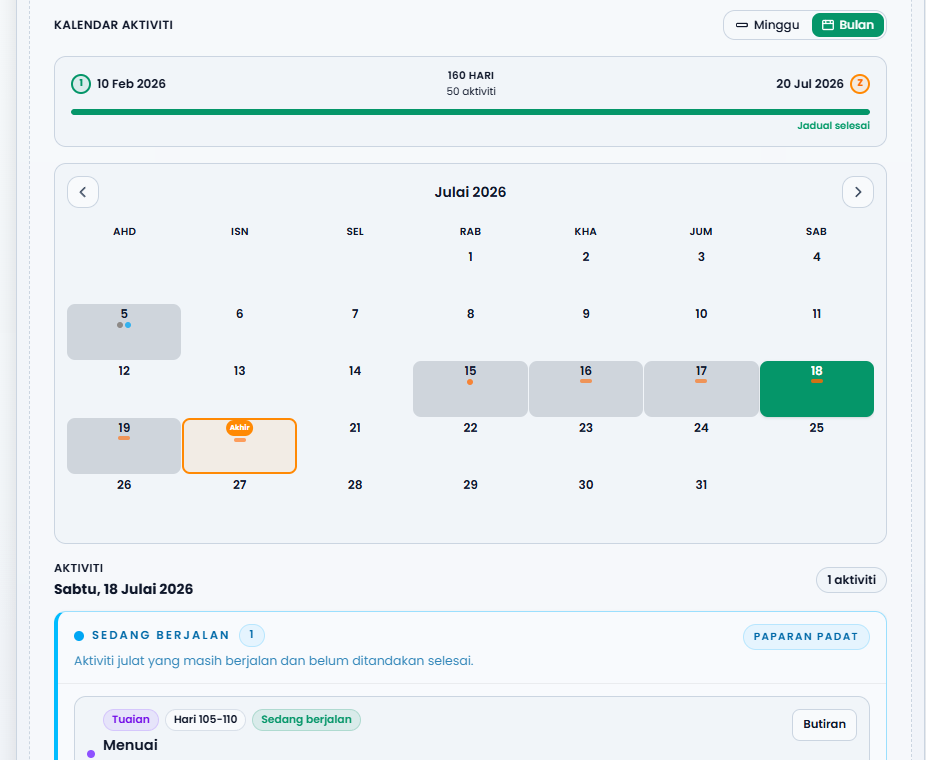
Click any cell to change the day on screen. The arrow buttons beside the month title move to the previous or next month.
Phone view:
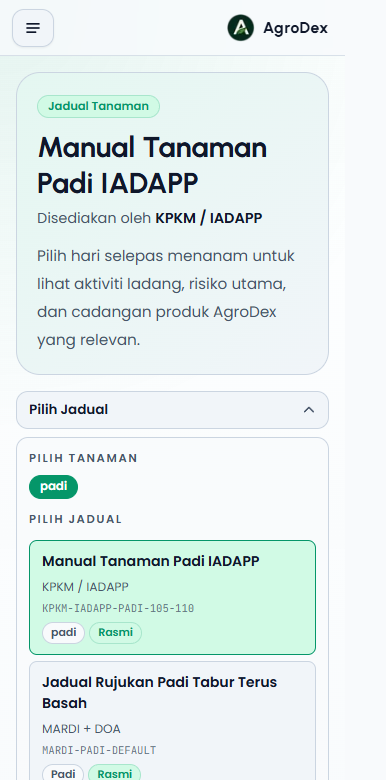
3.4 By Day view
The By Day tab focuses on a single day and every activity running on it.
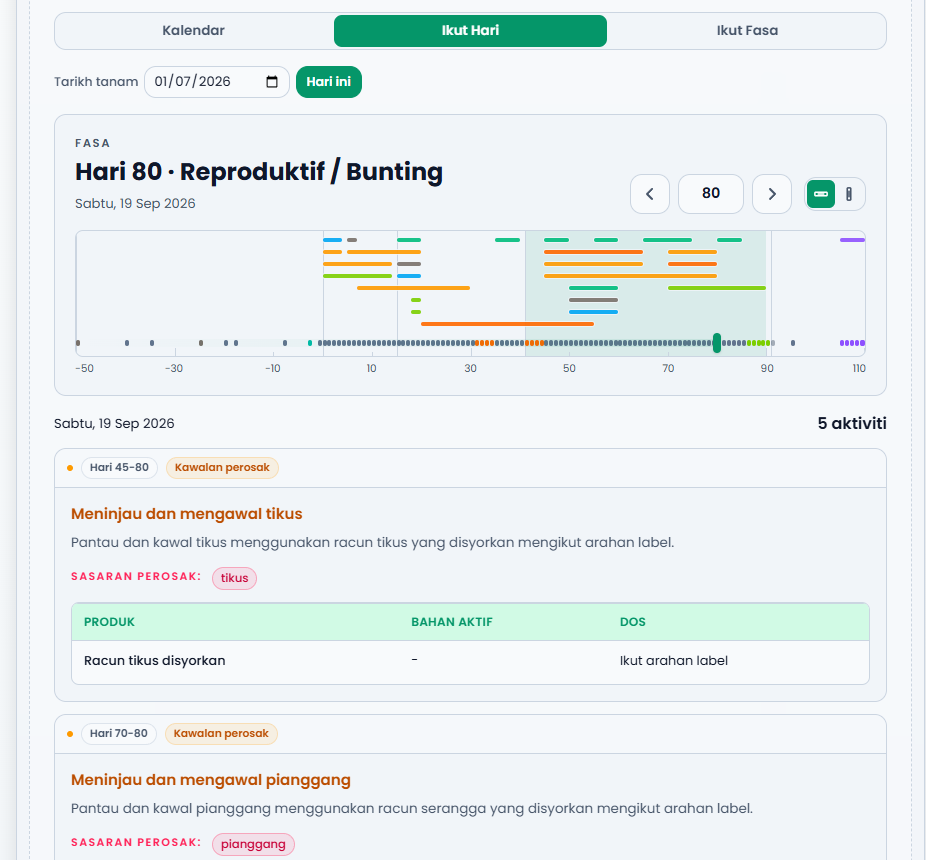
| Control | Function |
|---|---|
| Plant date | Sets the planting date so the current day is calculated automatically |
| Today | Jumps to the day that matches today's date |
| Arrow buttons | Move one day forward or back |
| Day number | Sets the day directly |
| View toggle | Switches between the full view and the Compact view |
The header shows the current phase and date, for example Day 80 - Reproductive / Booting. The timeline below it places the day's activities in separate lanes so overlapping activities stay readable.
The day's activities are grouped by state:
| Group | Meaning |
|---|---|
| Starts today | Activities that begin today |
| In progress | Range activities that are still running |
| Ends today | Range activities that reach their final day today |
| Completed | Activities already marked as done |
3.5 By Phase view
The By Phase tab groups activities by crop phase, from land preparation through to post-harvest.
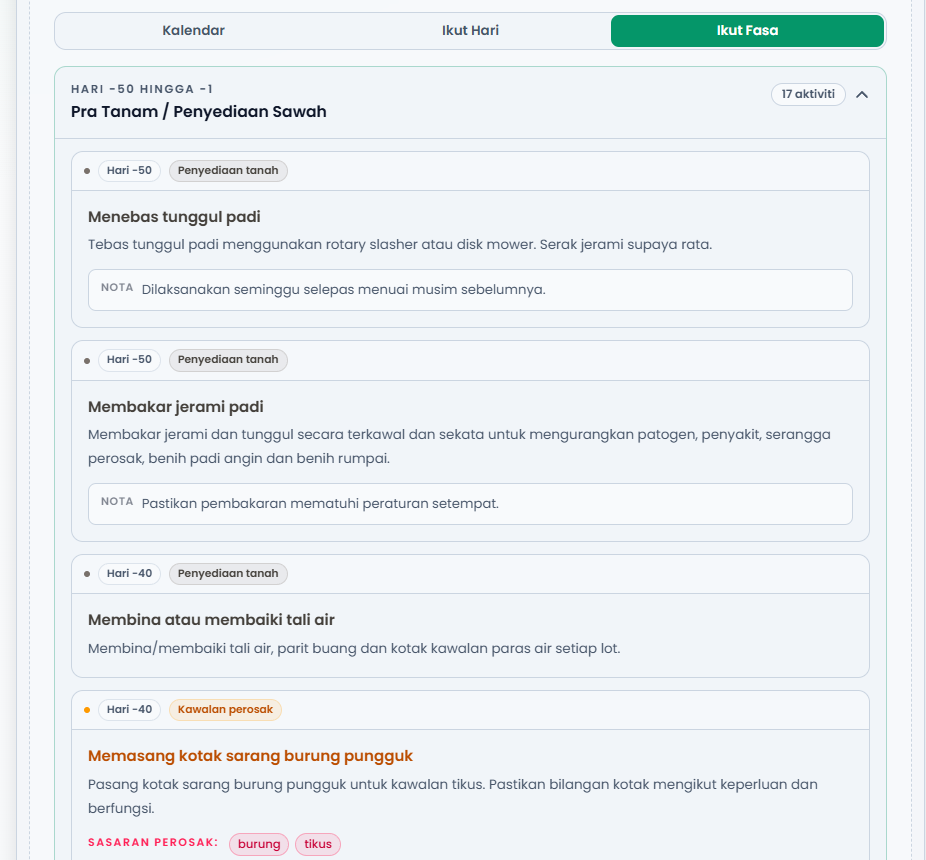
Each phase card shows its day range and activity count. Click a card to expand or collapse its activity list.
3.6 Activities and products
Every activity card contains:
| Part | Content |
|---|---|
| Day chip | For example Day 45-80 |
| Type chip | For example Pest control, Fertilizer, Scouting |
| Title and description | The work to be done |
| Pest targets or Disease targets | The pests or diseases being controlled |
| Products table | Product name, active ingredient, and the suggested dose |
| Notes |
The Details button expands or collapses the full description of an activity.
3.7 Loading your own file and printing
- Load from Device accepts a
.jsonschedule file (Planner v2.0 format). An invalid file, or one larger than 512 KB, is rejected with an error message. - Print Full Table produces the full schedule, ready to print or save as a PDF.
- Export JSON downloads the schedule file to keep or share.
4. Area Converter
This tool converts land area between modern units and local field units.
4.1 Two-way converter
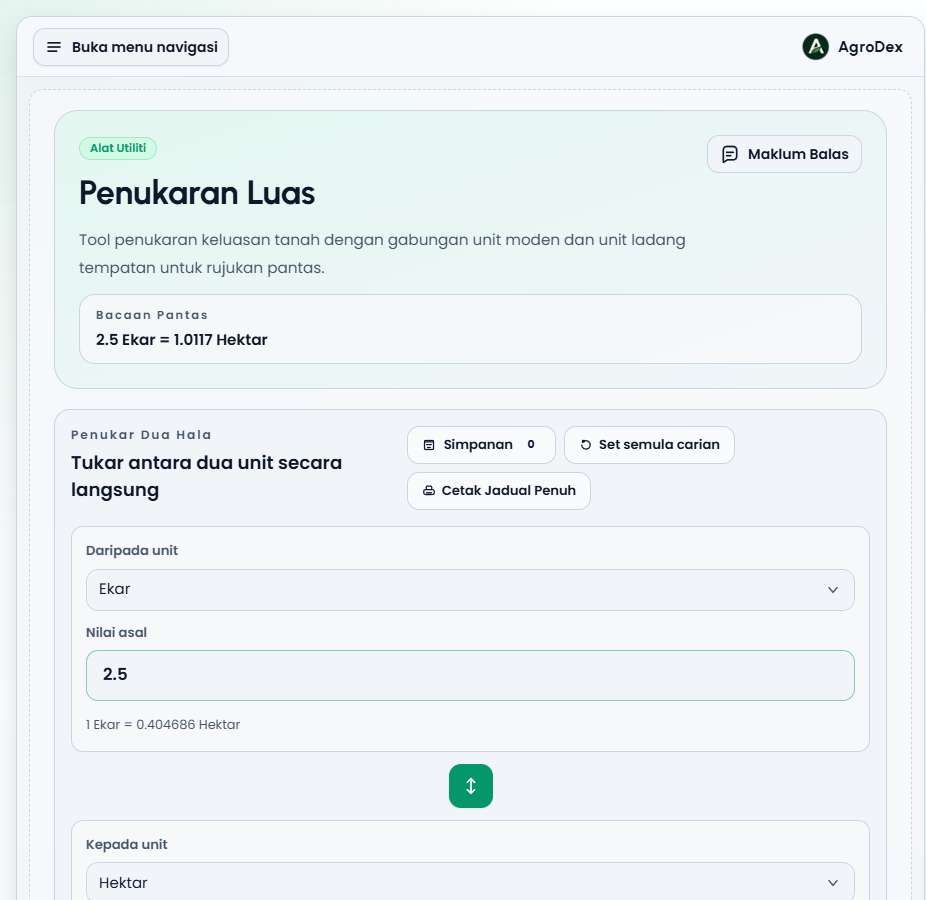
| Control | Function |
|---|---|
| From unit | The source unit |
| Source value | The value to convert |
| Arrow button | Swaps the source and target units |
| To unit | The target unit |
| Converted value | The result, which can also be typed in for the reverse direction |
| Quick Read | A summary of the current conversion |
| Reset search | Restores the original value |
Below the value field, one line shows the conversion rate used, for example 1 Ekar = 0.404686 Hektar.
4.2 Common and local units
Under the converter, three cards summarise the current area:
| Card | Example |
|---|---|
| Current area | 2.5 Ekar |
| Common Units | 2.5 ac / 10,117.1411 m2 |
| Local Units | 3.5155 relong |
For relong, the penjuru breakdown is also shown, for example 3 relong + 2.062 penjuru.
4.3 Conversion table
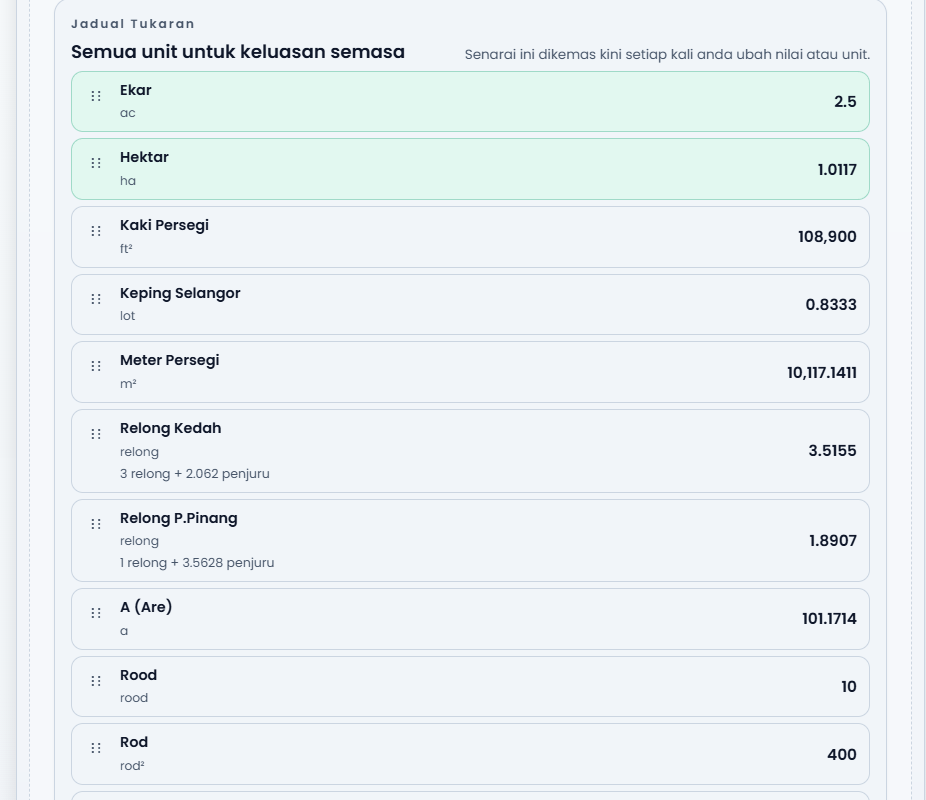
The Conversion Table lists 15 units for the current area, each with its unit abbreviation. It is refreshed every time the value or unit changes. Local and traditional units such as Relong Kedah, Relong P.Pinang, Keping Selangor, Depa, Jempa, and Rantai appear alongside standard units.
4.4 Saved presets
The Saved Presets panel stores unit pairs you use often.
| Action | Description |
|---|---|
| Type a name and press Save preset | Saves the current unit pair |
| Use preset | Loads that unit pair again |
| Move up / Move down, or drag | Reorders the list |
| Delete | Removes the preset |
Presets are stored in your browser, not on your account.
4.5 Printing
Print Full Table produces the conversion table, ready to print or save as a PDF.
5. Crop Planner Editor
This editor builds a crop schedule from scratch, with phases, activities, and products.
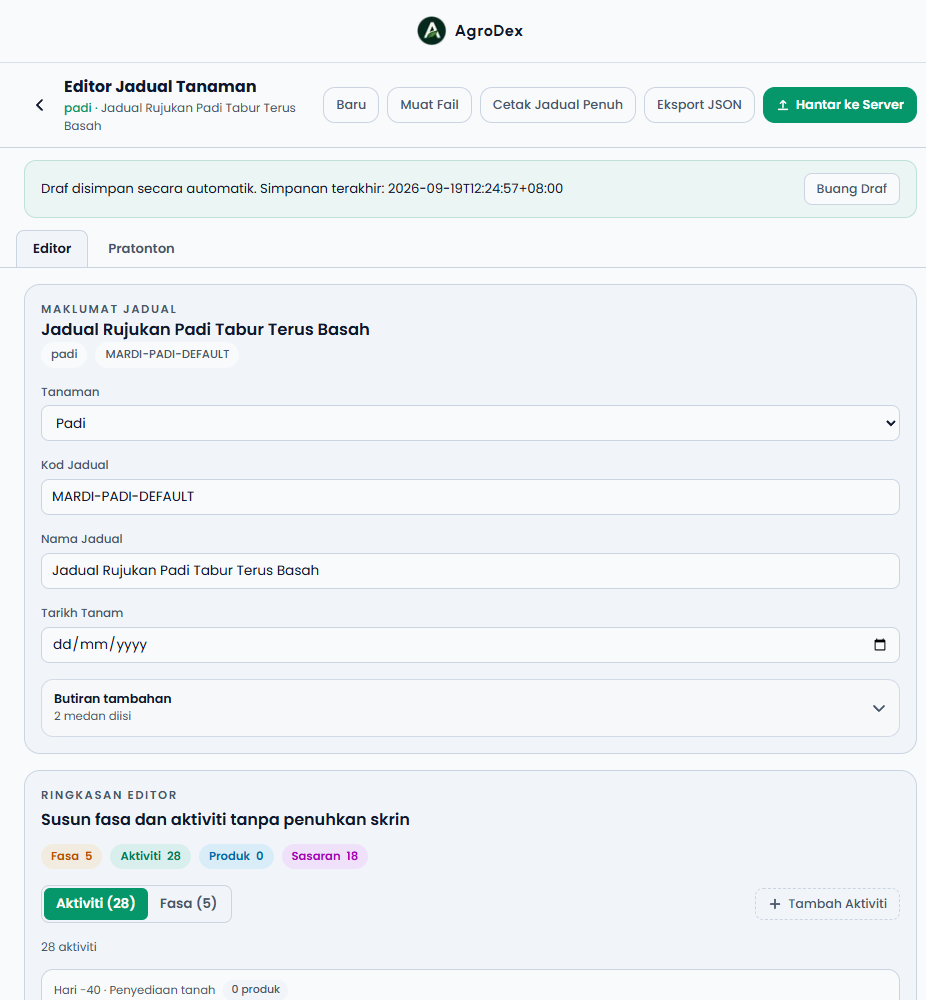
5.1 Schedule Info
| Field | Required to publish? | Notes |
|---|---|---|
| Crop | No | Pick from the list or type your own crop |
| Plan Code | Yes | For example JADUAL-001; uppercase letters, digits, hyphen, or underscore |
| Schedule Name | Yes | A name you can recognise |
| Planting Date | No | The starting date of the schedule |
| Additional details |
The Additional details section is collapsed by default so the form stays short.
5.2 Phases
Phases divide the schedule into stages such as land preparation, vegetative growth, and harvest. Each phase has a name (MS and EN), a day start, and a day end. Press Add Phase to add one, and the bin icon to delete it.
5.3 Activities
Each activity has the following fields:
| Field | Notes |
|---|---|
| Day | The day the activity starts. Negative numbers mean before planting |
| Day end | Leave blank for a single-day activity, or set a range such as 12 to 18 |
| Type | Fertilizer, Pest control, Disease control, Scouting, Weed control, Land preparation, Planting, Harvest, or Other |
| Title | The activity name |
| Description | The work instructions |
| Pest targets | Comma-separated pest list |
| Disease targets |
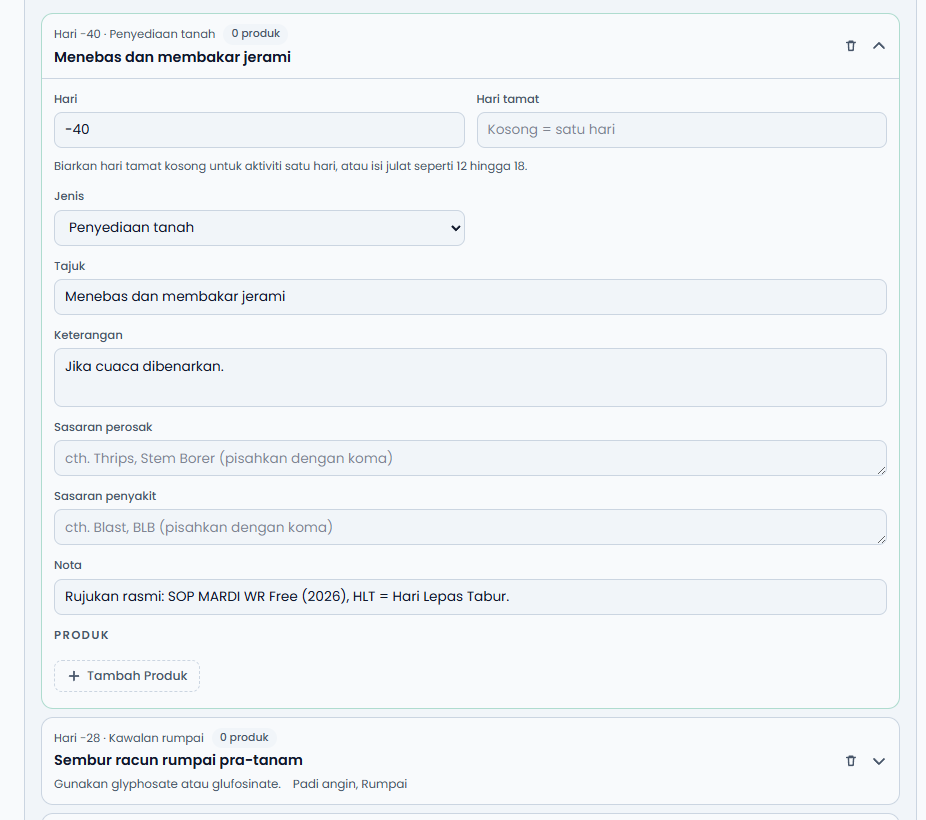
Click an activity card to expand or collapse its full form.
5.4 Products
Every activity can hold one or more products.
| Field | Notes |
|---|---|
| Product source | Manual to type your own, or Search AgroDex to find a registered product |
| Product Name | Trade name or common name |
| Active ingredient | The product's active ingredient |
| Dose / Rate | For example 50 kg/ha |
| Product role | Pest, Disease, Nutrition / Fertilizer, Growth / Booster, Soil / Conditioner, or General |
| Product targets | Specific targets for this product when the role is pest or disease |
When you use the AgroDex search, click a result to fill in the product name and active ingredient automatically.
5.5 Preview
The Preview tab shows your schedule the same way Crop Schedule does, with three view options: Calendar, By Day, and By Phase.
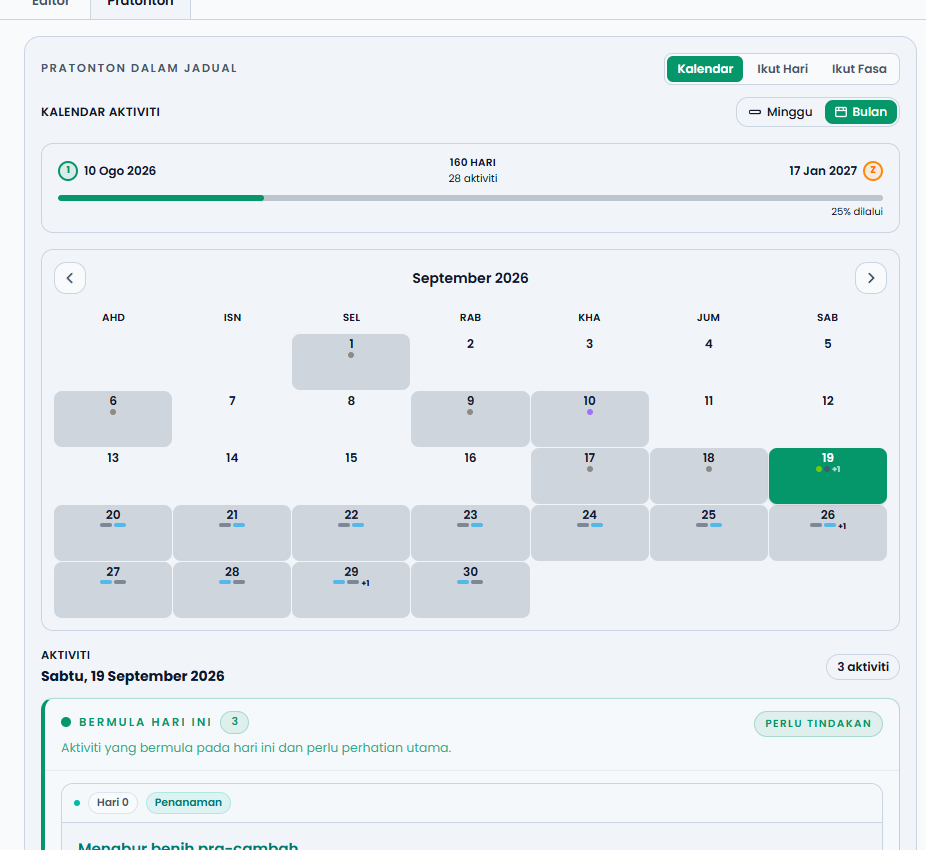
Use the preview before exporting or publishing to confirm that days and activities are ordered correctly.
5.6 Autosave draft
Your work is autosaved as a draft in the browser. The status line shows the last save time, for example Draft autosaved. Last saved: .... The Discard Draft button removes the draft and starts over.
This draft exists only in your browser. It is not shared with other devices.
5.7 Export, load, print
| Button | Function |
|---|---|
| New | Starts a new schedule |
| Load File | Opens a .json schedule file (v2.0 format, 512 KB maximum) |
| Print Full Table | Produces the full schedule for printing or PDF |
| Export JSON | Downloads the schedule to share or keep |
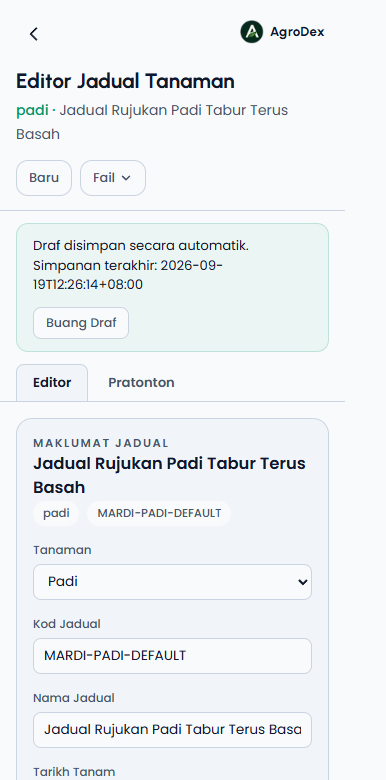
On a phone these buttons sit in the File menu.
5.8 Publish to server
The Publish to Server button publishes the schedule to AgroDex so other people can pick it in Crop Schedule.
- Plan Code and Schedule Name must be filled in before publishing.
- A confirmation dialog asks for an API Key. The key is issued by an AgroDex administrator.
- If
NEXT_PUBLIC_PLANS_APIis not configured, the button reports that publishing is unavailable. - After a successful upload, the plan code appears in the success message.
6. Concepts and terms
| Term | Meaning |
|---|---|
| Relative day | Days counted from the planting date. Day 0 is the planting or sowing day |
| Negative day | A day before planting, for example Day -10 for land preparation |
| Phase | A crop stage, such as land preparation or flowering |
| Activity | One piece of work in the schedule, with a day, type, and instructions |
| Range entry | An activity that spans several days, for example Day 45-80 |
| Target |
7. Display settings
| Setting | How to change it | Where it is kept |
|---|---|---|
| Language BM or EN | The language switch in the sidebar or landing page | Browser |
| Light or dark theme | The theme toggle in the sidebar | Browser and a cookie |
| Unit presets | The Saved Presets panel in Area Converter | Browser |
| Schedule draft | Autosave in the Crop Planner Editor | Browser |
Language does not change the schedule content: product names, active ingredients, and instructions stay as written in the source file.
8. Other useful notes
- Schedule sources. Schedules marked Official are compiled from references such as KPKM/IADAPP, MARDI, and DOA. The full reference list is in the Schedule Info panel.
- File format. Schedules use Planner v2.0. Older files, or files edited by hand, are rejected with an error message.
- File size. Uploads are limited to 512 KB.
- Farm work. To record what actually happened, along with costs and PHI, use the Farm module. A schedule from these tools can be imported into your plot.
- Product lookup. To check full pesticide details, use the Pesticide Search & MOA module.