
Time: about 10 minutes. Result: you can read a crop schedule, convert area units, and build your own schedule.
All three tools work without an account. Print or download whatever you need.
Three tools
| Tool | What it is for | Where |
|---|---|---|
Time: about 10 minutes. Result: you can read a crop schedule, convert area units, and build your own schedule.
All three tools work without an account. Print or download whatever you need.
| Tool | What it is for | Where |
|---|---|---|
| Read activities by day after planting |
/tools/calendar |
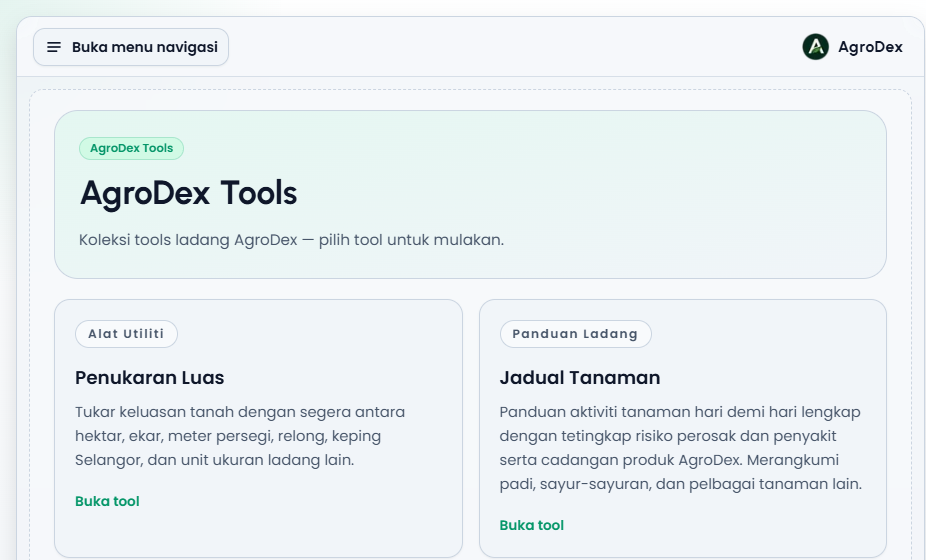
| Area Converter | Convert hectares, acres, relong, and other field units | /tools/area-converter |
| Crop Planner Editor | Build or edit your own crop schedule | /planner |
All of them open from /tools.
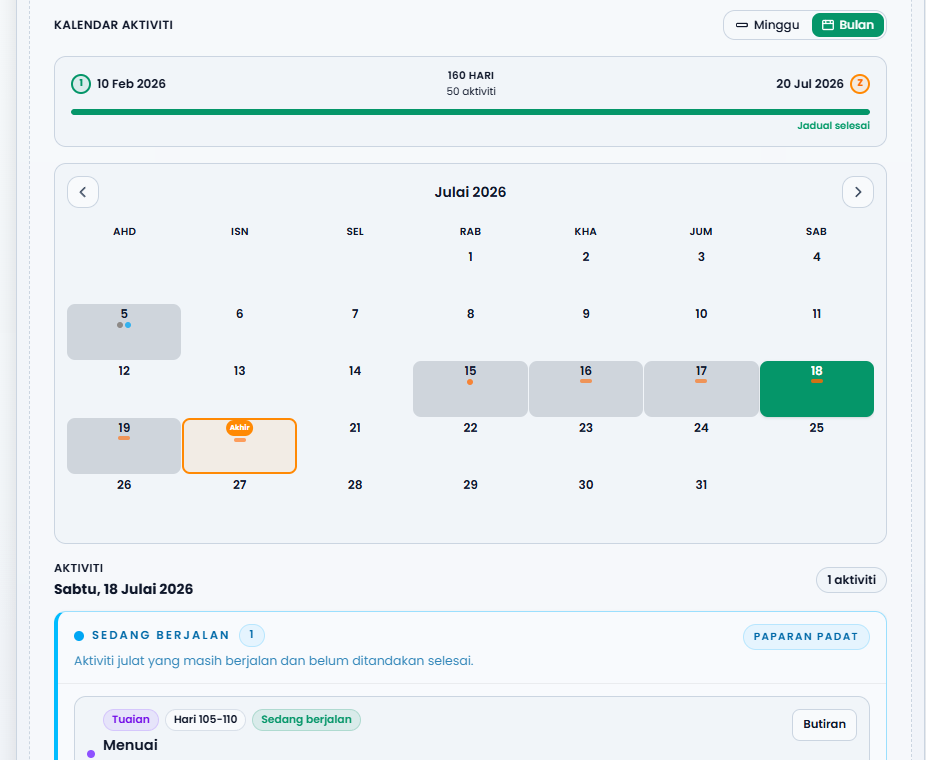
/tools/calendar.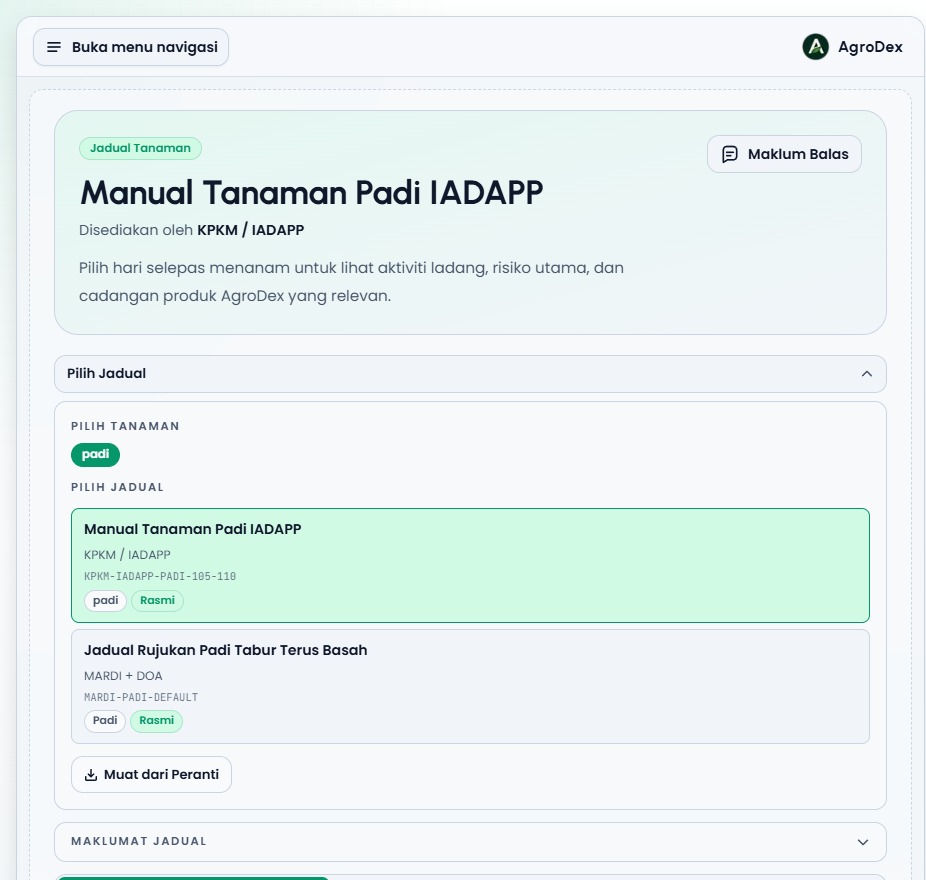
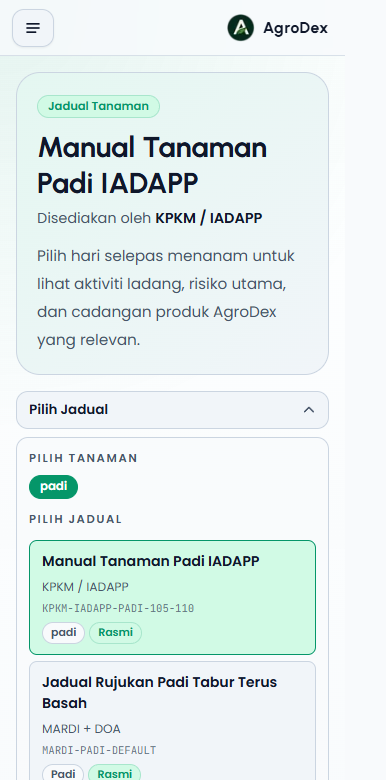
Phone view:
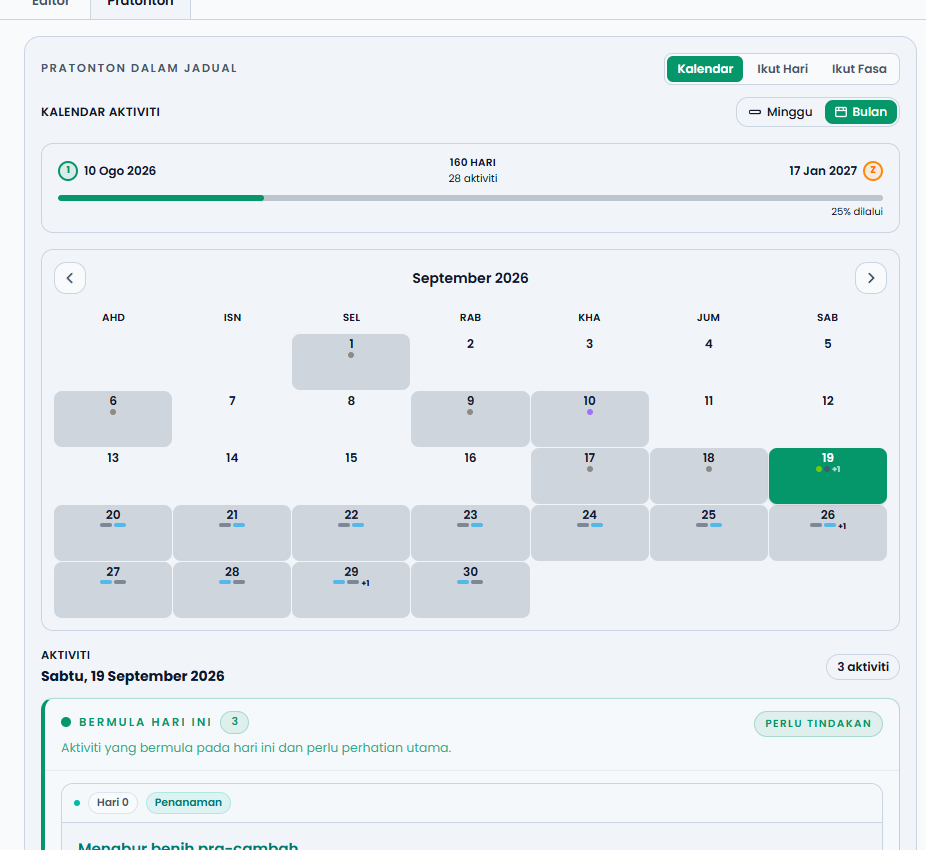
Three tabs are available:
| Tab | Use it for |
|---|---|
| Calendar | See the whole schedule in a week or month layout |
| By Day | See the activities of one day, with products and targets |
| By Phase | See activities grouped by crop phase |
On the By Day tab, fill in Plant date so the system can calculate the current day automatically. The Today button jumps straight to that day.
/tools/area-converter.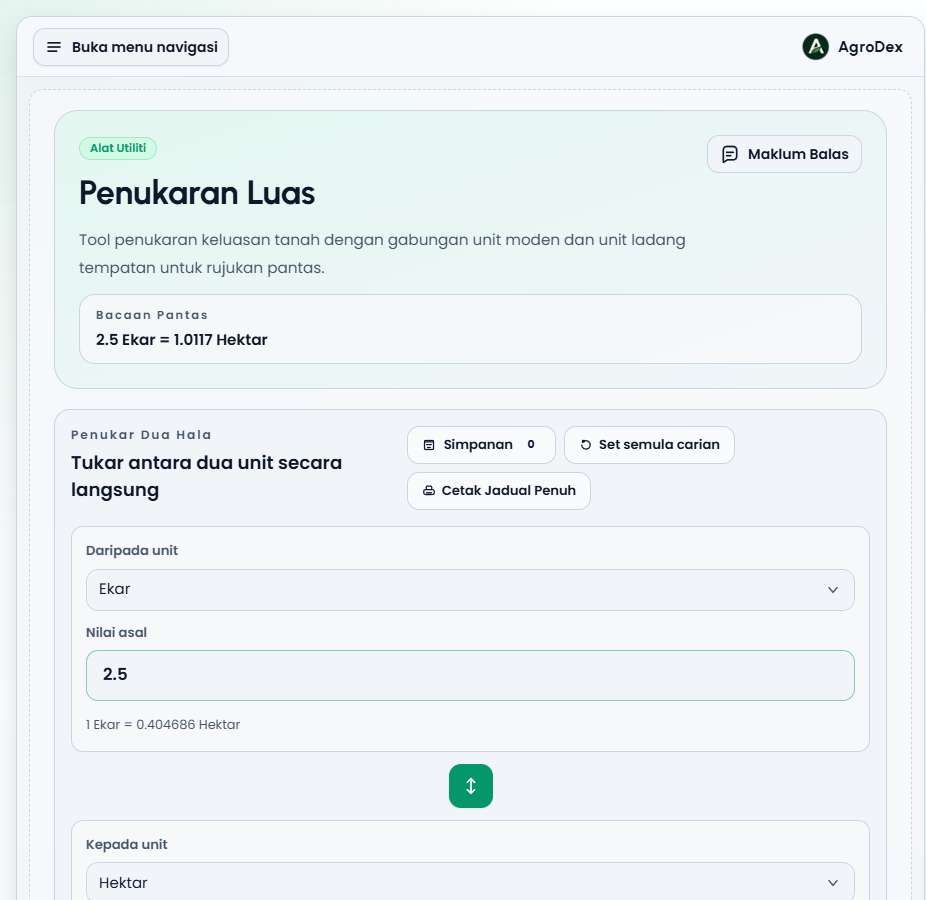
Below that, the Conversion Table lists every unit for the current area, including local units such as Relong Kedah, Relong P.Pinang, and Keping Selangor. For relong, the tool also shows the penjuru breakdown, for example 3 relong + 2.062 penjuru.
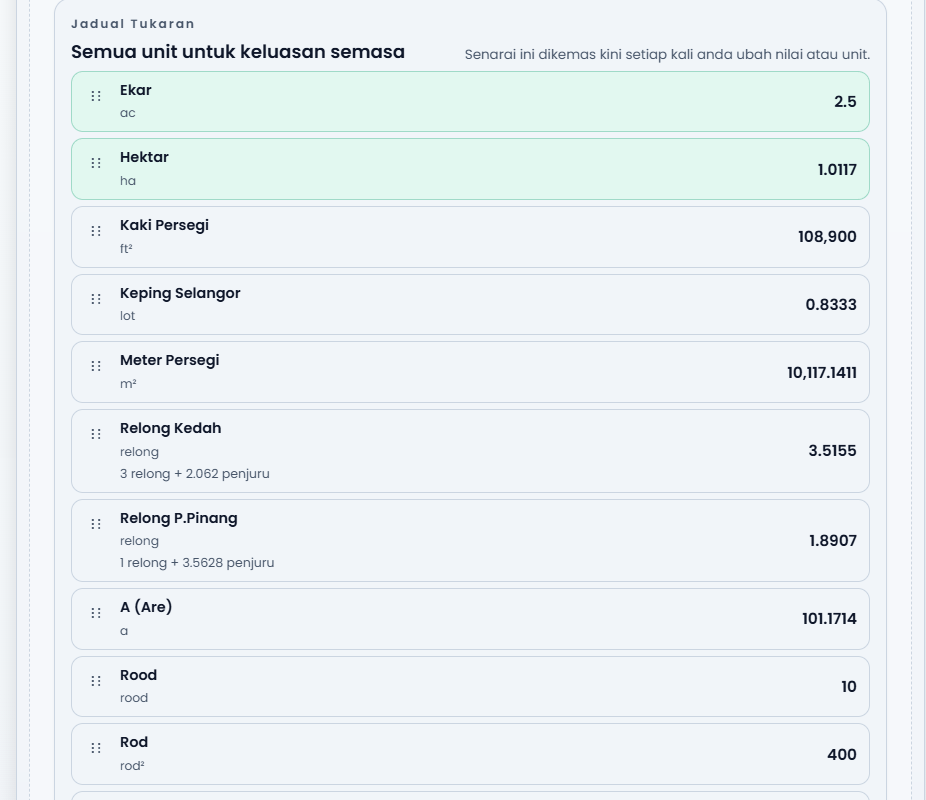
Saved Presets stores the unit pairs you use often so you do not have to pick them again.
This tool is for anyone who wants to build a schedule, for example extension officers or company representatives.
/planner.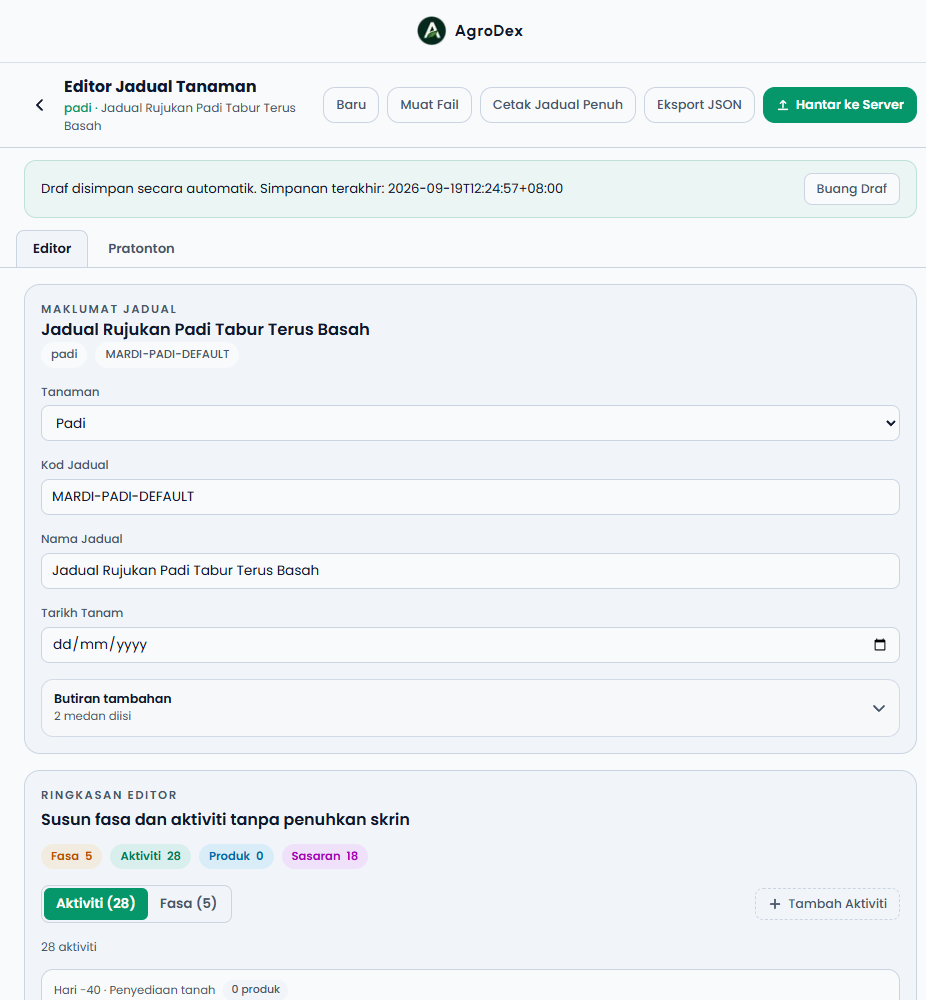
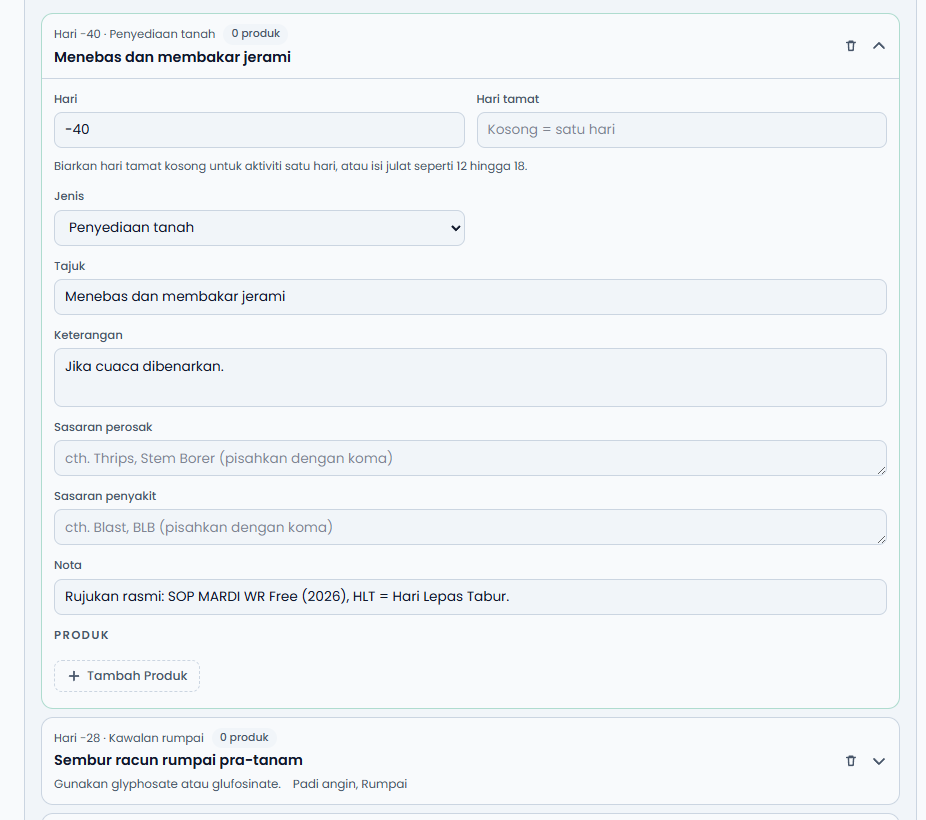
Your work is autosaved as a draft in the browser. If you close the page and come back, that draft is restored.
See the Farm Tools FAQ, or send feedback through the feedback button in the app.
Next guide: Farm Tools Guide