
Full reference for the pesticide search, MOA index, and MOA Relationship Map modules. Each section matches one screen or one feature.
New here? Start with Pesticide Search & MOA Quick Start.
1. Module overview
The three pages work together:
| Page | Address | Purpose |
|---|---|---|
| Pesticide search | /search | Find products by name, crop, pest, active ingredient, or growth stage |
| MOA index | /moa | Reference IRAC, FRAC, and HRAC mode of action groups |
| MOA Relationship Map | /map | Compare the mode of action of several products and plan spray rounds |
All three work without an account. The data comes from the registration records of the Pesticide Board (Lembaga Racun Makhluk Perosak), Department of Agriculture Malaysia.
What you can learn
- Which products are registered for a given crop and pest.
- The active ingredient and mode of action (MOA) group of every product.
- Which products share an MOA, the main cause of pest resistance.
- Which products suit a specific crop growth stage.
| Menu | Goes to |
|---|---|
| AgroDex Pest | /search |
| AgroDex MOA | /moa |
| AgroDex Flow | /map |
| AgroDex Tools | /tools |
The round Relationship Map button at the bottom right of the search page also leads straight to /map. The small number on that button shows how many products you have added to the map.
On a phone, the main menu sits behind the Open navigation menu button in the top bar.
3. Text Search
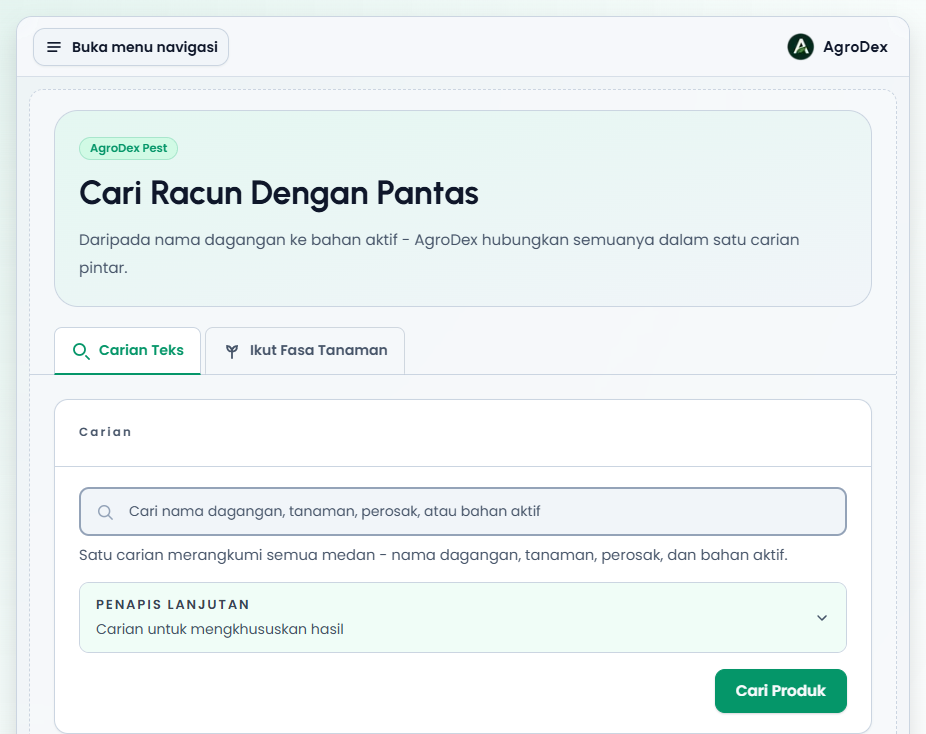
The default tab on /search is Text Search.
Main field
One search field covers everything: trade name, crop, pest, and active ingredient. The system matches partial words, so abam is enough to bring up Abamectin and related products.
The x button inside the field clears the text without running a search. The Find Products button runs the search and jumps straight to the results.
Advanced filters
The Advanced Filters panel opens one field: MOA Code. Enter a code such as 4A, M1, or 9 to limit results to that mode of action group. It works together with a keyword; for example padi + 4A returns rice products from the neonicotinoid group.
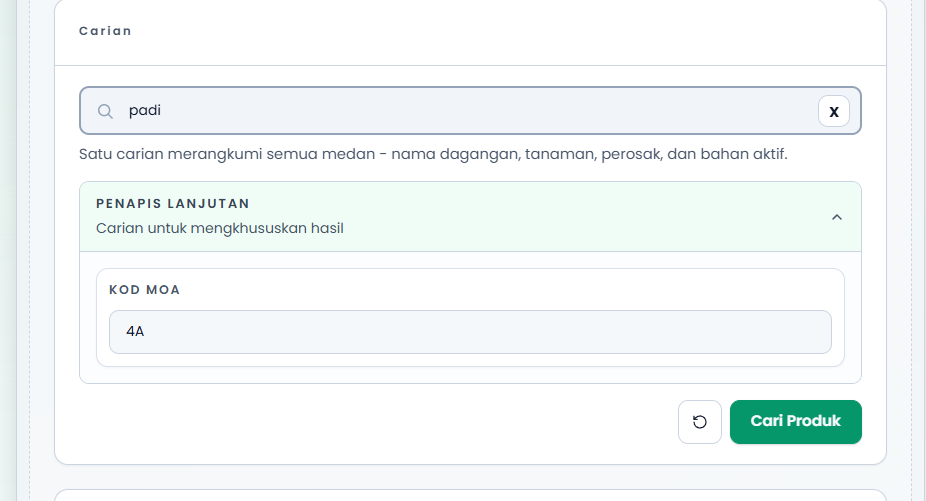
The panel opens by itself when the page loads with an MOA code already selected, for example when you arrive from a shared link.
Reset button
When a keyword or filter is active, a round button with a rotating arrow icon appears next to Find Products. It clears every keyword, usage filter, crop filter, and MOA code in one go.
4. Usage filters
The Usage Filters bar classifies the whole archive by the usage type recorded in the product data.
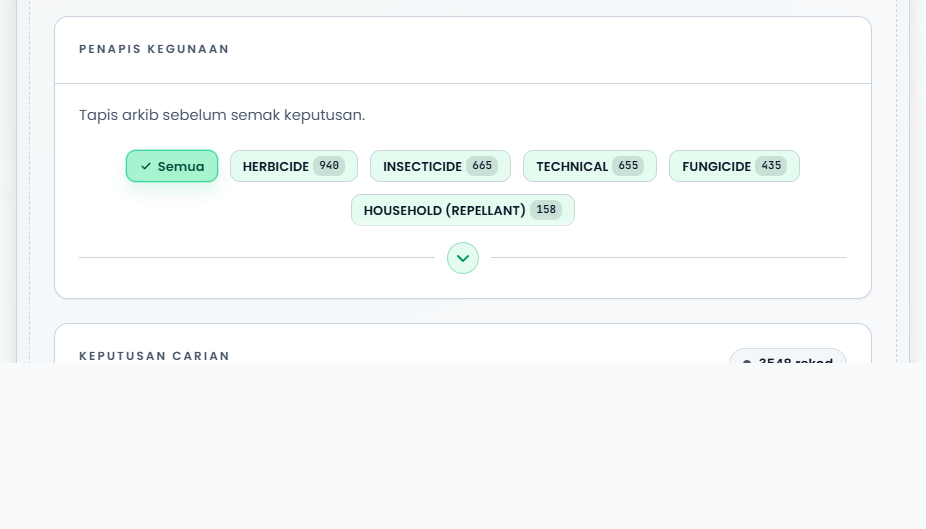
| Item | Meaning |
|---|---|
| All | No usage filter |
| HERBICIDE | Weed control |
| INSECTICIDE | Insect control |
| TECHNICAL | Technical material, not a finished field product |
| FUNGICIDE | Fungus control |
| HOUSEHOLD (REPELLANT) | Household use and repellents |
The number beside each label is its record count. Categories are sorted from the largest count downwards. The bar can be collapsed with the arrow on its bottom row.
Usage filters combine with a keyword and an MOA code. Every active filter is restated in the description line above the results, together with the number of records left. That line helps you confirm which filters are still in force before you interpret the results.
5. Result views
Every result set shares the same header: the Query Results label, a summary title, the record count, and three view buttons.
| Button | Description |
|---|---|
| Cards | One card per product |
| Table | One row per product, best for quick comparison |
| Grouped | Products arranged under each crop and pest pair |
Card view
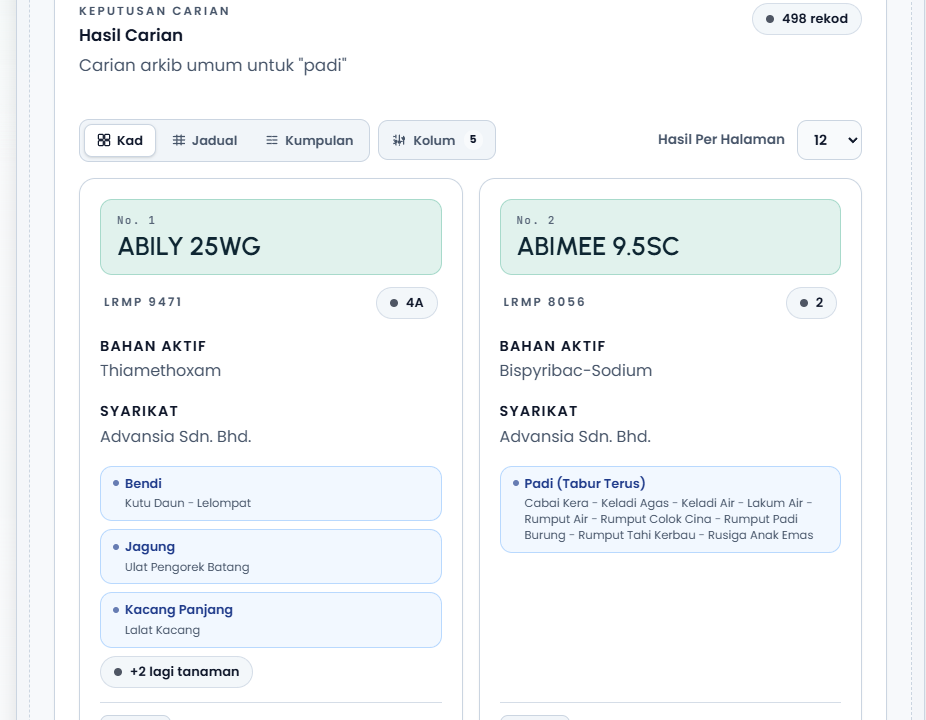
Each card shows:
- The record number within the result set and the trade name.
- The LRMP, the product registration number.
- The MOA code in a badge. If there is none, a No MOA code label is shown instead.
- Active ingredient and Company.
- The Crop / Pest groups, with pests listed under each crop. When there are more than three groups, a +N more crops button opens the rest.
- A Flow button to add the product to the MOA Relationship Map.
- A View registration details link.
Table view
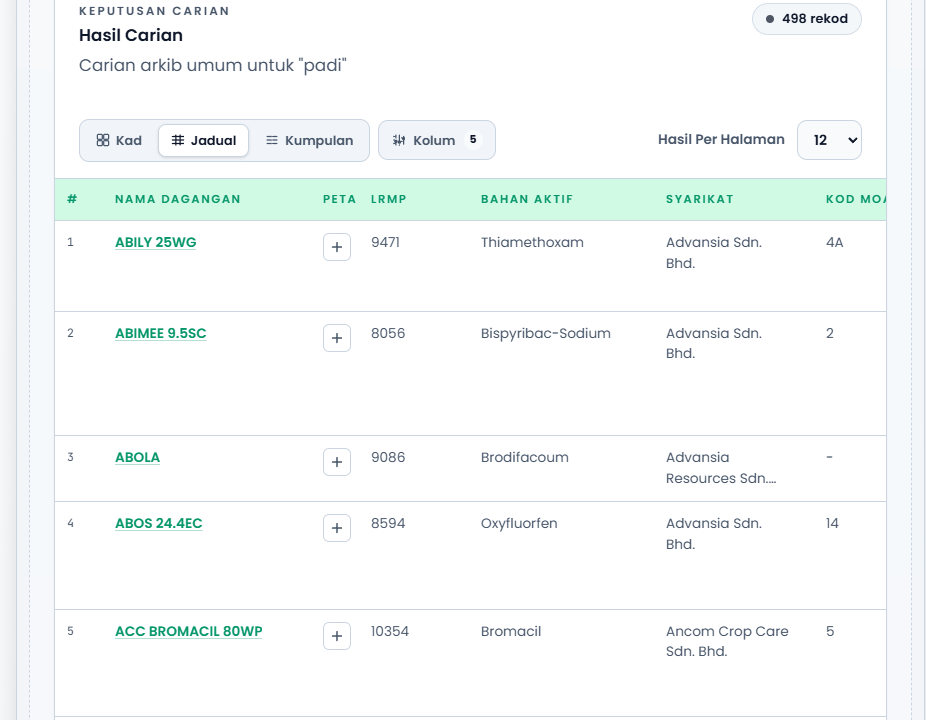
The default columns are the row number, Trade Name, Flow, LRMP, Active ingredient, Company, MOA Code, and Crop / Pest. The Columns button opens display settings so you can hide fields you do not need. Trade Name always stays visible.
The + button in the Flow column adds that product to the MOA Relationship Map.
On a phone the table scrolls sideways. Use Columns to reduce the fields if the table is hard to read on a small screen.
Grouped view
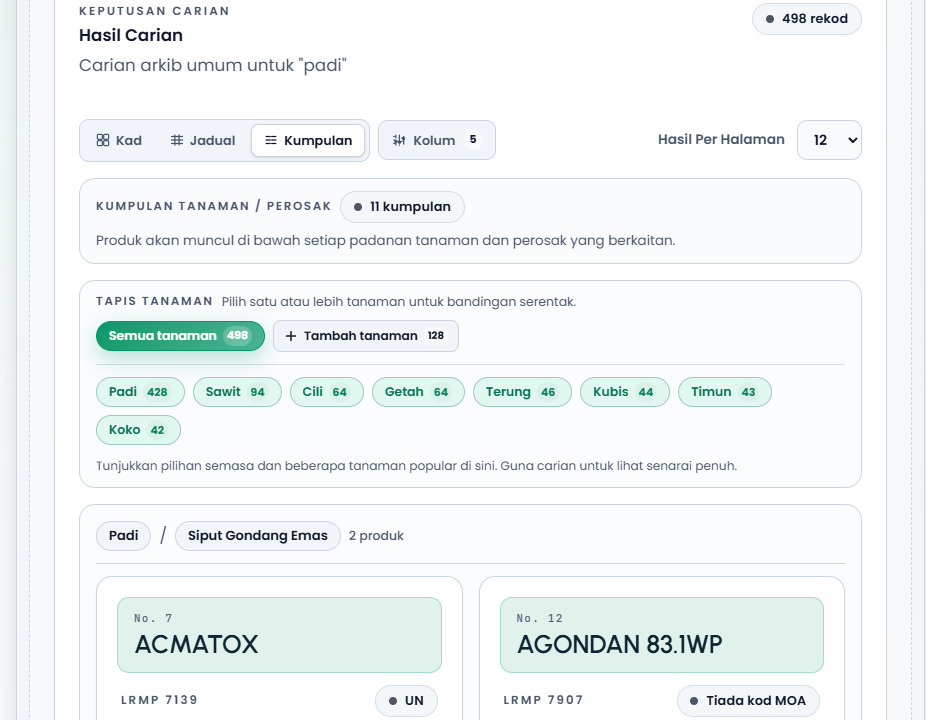
Each group is one crop and pest combination, for example Padi / Siput Gondang Emas. The matching products are listed beneath it.
| Control | Description |
|---|---|
| Filter crops | Pick one or more crops for a side-by-side comparison |
| Add crops | Open the crop picker with search |
| Clear | Remove every active crop filter |
Records without crop or pest metadata are shown in a separate section at the end of the page.
Results per page
The Results per page control offers 12, 24, or 48 records. Below the list, Previous and Next navigation plus a Showing x of y records line let you move between pages without losing the current filters.
6. By Growth Stage
The second tab on /search filters products by crop growth stage instead of by keyword.
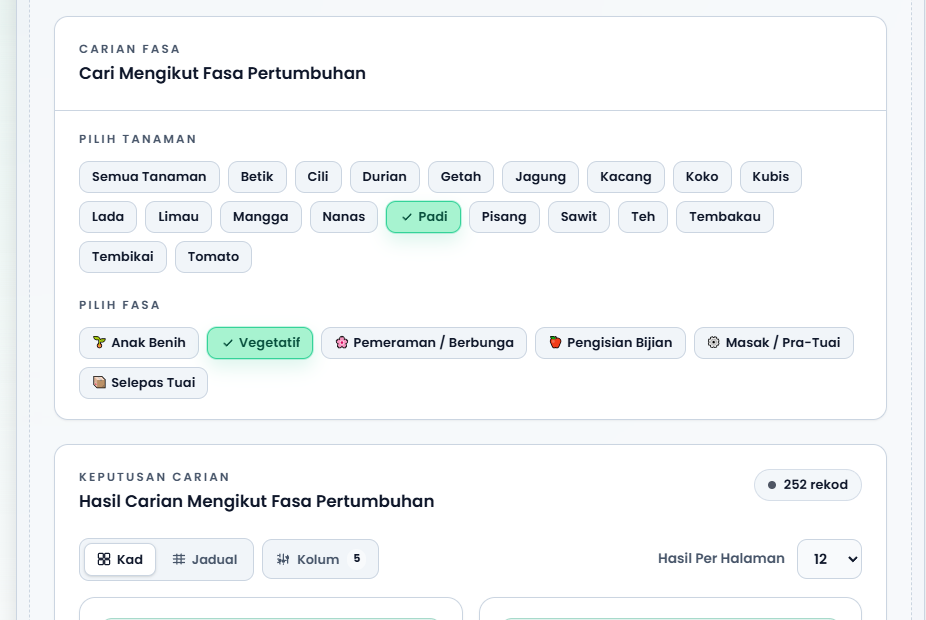
- Pick a crop from the Select Crop list. All Crops means no crop filter.
- Pick a stage from Select Stage.
- Results appear below with their record count.
Stage names differ per crop. For example padi uses Seedling, Vegetative, Heading / Flowering, Grain Filling, Ripening, and Post-Harvest, while sawit uses names such as Nursery and Immature (under 3 years). When a crop has no dedicated list, the generic set is used: Seedling, Vegetative, Flowering, Fruit Development, Pre-Harvest, and Post-Harvest.
| Generic stage | Meaning |
|---|---|
| Seedling | The early stage after sowing or transplanting |
| Vegetative | Leaf and stem growth |
| Flowering | Flower formation |
| Fruit or yield filling | Fruit set and grain or fruit filling |
| Pre-Harvest | Approaching harvest |
| Post-Harvest | After harvest |
If you do not pick a stage, the system selects one automatically once the stage list loads. Changing the crop resets the stage choice.
Stage results also offer Cards and Table views with a Columns button. The crop, stage, and page selections are stored in the page address, so that link can be shared or bookmarked.
7. Pesticide detail
The detail page opens from View registration details on a card or a table row.
Page header
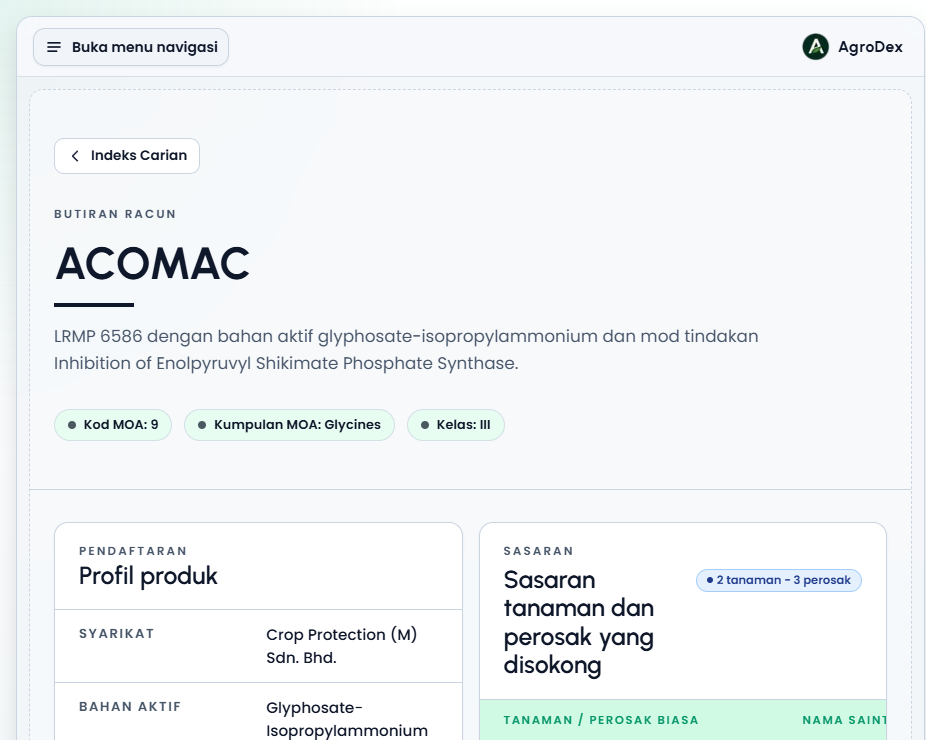
The top of the page shows the trade name, a summary sentence (LRMP, active ingredient, mode of action), and three badges: MOA Code, MOA group, and Class.
Product profile
| Field | Meaning |
|---|---|
| Company | The registration holder |
| Active ingredient | The substance that acts on the pest |
| Mode of action | How the active ingredient works |
| MOA Code | The mode of action group code |
| MOA group | The group name, for example Glycines |
| Pesticide class | The hazard class on the label |
| Formulation | The product form, for example SOLUBLE CONCENTRATE (SL) |
An Expired label appears when the expiry date has passed, and Expiring soon when that date falls within a month. Avoid buying old stock that is close to expiry.
Targets
The Targets card lists the supported crops and pests. Each crop becomes a row header, and its pests are listed underneath with their scientific name. A badge above the table summarises the totals, for example 2 crops - 3 pests.
If there are no target records, the message No target records are attached to this LRMP yet is shown. That means the registration data does not state targets for the product; it does not mean the product is invalid.
The View official registry link opens the original record on the Department of Agriculture portal for final verification.
8. MOA index
The /moa page collects the three mode of action classification systems used in Malaysia.
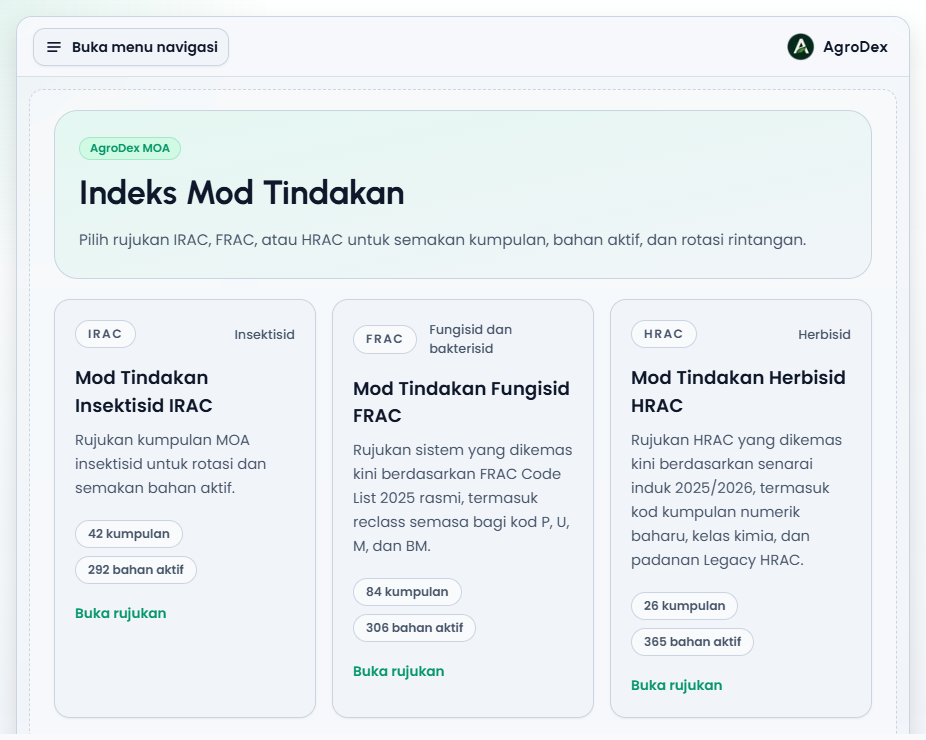
| Scheme | Domain | Source in the app |
|---|---|---|
| IRAC | Insecticides and acaricides | IRAC v11.5 |
| FRAC | Fungicides and bactericides | FRAC Code List 2025 including reclass codes P, U, M, and BM |
| HRAC | Herbicides | HRAC 2025/2026 with numeric group codes, chemical classes, and Legacy HRAC mapping |
Each card shows its group count and active ingredient count, plus an Open reference link.
Three tabs inside one scheme
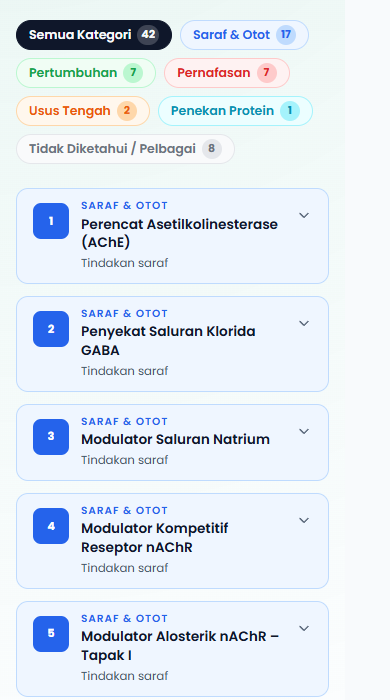
| Tab | Use it for |
|---|---|
| Card | Reading one group at a time, with subgroups and active ingredients |
| Table | Comparing many groups on one screen |
| Search | Finding an active ingredient and seeing its group and site of action |
In the Card tab, category chips above the list filter it. IRAC categories include Nerve & Muscle, Growth & Development, Respiration, Midgut, Protein Suppressors, and Unknown / Others. The number on each chip is its group count. Each group card expands into its subgroups, active ingredients, and extra comments.
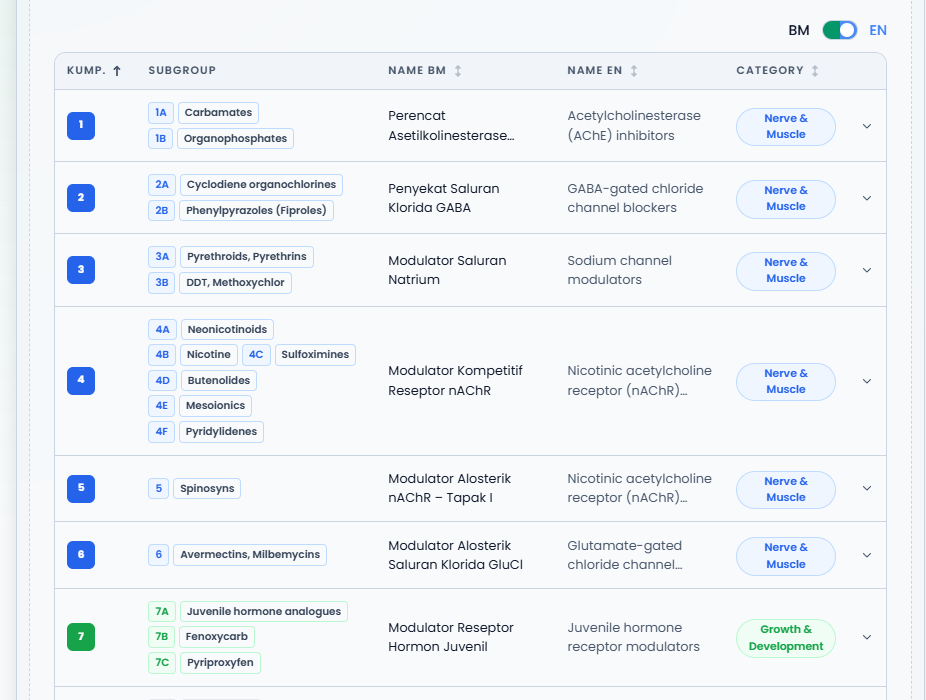
The Table tab shows the Group, Subgroup, Name BM, Name EN, and Category columns. Click a column heading to sort, and click a row to expand its subgroups and active ingredients. The BM / EN switch changes the language of the group names; on a small screen one language column is hidden so the table stays readable.
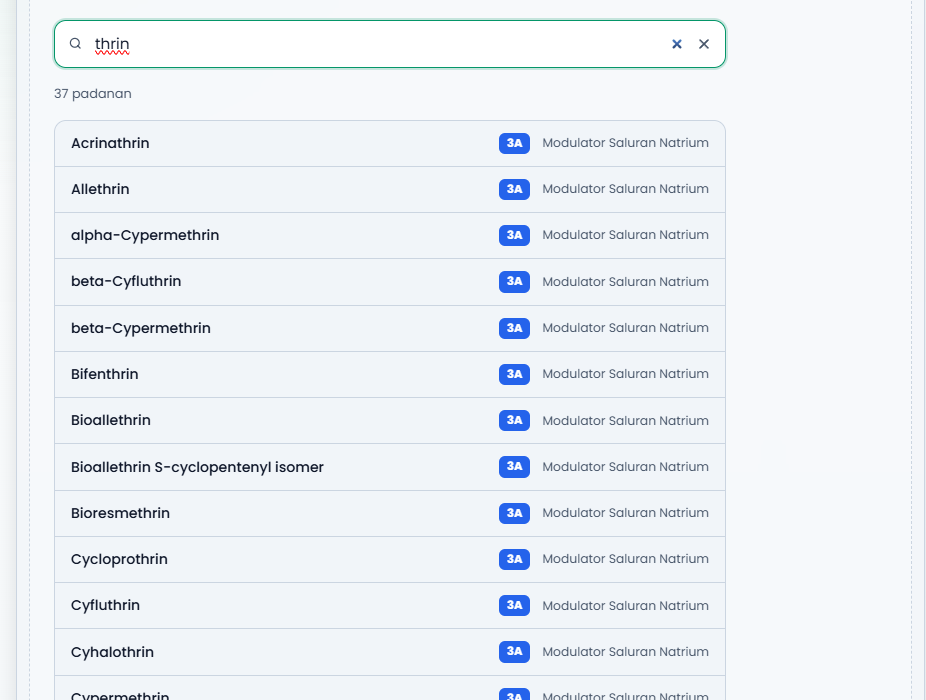
The Search tab filters the active ingredient list by the letters you type. For example thrin brings up every pyrethroid-type active ingredient with its group code and mechanism. Each row shows the active ingredient name, the group code, and the site of action.
9. MOA Relationship Map
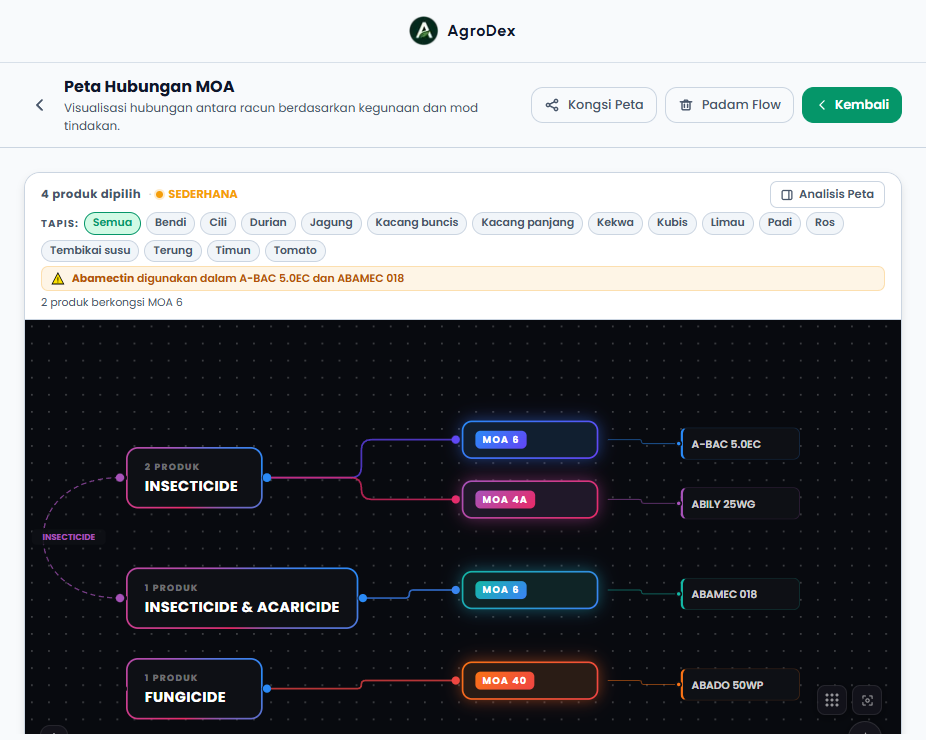
/map is a rotation planning tool. It reads the list of products you selected and draws the relationship between usage, MOA groups, and products.
Adding and removing products
| Way | Action |
|---|---|
| The Flow button on a search card or row | Adds that product |
| The same button when already selected (Remove from Flow) | Removes that product |
| Clear Flow in the top bar | Empties the whole map |
Your selection is stored in the browser, so it is still there when you come back. The top row shows how many products you picked and the overall risk level: LOW, MODERATE, or HIGH.
Reading the canvas
Nodes are arranged in three layers:
- Usage on the left, for example INSECTICIDE and FUNGICIDE.
- MOA groups in the middle, for example MOA 6 and MOA 4A. These nodes show how many products sit in that group.
- Products on the right, one per trade name you selected.
Warnings appear when there is a risk:
- The yellow line above the canvas lists repeated active ingredients, for example "Abamectin digunakan dalam A-BAC 5.0EC dan ABAMEC 018".
- The line below states how many products share a group, for example "2 produk berkongsi MOA 6".
- An exclamation mark on a group node flags a group holding more than one product.
Click a node to highlight its connections. Use the mouse wheel or the zoom buttons to enlarge the canvas, and Reset view to return to the starting arrangement.
Filter
The Filter chips above the canvas screen the map by crop. That crop list is built from your selected products, so it changes with your current selection.
Canvas settings and export
| Control | Function |
|---|---|
| Share Map | Copies a link containing your product selection |
| Scheme | Switches the canvas colour style between Turbo and Classic |
| Unlocked / Locked | Allows or blocks moving nodes |
| Export map | Save as PNG, Save as PDF, Export CSV, or Export JSON; the export background can be set to Dark or White |
| Toggle background | Switches the working canvas background |
Use the White background before saving a PNG or PDF for printed material. CSV and JSON files are useful when you want to keep the product list as a working record.
Map Analysis
The Map Analysis button opens a panel with three sections.
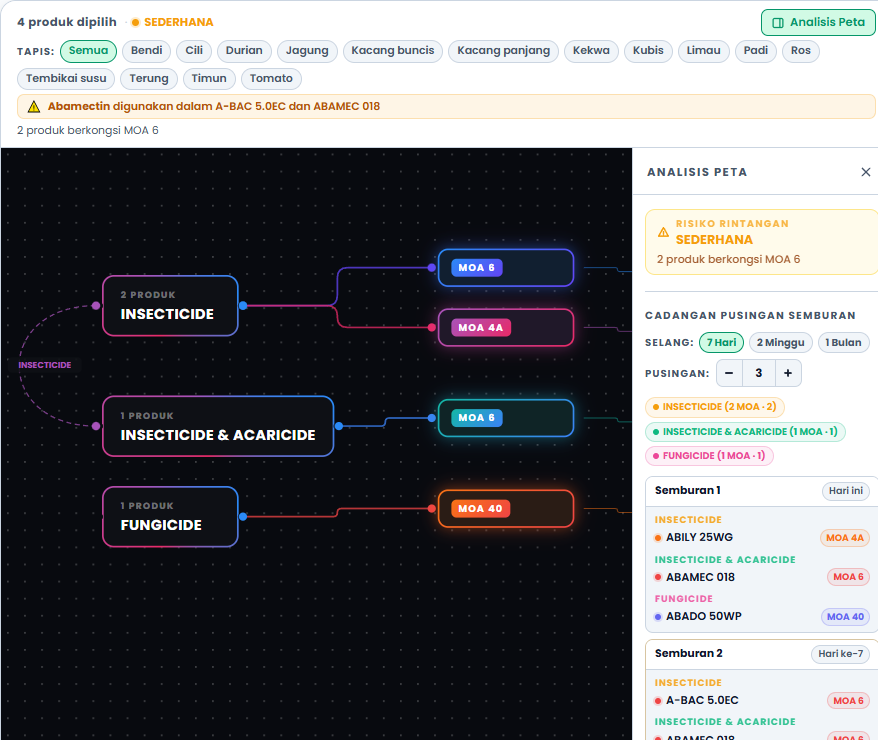
Resistance Risk. Shows the overall level and the repeated MOA groups. For example MODERATE with the note "2 produk berkongsi MOA 6".
Spray Rotation Suggestion. Arranges your products into alternating rounds so the MOA changes at every round.
| Control | Description |
|---|---|
| Interval | 7 Days, 2 Weeks, or 1 Month between rounds |
| Rounds | How many rounds to plan |
| Round list | Each round is labelled Spray 1 - Today, Spray 2 - Day 7, and so on |
Every product row shows its MOA code. A red warning appears when a choice repeats the previous round: "Same product as previous spray" or "MOA repeated from previous spray". If all your products share one MOA, the panel states that there is no alternative MOA.
Map Statistics. Summarises the product count, unique MOA count, unique active ingredient count, usage category count, and the most used MOA group.
10. Concepts and terms
| Term | Meaning |
|---|---|
| LRMP | The product registration number with the Pesticide Board |
| Active ingredient | The substance in the product that acts on the pest |
| MOA | Mode of Action, how a pesticide acts on a pest |
| MOA Code | The group label, for example 4A for neonicotinoids |
| MOA group | The full group name for that code, for example Glycines |
| Pesticide class | The hazard class on the label, usually I to IV |
| Usage |
11. Display settings
| Setting | How to change it | Where it is kept |
|---|---|---|
| Language BM or EN | The language switch in the sidebar or landing page | Browser (local storage) |
| Light or dark theme | The theme toggle in the sidebar | Browser and a cookie |
| Result view | Cards, Table, Grouped buttons | Browser |
| Table columns | The Columns button | Browser |
| Map selection |
Language does not change the data itself; trade names and active ingredients stay as recorded. MOA group names and descriptions can be switched between BM and EN inside the MOA index.
12. Other useful notes
- Data source. All records come from the Pesticide Board, Department of Agriculture Malaysia. The Data Source & Disclaimer block below the search results contains the official link and the full disclaimer.
- Verify before use. Registration status, expiry dates, and approved usage can change. Use the View official registry link before you buy or spray.
- Performance. Searches are served by the backend and rate limited to protect the service. If a result set is too large, add a usage filter or a more specific keyword.
- Farm work. To record activities, costs, and PHI after choosing a pesticide, use the Farm module.