
The complete reference for the AgroDex Farm module. Each section matches one screen or one feature.
New here? Start with the Farm Quick Start.
1. Module overview
AgroDex Farm is where you record and manage day-to-day farm work: what is planted, what has been done, what it cost, and when it is safe to harvest.
Anyone with an AgroDex account can use this module. There is no separate subscription and no special role required to begin.
Data structure
Farm
|-- Plot 1
|   |-- Activities (fertilizer, pest control, harvest, and more)
|   |-- Seasons (planting cycles: Season 1, Season 2, ...)
|   \-- Photos, notes
|-- Plot 2
|-- Expenses (receipt photos, credit)
\-- Inventory (pesticide, fertilizer, equipment stock)
Roles: Owner and Supervisor
Every farm has one owner and one supervisor (optional).
| Action | Owner | Supervisor |
|---|---|---|
| View the farm and all plots | Yes | Yes |
| Record activities | Yes | Yes |
| Add, edit, delete plots | Yes | Yes |
| Record expenses and inventory | Yes | Yes |
| Delete the farm | Yes | No |
| Change the supervisor | Yes | No |
The owner is the person who created the farm. To give someone else access, fill in Supervisor (Manager) with that person's user ID when creating or editing the farm.
Important: a supervisor sees your farm, and farms that other owners have linked to them also appear on their dashboard. A supervisor is not the data owner - they cannot delete the farm.
Desktop sidebar
| Menu | Goes to |
|---|---|
| Farm Dashboard | /farm |
| Current Farm | The farm detail page you are currently inside |
| Current Plot | The plot detail page you are currently inside |
| Expenses | Expenses for the farm you are currently inside |
The last two entries only appear once you are inside a farm or a plot.
Mobile bottom bar
| Button | Goes to |
|---|---|
| Home | /farm |
| New Farm | /farm/new |
Breadcrumb
Inside farms and plots, the breadcrumb at the top lets you jump straight back to the Dashboard or the Farm instead of pressing back repeatedly.
3. Farm Dashboard
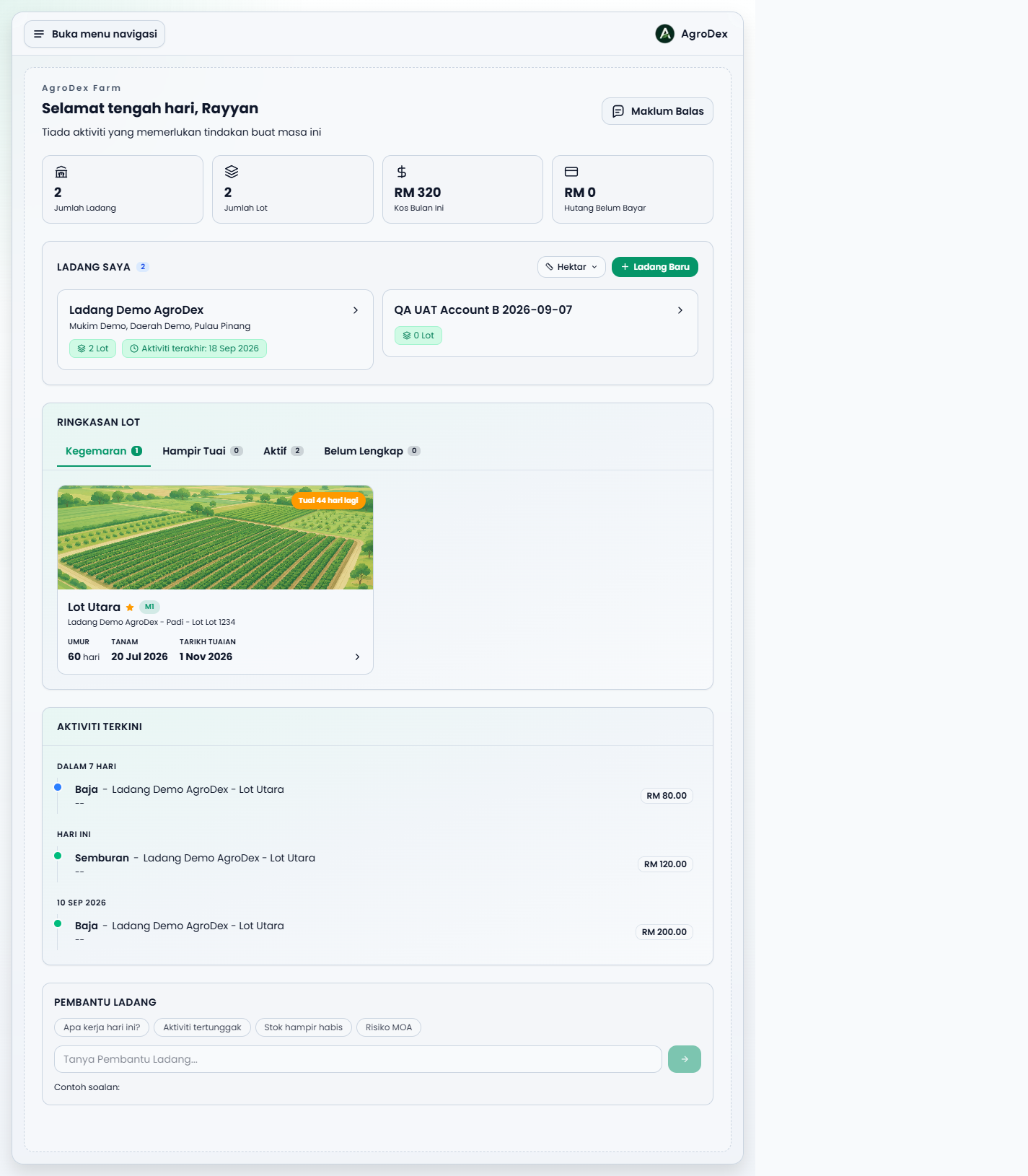
The home page of the Farm module: /farm.
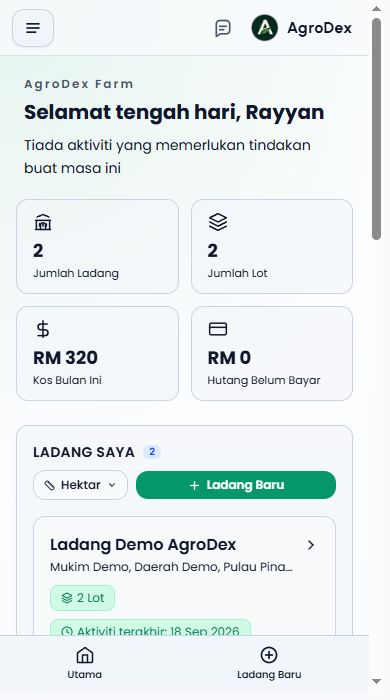
Phone view:
Greeting and status
The top of the page shows a greeting based on the time of day (Good morning, Good afternoon, or Good evening) together with a status summary. The status reads one of:
- "No activities need attention at the moment" - everything is under control.
- A count of overdue activities and/or activities due today.
Stat cards
| Card | Meaning |
|---|---|
| Total Farms | Number of farms you own or manage |
| Total Plots | Number of plots across all farms |
| This Month Cost | Total expenses for the current month |
| Unpaid Credit | Credit expenses you have not settled yet |
The Unpaid Credit card changes colour when there is outstanding credit, so it stands out at a glance.
Plot summary: four tabs
Your plot list is split into four tabs. Each plot card shows the cover image, farm name, crop, lot number, and an alert if there are overdue or due-today activities.
| Tab | Contents |
|---|---|
| Favorite | Plots you starred |
| Near Harvest | Plots whose harvest date is approaching |
| Active | Plots with a crop and activities in progress |
| Incomplete | Plots missing key details, for example a plant date |
The tab that opens first depends on what is in your account. If you already have favourite plots, that tab opens first.
Marking a favourite: open the plot, then press the star icon on the plot hero. The plot then appears in the Favorite tab and in the sidebar.
Recent Activities
A list of recent activities across all your farms, showing only a small initial number. Use Load more to bring in more.
New users
If you do not have a farm yet, the dashboard shows a three-step guide (create a farm, add a plot, record activities) with a Create your first farm button. This is not an error - it is the intended starting flow.
If you already have a farm but no plots, the dashboard asks you to add a plot.
Farm Assistant
A help panel on the dashboard. See section 9 below.
4. Farms
Create a farm
/farm/new, or the Create your first farm button on the dashboard, or New Farm in the mobile bottom bar.
| Field | Required? | Description |
|---|---|---|
| Farm Name | Yes | The name that appears throughout the system |
| Mukim / Area | No | For example Sungai Dua |
| District | No | For example Seberang Perai Utara |
| State | No | For example Pulau Pinang |
| Area |
Tip: you can also add plots during farm creation using the Add plot (optional) option on the same page.
Edit a farm
On the farm detail page, press the edit icon on the farm information panel. Every field from the create form can be changed, including adding or removing the supervisor.
Delete a farm
On the farm detail page, choose Delete. The system asks you to type the farm name to confirm. This action is permanent:
- All plots, activities, photos, and expenses for that farm are deleted too.
- There is no undo after you confirm.
Farm area versus total plot area
Farm area is the overall figure you enter yourself. Total plot area is calculated by adding up the plots you created. Both are displayed separately, so do not be surprised if the numbers differ - for example if you have not yet split every part of the land into plots.
5. Farm Detail
Reached from the dashboard, the sidebar, or the breadcrumb.
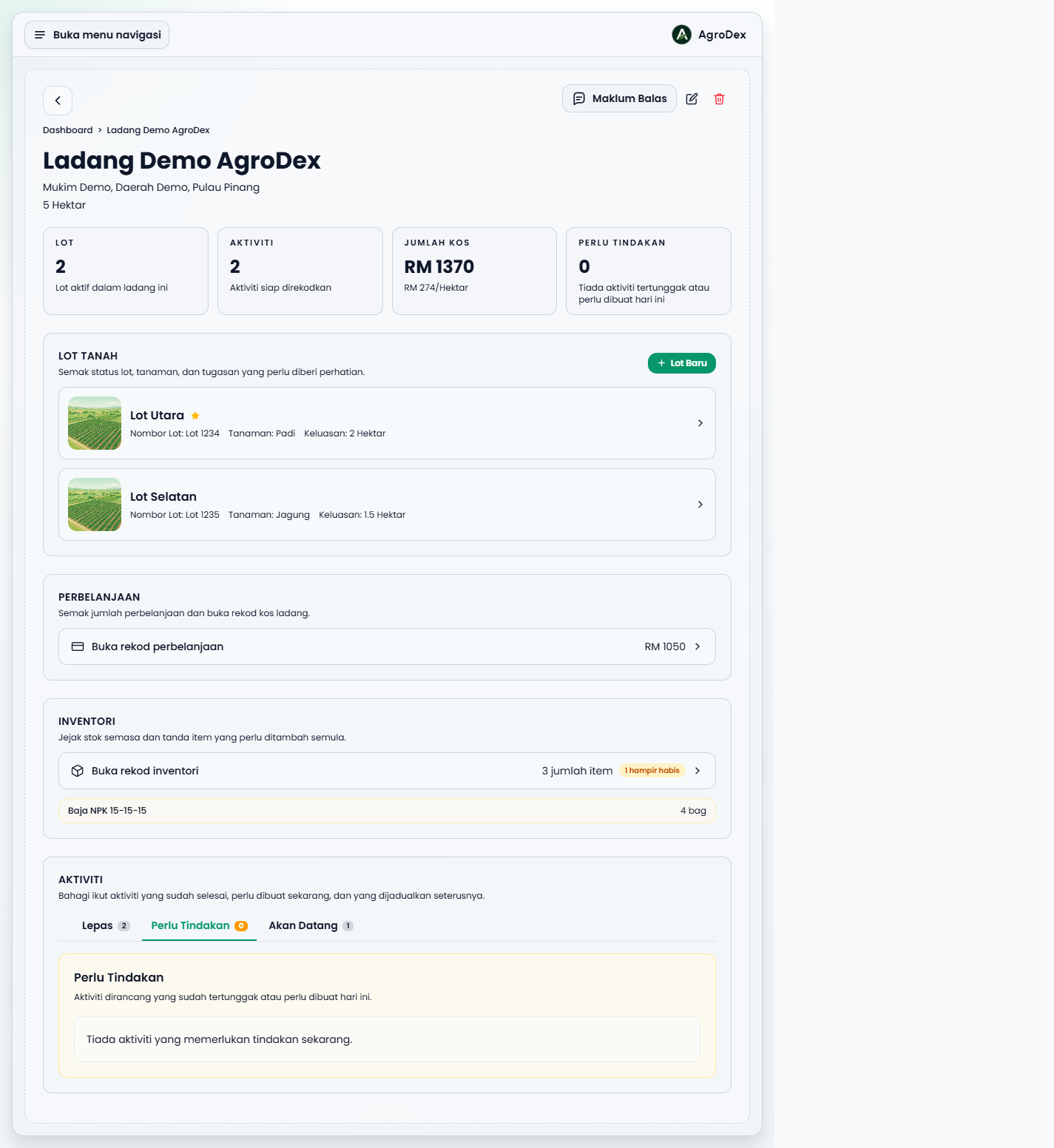
Farm summary
Four cards at the top show:
| Card | Meaning |
|---|---|
| Plots | Number of plots on this farm |
| Activities | Number of completed activities recorded |
| Total Cost | Total activity cost, with cost per area unit shown beneath |
| Needs Attention | Count of overdue or due-today activities |
Plot list
Each plot appears as a card with:
- The plot cover image, or a default image
- Plot name, lot number, and crop
- Crop age and estimated days to harvest (when a plant date is set)
- A favourite marker
- An alert if there are overdue or due-today activities
- The active season badge (for example
M2for Season 2) and last season yield, when present
Activity board: three sections
Farm activities are split into three tabs, each of which loads independently with Load more:
| Tab | Meaning |
|---|---|
| Past | Activities that are already completed |
| Needs Attention | Activities scheduled for today or already overdue |
| Upcoming | Activities scheduled for the future |
Each tab starts with a small number of records; press Load more to add more.
Action alerts
The alerts panel shows what needs your attention, including:
- Overdue activities
- Activities that must be done today
- Unpaid credit
- Detected MOA rotation risk
- PHI warnings
When nothing needs attention, the panel says so. That means the system checked and found everything under control - it is not an error.
Expenses and inventory
The farm page also shows two summary panels:
- Expenses - the total expense cost with an Open expense records link
- Inventory - item count, low-stock count, the list of items needing replenishment, and an Open inventory records link
Full details are in sections 7 and 8.
Buttons on the farm page
| Button | Function |
|---|---|
| New Plot | Add a new plot |
| Edit farm | Change farm details, including the supervisor |
| Delete | Delete the farm and all related data |
| Feedback | Send feedback without leaving the page |
6. Plot Detail
The most important screen in Farm. All activity recording happens here.
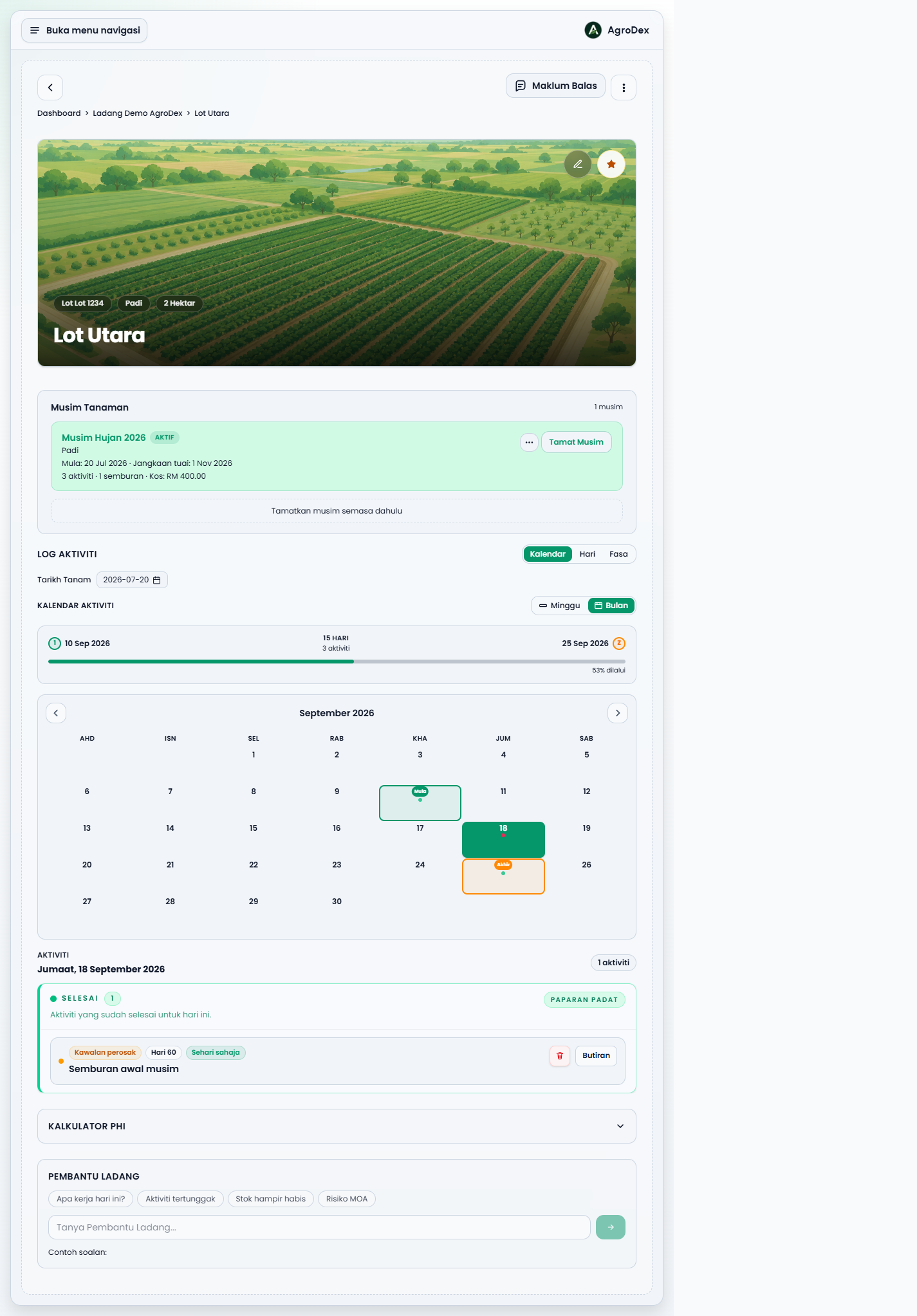
6.1 Hero and favourite
The top of the page shows the plot image. You can:
- Change the image by uploading your own
- Mark the plot as Favorite using the star icon
- Edit plot details (name, number, crop, area, plant date)
- Delete the plot
6.2 Timeline and calendar
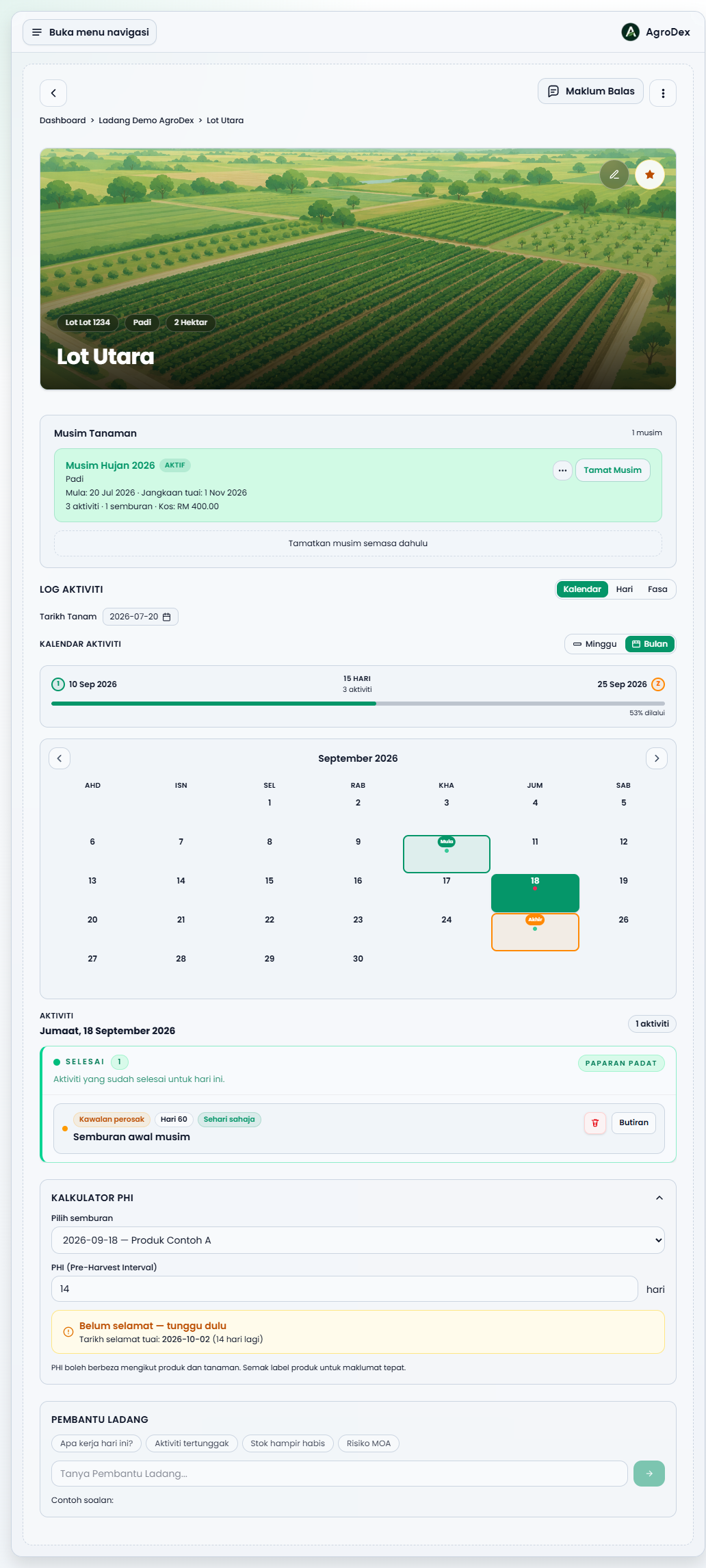
The Activity Log area shows all activities on the plot. There are three view modes:
| Mode | Use it for |
|---|---|
| Calendar | A calendar with markers on days that have activities |
| Day | Focusing on a single day, useful for planning today's work |
| Phase | Activities grouped by crop phase |
Within Calendar mode you can switch between Week and Month. A summary strip above the calendar shows the date range, the number of activities, and the percentage of the season already elapsed.
The Plant Date field above the calendar determines which day you are on. Each activity is labelled with its day, for example Day 60.
Each activity card lets you:
- Details to expand the card, or Collapse to close it again
- Edit Activity to correct the record
- Done to mark a Planned activity as complete
- Delete the activity
- View attached photos
On a day that has activities, cards are grouped by status, for example a Done section, so it is clear what has been completed and what has not.
Activities that span several days are split into sections such as Starting today, In progress, and Ending today, so it is clear what is happening right now.
Changes in one browser tab are synchronised to other tabs for the same plot.
6.3 Activity log
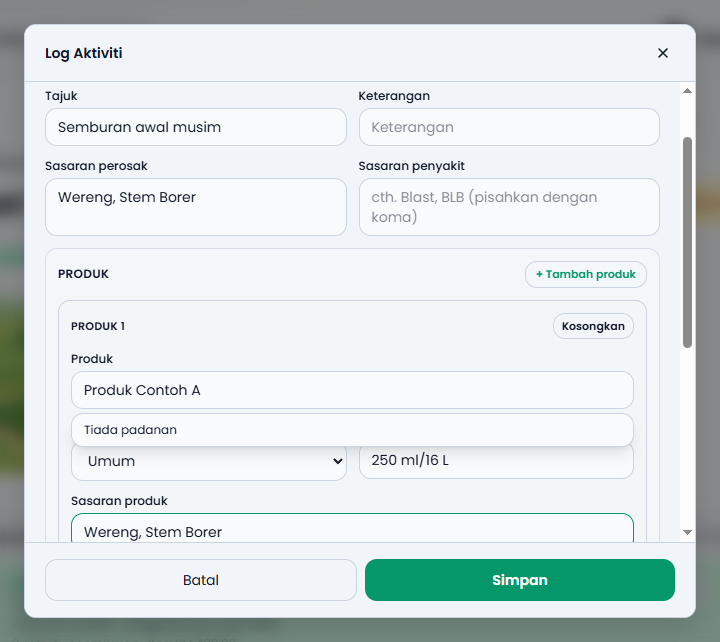
The Log Activity button opens the manual recording form.
Important: a plot needs an active season before you can record activities. If there is no active season, the system opens the Start New Season form first. See section 6.7.
Available activity types:
Fertilizer, Pest control, Disease control, Scouting, Weed control, Land prep, Planting, Harvest, Other.
Choosing Pest control or Disease control reveals the Product section.
| Field | Description |
|---|---|
| Activity Type | One of the types above |
| Date | The date the work was done. Defaults to today |
| Title | A short name, for example Early season spray |
| Description | Extra detail, if needed |
| Pest targets | A list of pests, comma separated |
| Disease targets | A list of diseases, comma separated |
| Product | One or more products. Each product has Product role, Dose / Rate, and Product targets |
Product role determines how the product is counted in analysis, for example Pest, Disease, Nutrient / Fertilizer, Vitamin / Booster, Soil / Conditioner, or General.
Dose / Rate is a free-text field, for example 250 ml/16 L or 50 kg/ha.
Product: LRMP versus Manual. When you pick a product from the search, the activity is linked to LRMP. This enables features such as MOA rotation and alternative product suggestions. If your product is not in the list, type the product name directly - the text you type is saved as a manual product and the LRMP link stays empty.
6.4 Import a schedule
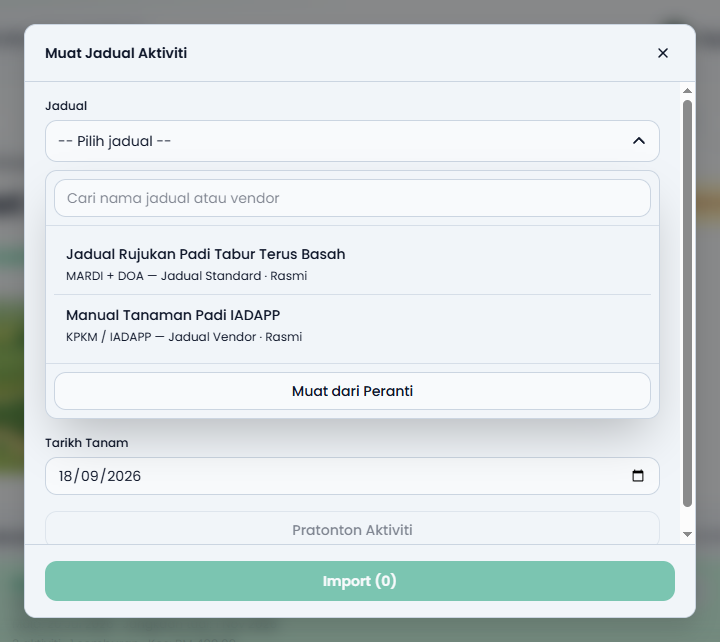
The Load Schedule button lets you load an entire activity plan at once.
Schedule sources:
| Source | Description |
|---|---|
| Standard Schedule | Official reference schedules provided by AgroDex, for example paddy |
| Vendor Schedule | Schedules uploaded by vendors |
| JSON File | Your own schedule file |
Workflow:
- Search for a schedule by name or vendor
- Select the schedule
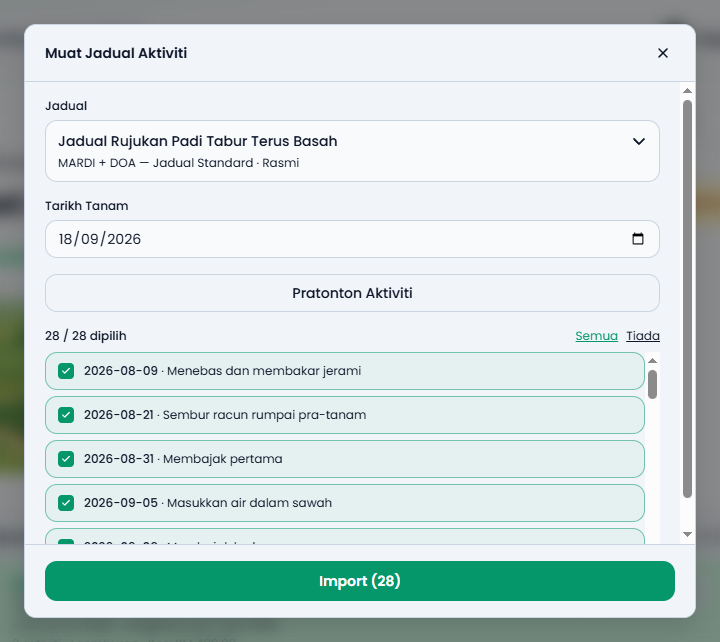
- Review the Activity Preview
- Set the starting date so the schedule days map onto real dates
- Press Import
Enter the PHI (Pre-Harvest Interval) value in days, taken from the product label.
- The system calculates and shows:porting replaces activities from the previous schedule import for
this plot. Your manual activities are not deleted. The system asks for confirmation before proceeding.
After choosing a schedule, press Activity Preview to see the list of activities that will be created. You can tick or untick activities, or use All and None, before pressing Import.
6.5 PHI Calculator
PHI (Pre-Harvest Interval) is the waiting period between the last spray and the time it is safe to harvest.
The PHI calculator answers one question: can I harvest now?
- Select a spray from the plot's spray activities.
- The system calculates and shows:
- The number of PHI days
- Whether it is Safe to harvest or Not yet safe - wait
- The Safe harvest date
- Days remaining, or how many days have passed
If no spray activities have been recorded, the calculator tells you to log a spray first.
Important note: PHI can vary by product and crop. Always check the product label for the accurate value. The number in the system is a planning aid, not a replacement for the label.
6.6 MOA Rotation Tracker
The Mode of Action (MOA) rotation tracker helps you prevent pests from becoming resistant to the same pesticide.
The tracker shows:
- The MOA sequence of recent sprays in this plot
- MOA codes used repeatedly in a row
- A Healthy rotation verdict or a risk warning
- The risk level: medium or high
The tip shown in the system: rotate MOA every 2-3 sprays to delay pest resistance.
This tracker is only meaningful when your spray activities are linked to LRMP products, because MOA codes come from product data. Sprays recorded manually without an LRMP link do not contribute to the rotation analysis.
If you use the same MOA repeatedly, this warning also appears on the dashboard and in the farm action alerts.
6.7 Crop seasons
A season is a planting cycle on one plot. For example Season 1 is wet-season paddy and Season 2 is the next paddy cycle.
Start a season before recording activities. A plot with no active season cannot accept new activities. This is because the season is how the system groups cost, sprays, and yield into the correct crop cycle.
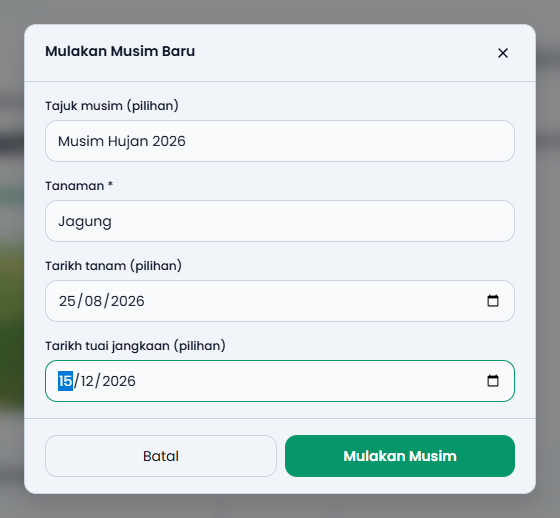
The Seasons panel lets you:
| Action | Description |
|---|---|
| Start New Season | Enter the season title, crop, plant date, and expected harvest date |
| End Season | Enter the actual harvest date, yield, and observations |
| View Activities | View activities belonging to a specific season, read only |
| Delete Season | Delete a season together with its activities |
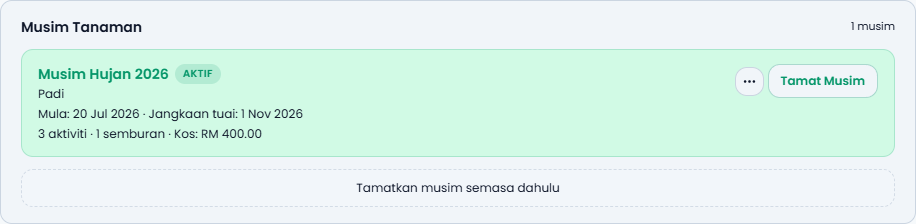
After a season ends, the plot has no active crop until you start a new season. The system asks whether you want to start a new season immediately.
History. Completed seasons remain on record and are marked as historical. Historical records cannot be edited. Use Back to current season to leave the history view.
The season summary shows the number of activities, number of sprays, total cost, and yield. This is what lets you compare performance across seasons.
Be careful with Delete Season. Deleting a season also deletes all of its activities. The system asks you to type the season name to confirm.
6.8 Export and print
| Button | Result |
|---|---|
| Export CSV | A CSV file for Excel or Google Sheets |
| Print PDF | A print-ready activity report for your records or to show a supervisor |
Use the export for your own analysis and the PDF for physical records.
6.9 Delete all activities
Available when you need to start over, for example after importing the wrong schedule. The system asks you to type a special confirmation word before proceeding. Activity photos are deleted as well.
7. Expenses
/farm/[farm]/expenses - money going out for the farm.
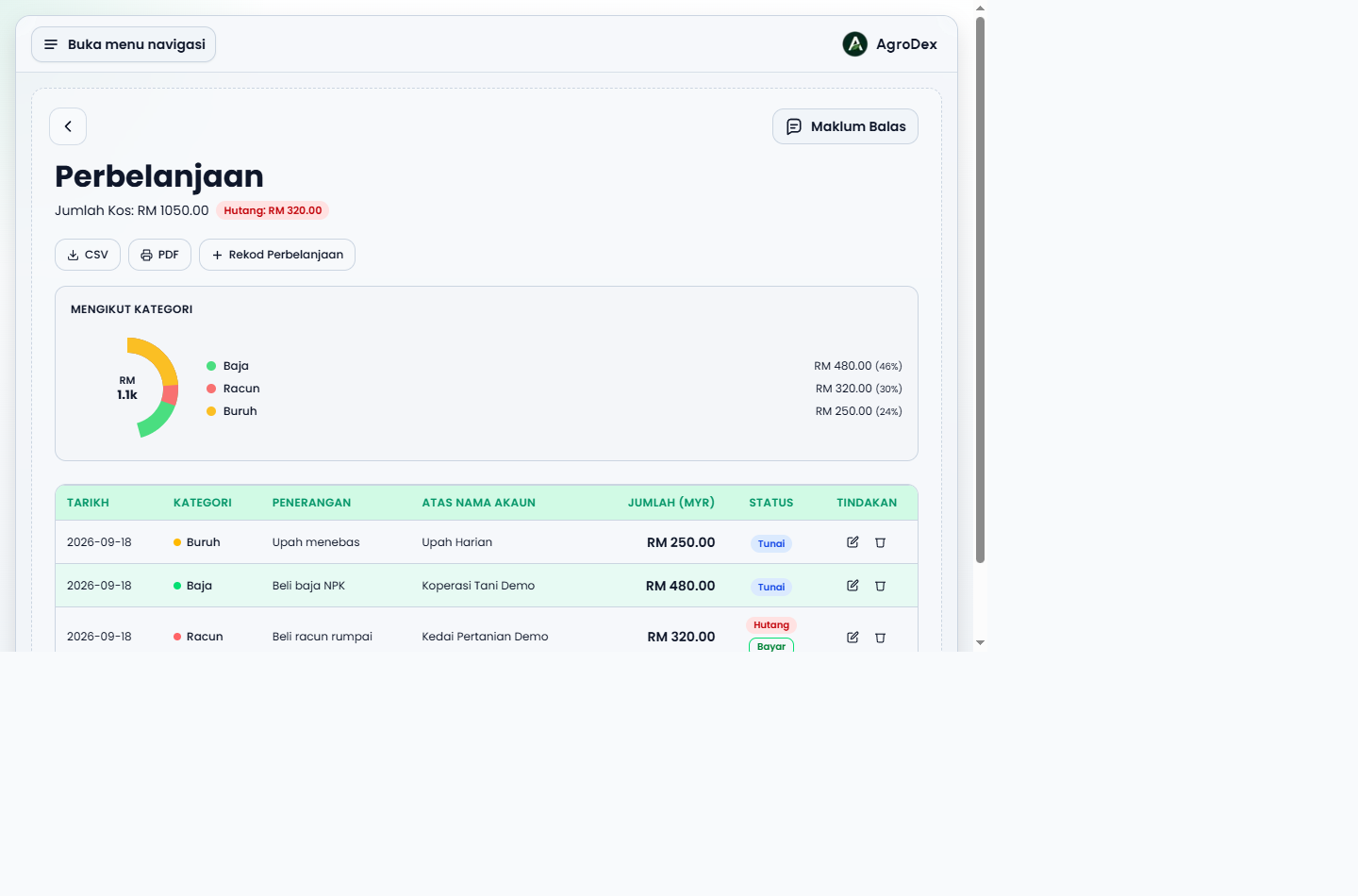
Page summary
The top of the page shows Total Cost and Credit (unpaid), followed by a cost breakdown By Category with a percentage for each category.
Recording an expense
The recording form opens within this page.
| Field | Description |
|---|---|
| Date | When the expense occurred. Defaults to today |
| Account Name | Who or which company the payment was made to |
| Category | Pesticide, Fertilizer, Equipment, Labour, or Other |
| Description | A short detail, for example Bought NPK fertilizer |
| Amount (MYR) | The expense value |
| Payment | Cash or Credit |
| Upload Image | Receipt or invoice |
Account Name
Account names are stored as separate records per farm. This means the same name is reused without retyping, and spelling variations no longer break your reports.
Cash versus Credit
- Cash means you have already paid.
- Credit means you owe the money. This amount appears on the dashboard as Unpaid Credit.
An expense marked Credit shows a Pay button. Press it once the debt is settled and the Credit total updates.
Table and export
The expense list is shown in a table with the columns Date, Category, Description, Account Name, Amount (MYR), Status, and Actions (Edit, Delete).
Two export buttons are available above the table:
| Button | Result |
|---|---|
| CSV | A CSV file for Excel or Google Sheets |
| A print-ready report |
8. Inventory
/farm/[farm]/inventory - track pesticide, fertilizer, and other material stock in your shed.
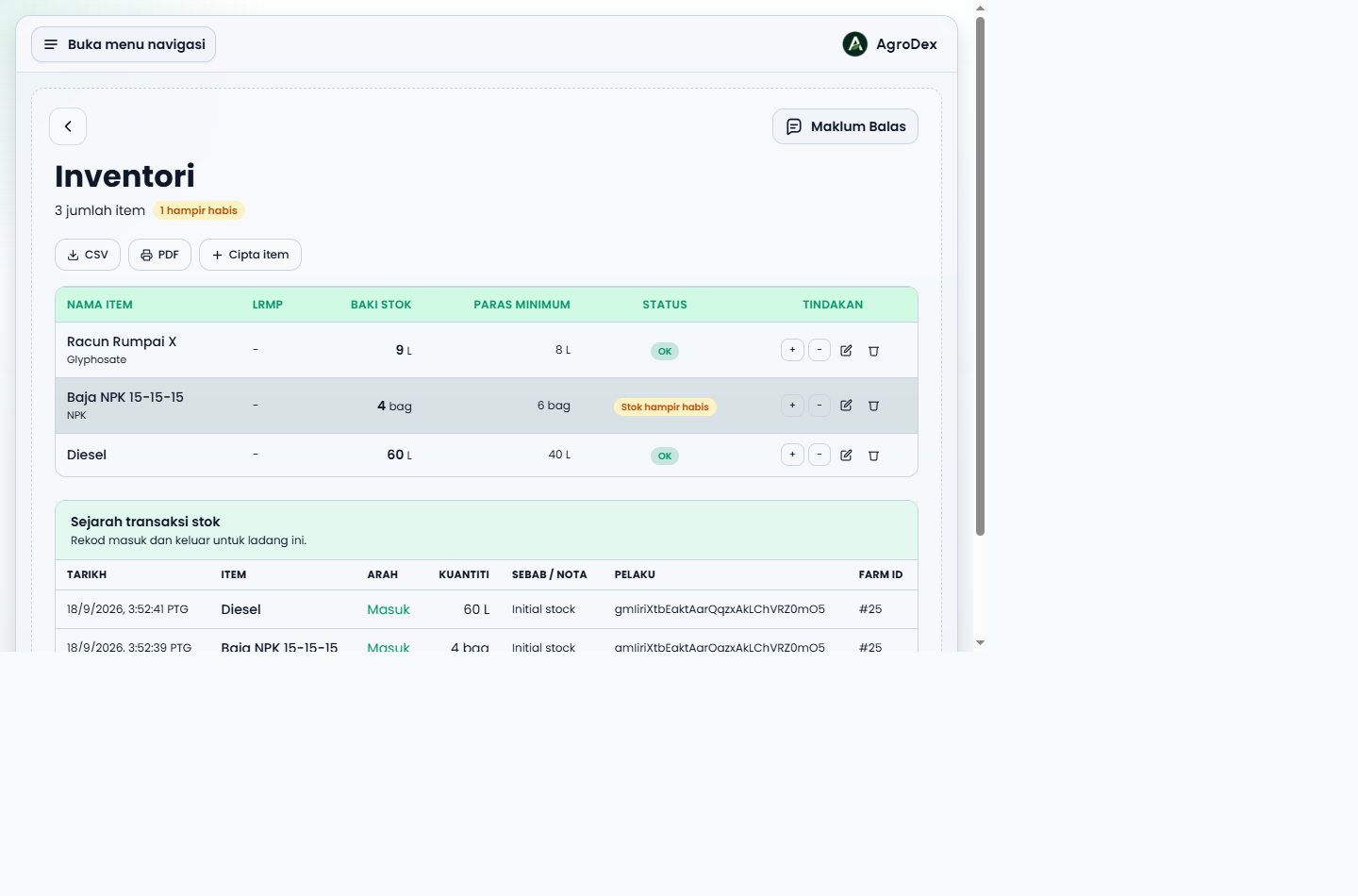
Inventory items
Press Create item to add a new item.
| Field | Description |
|---|---|
| Item name | The item name, for example Diesel or Pesticide X |
| LRMP | The LRMP product code, if this item relates to a registered pesticide |
| Active ingredient | The active ingredient, for example Glyphosate |
| Quantity | The current amount |
| Unit | The counting unit, for example L, bag, kg |
The item list is shown in a table with the columns Item name, LRMP, Stock remaining, Minimum threshold, Status, and Actions.
| Status | Meaning |
|---|---|
| OK | Stock is above the minimum threshold |
| Low stock | Stock has reached or dropped below the minimum threshold |
Adding and deducting stock
Use the + button to add stock and the - button to deduct stock on an item row. Every stock change is recorded as a transaction rather than simply overwriting a number, so the history stays auditable.
A new item starts with an Initial stock transaction that records the opening balance.
Stock transaction history
The Stock transaction history section lists every stock movement:
| Column | Meaning |
|---|---|
| Date | When the transaction was recorded |
| Item | The item involved |
| Direction | In or Out |
| Quantity | The amount changed |
| Reason / note | Why it changed, for example Initial stock or your own note |
| Actor | The user who recorded the transaction |
| Farm ID | A link back to the related farm |
Export
The inventory page also provides CSV and PDF buttons to save or print stock records.
Low stock warnings
When the quantity drops below the minimum threshold, the item is flagged as Low stock and appears in the farm action alerts and in the Farm Assistant.
Inventory suggestions
After you record a spray activity, the system can suggest a matching stock deduction, for example "Deduct 2 L of Pesticide X from inventory?". You can:
- Confirm deduct to accept the suggestion
- Ignore if you do not want to change inventory
This connects activity recording with real stock without you having to count twice.
9. Farm Assistant
A helper panel that appears on the dashboard and on the plot page.
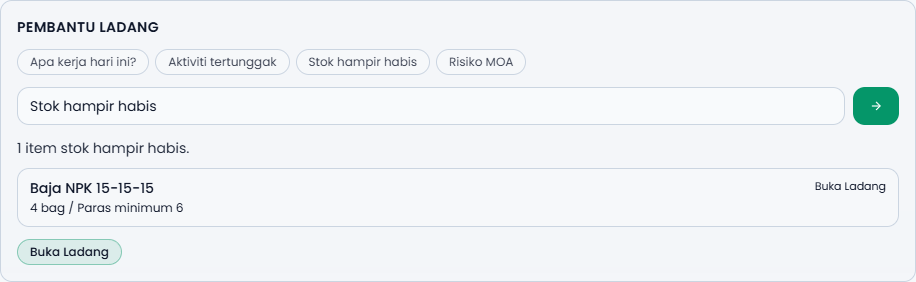
You can type a question in plain language, or press one of the quick prompts:
| Quick prompt | Answers |
|---|---|
| What are today's tasks? | Activities scheduled for today |
| Overdue activities | Activities past their date |
| Low stock | Inventory items below the minimum threshold |
| MOA risk | Repeated sprays using the same MOA |
Answers appear as a list of cards. Each card can be clicked to go straight to the related farm, plot, or activity. If the system does not understand your question, it suggests the quick prompts instead.
10. Concepts and glossary
| Term | Meaning |
|---|---|
| Farm | The top-level container. One area of land you manage |
| Plot | A section within a farm. Each plot has its own crop and plant date |
| Activity | Recorded work on a plot: fertilizer, pest control, disease control, scouting, weed control, land prep, planting, harvest, or other |
| Season | One planting cycle on a plot, from planting to harvest |
| PHI | Pre-Harvest Interval. The waiting period after spraying before harvest is safe |
| MOA | Mode of Action. The group describing how a pesticide works, per IRAC/FRAC/HRAC |
| MOA rotation |
Activity statuses
| Status | Meaning |
|---|---|
| Planned | Not done yet. Appears in Needs Attention or Upcoming |
| Done | Completed. Appears in Past |
| Skipped | Deliberately not done. Stays on record |
The Log Activity form only offers Done and Planned. A Skipped status can exist on records that came from a schedule import, and is displayed separately from overdue activities.
Area units
| Unit | Note |
|---|---|
| ha | Hectare |
| ekar | Acre |
| m2 | Square metre |
| Relong Kedah | Local Kedah unit |
| Relong P Pinang | Local Penang unit |
The display unit can be changed without altering your underlying data. Local unit names stay in their original language even when you switch between BM and EN, because they are official local units.
Photos
- Accepted formats: JPEG, PNG, WEBP
- Photos are compressed automatically before upload; you do not need to resize them yourself
- Size limit after compression: 4.5MB
- Activity photos are compressed up to 1600px; plot cover images are smaller, at 960px
11. Display settings
| Setting | Where | Note |
|---|---|---|
| Language BM / EN | Language switcher in the sidebar or header | Your choice is stored in this browser |
| Light / dark theme | Theme switcher in the sidebar | Your choice is stored in this browser |
| Display area unit | Area unit preference within Farm | Changes how area is displayed only |
Changing these settings does not affect your farm data.
12. Other useful behaviour
- Cross-tab sync: if you open the same plot in two browser tabs, changes in one tab appear in the other.
- Returning to the page: data refreshes when you return to a browser tab that has been inactive, so you are not looking at stale information.
- Feedback: the feedback button opens a form without changing the page. The page you were on is recorded automatically so administrators understand the context.
- Farm audit log: if you are an administrator,
/tools/farm-auditrecords every write operation in Farm (who, when, what).
Next guide: Farm FAQ