AgroDexAgroDex
  1. Help Center
  2. >
  3. SIPP

SIPP Quick Start

Quick StartFull GuideFAQ
On this page
  • Three steps
  • Step 1: Set the allocation
  • Step 2: Choose products
  • Step 3: Submit the order
  • Important notes

On this page

  • Three steps
  • Step 1: Set the allocation
  • Step 2: Choose products
  • Step 3: Submit the order
  • Important notes

Time: about 8 minutes. Result: you can set your subsidy allocation, add subsidised pesticides to an order, submit a quotation, and print the document.

SIPP (Paddy Production Incentive Scheme) is the subsidised pesticide ordering page for paddy farmers. It requires an AgroDex account sign-in. If you are not signed in, the first step shows Login to start.
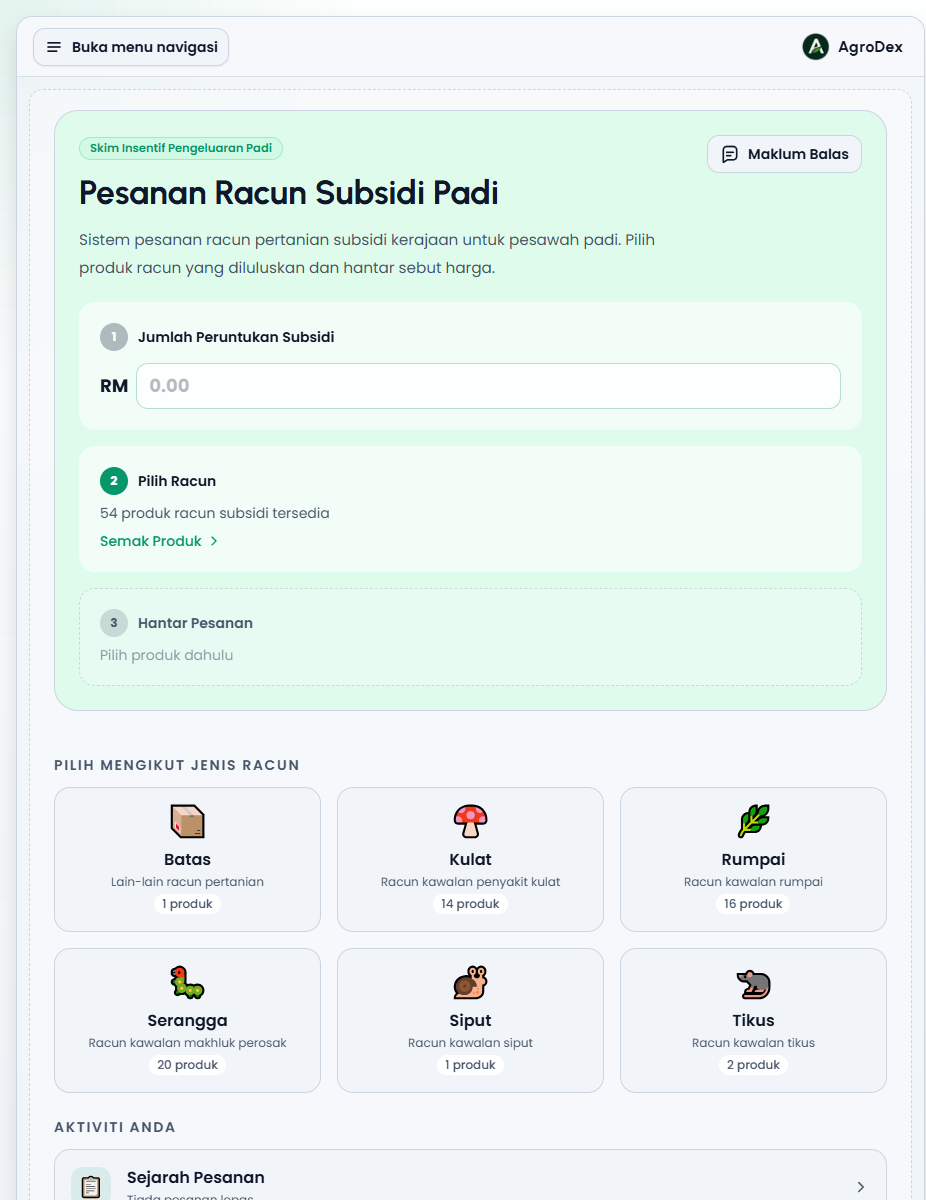
SIPP landing page
SIPP landing page

Three steps

StepWhat you doWhere
1 Subsidy AllocationSet your subsidy amount/sipp
2 Select ProductsAdd subsidised products to your order/sipp/products
3 Submit Order
Review the order and submit the quotation
/sipp/cart

Step 1: Set the allocation

  • Open /sipp.
  • In the 1 Subsidy Allocation card, type your subsidy amount in Ringgit. For example 500.
  • Click Save to save it. For an amount above zero, the card switches to a tick with the Ready label, and the balance button shows the remaining amount.

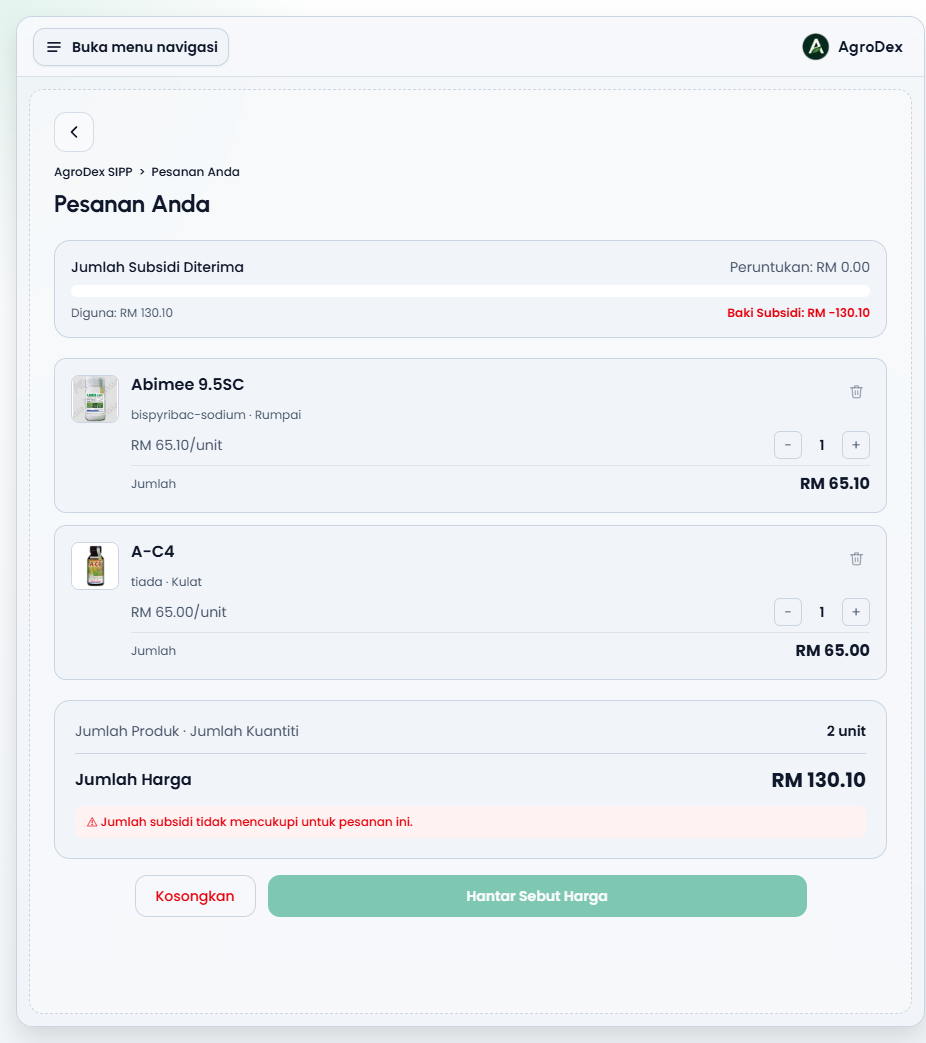
If the allocation is not set, the order cannot be submitted. The order page shows the warning Total subsidy insufficient for this order and Submit Quotation stays disabled.


Step 2: Choose products

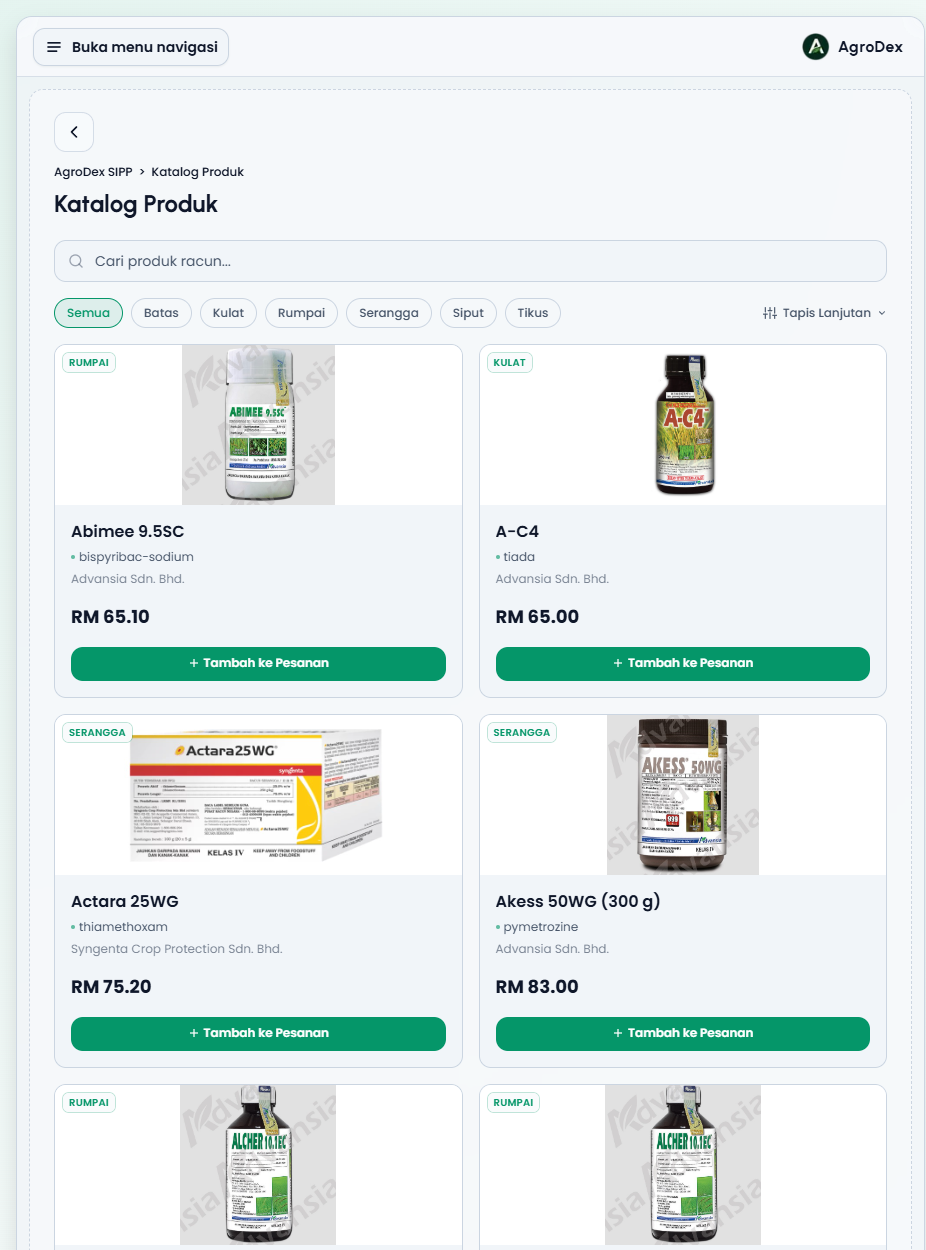
  • Press Browse Products on the 2 Select Products card, or click any pesticide type card below (Other, Fungicide, Herbicide, Insecticide, Molluscicide, Rodenticide).
  • Use the search box or the category chips to find a product.
  • Press Add to Order on the product you want.
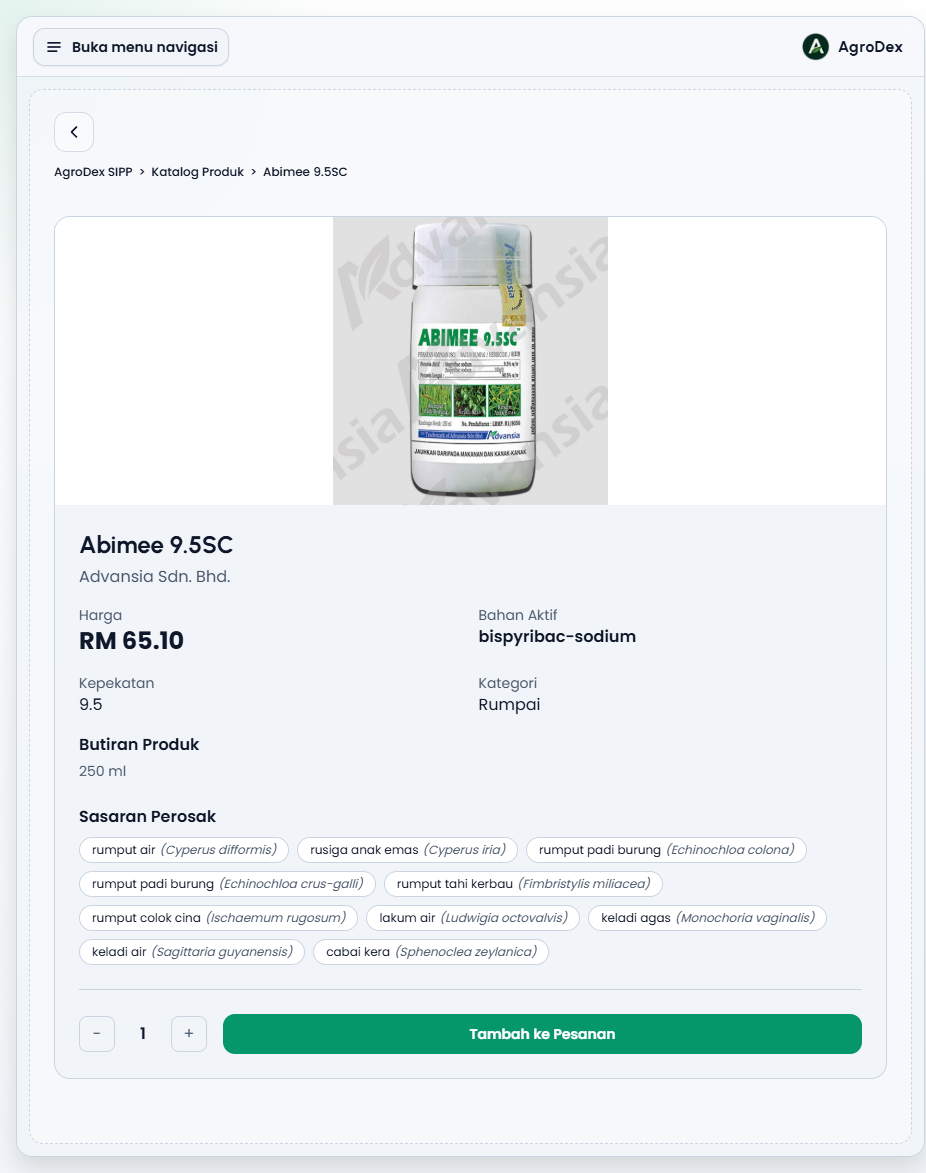
  • For full information, open the product card and check the price, active ingredient, concentration, pack size, and pest target list.
Subsidised product catalog
Product detail
Product detail

Step 3: Submit the order

  • Open /sipp/cart (the 3 Submit Order card shows the product count and total).
  • Check the product list, quantities, and Total Price.
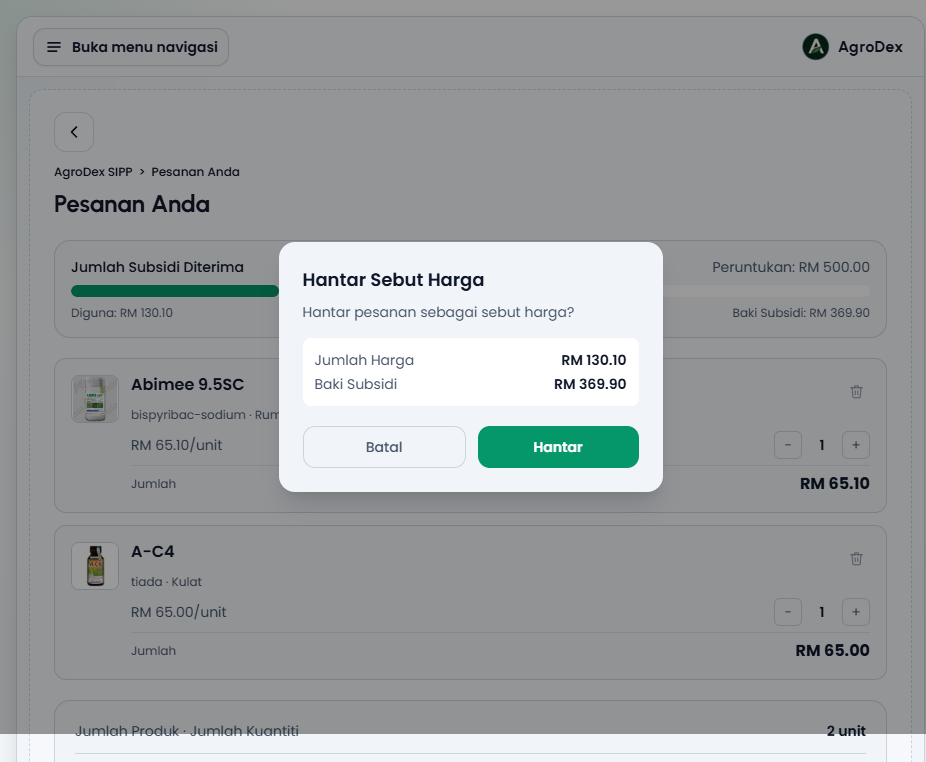
  • Press Submit Quotation, then press Submit in the confirmation dialog.
Review the order before submitting
Submit quotation confirmation
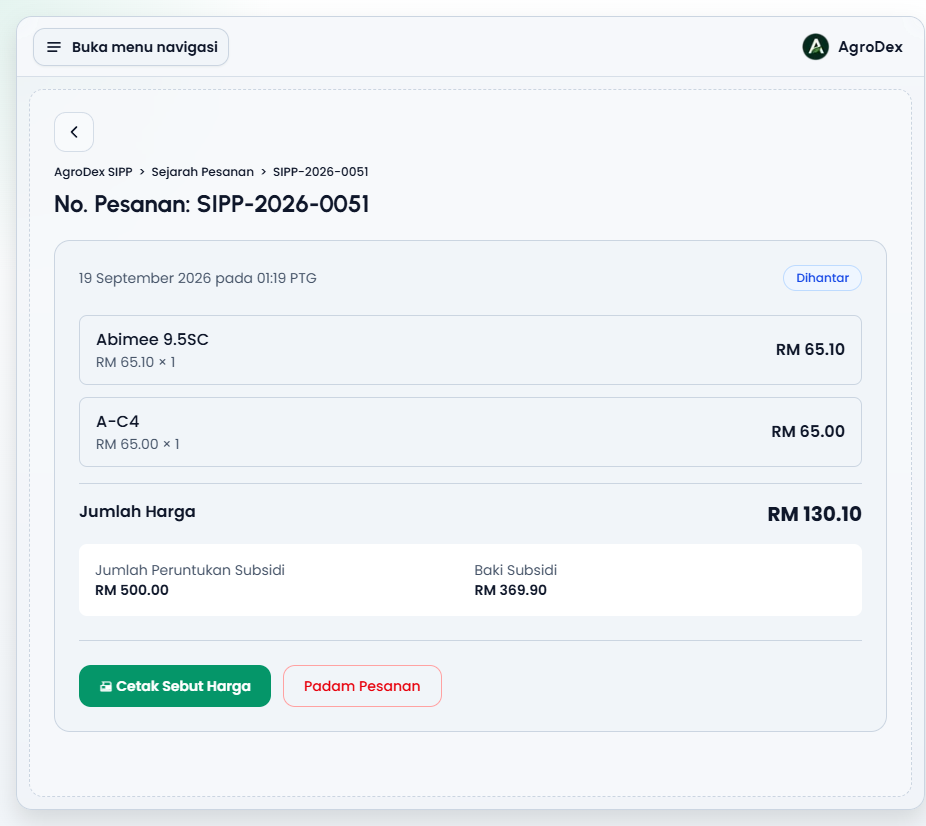
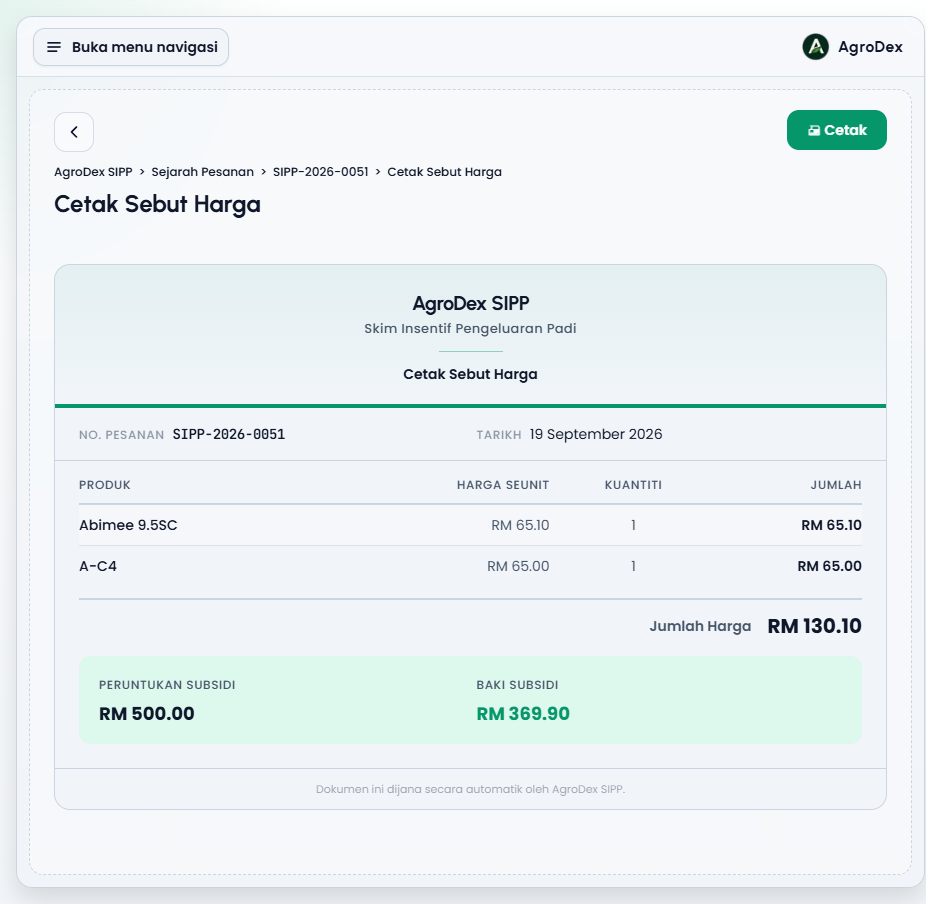
  • After submitting, the order page opens. Press Print Quotation to print the document for PPK.
Order detail
Order detail
Quotation for printing

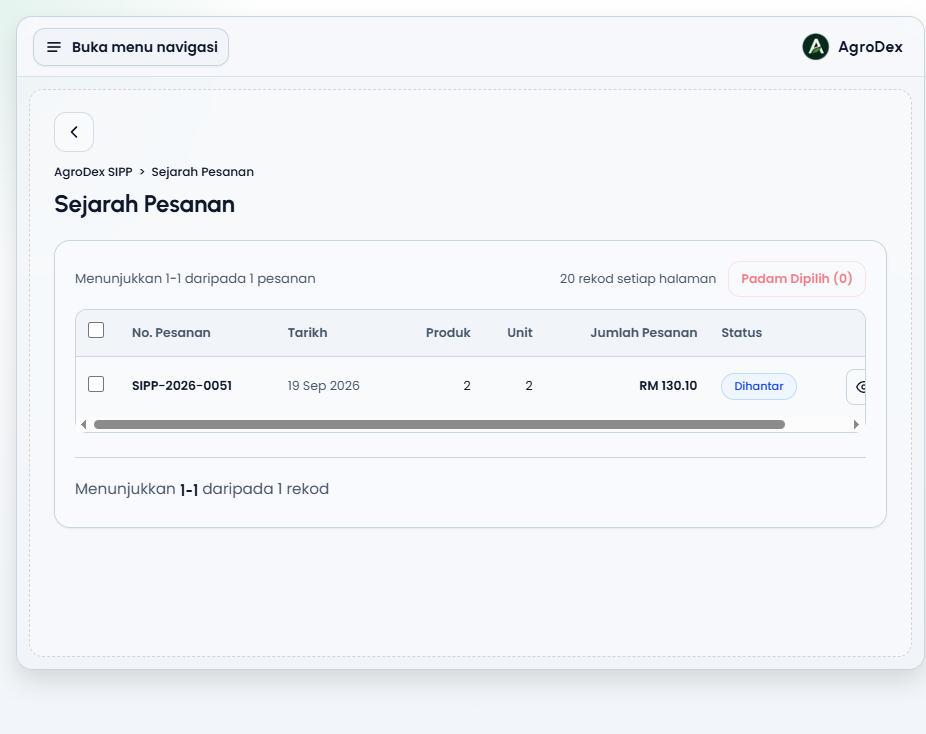
Every past order can be found in Order History (/sipp/orders).

Order history
Order history

Important notes

  • A SIPP order is a quotation, not a payment. The document is for reference and printing.
  • Allocation is the subsidy amount you set; Remaining Balance is the allocation minus the order total.
  • A submitted order can be deleted from Order History if you submitted it by mistake. After deletion, the subsidy balance is restored.
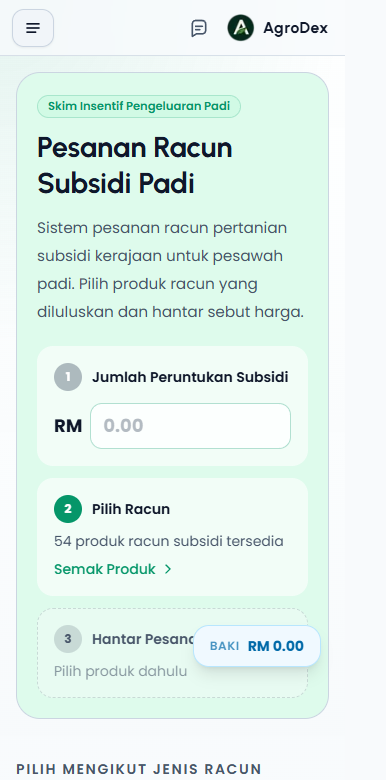
  • Everything can also be done on a phone.

Phone view:

SIPP landing page on a phone