
This guide explains how to use SIPP (Paddy Production Incentive Scheme) to prepare a subsidised pesticide order and print a quotation.
SIPP is the signed-in part of AgroDex. If you are not signed in, the first card shows Login to start and the third card shows Login to submit.
Contents:
- What SIPP is
- Landing page and the three step cards
- Step 1: subsidy allocation
- Step 2: product catalog
- Product detail
- Step 3: the order page and submission
- Order history, order detail, and printing
- Common messages and how to fix them
- Tips and limits
1. What SIPP is
SIPP provides the subsidised pesticide ordering channel for paddy farmers:
- A catalog of approved subsidised pesticides with prices and active ingredients.
- Orders based on the subsidy allocation you set.
- A printed quotation you can bring to or show the PPK office.
The quotation is a reference document. No payment is processed inside SIPP.
2. Landing page and the three step cards
The SIPP landing page is at /sipp. The hero carries the badge Skim Insentif Pengeluaran Padi, the heading Paddy Pesticide Subsidy Orders, and a Feedback button for sending feedback to the AgroDex administrators.
Below the hero, three cards show the work order:
| Card | Meaning | Action |
|---|---|---|
| 1 Subsidy Allocation | The field where you set your subsidy amount | Type an amount, click Save |
| 2 Select Products | The number of available subsidised products | Browse Products |
| 3 Submit Order | A summary of item count and total price | View Order |
The cards change state as you progress:
- Card 1 shows a tick with the Ready label after the allocation is saved.
- Card 3 shows Select products first while the order is empty.
Below the step cards, the Browse by Pesticide Type section provides category shortcuts: Other, Fungicide, Herbicide, Insecticide, Molluscicide, and Rodenticide, each with its product count.
The Your Activity section provides an Order History shortcut with a summary of previous orders, or No previous orders when there are none.
In the bottom right corner, a round button shows the current subsidy balance. While an order is being filled, that button also shows the unit count and can be clicked to jump to the order page.
3. Step 1: subsidy allocation
- Type the subsidy amount in the RM field on the 1 Subsidy Allocation card.
- Click Save and wait for Allocation saved.
- The card shows Ready and the balance button updates.
The allocation is your self-declared budget for each quotation. It does not establish subsidy eligibility, which remains subject to PPK verification. Enter RM0 to RM1,000,000 with up to two decimal places. Saving replaces your own account's allocation and updates the remaining budget after the cart total is deducted. Existing orders remain unchanged.
4. Step 2: product catalog
The catalog is at /sipp/products. Its heading is Product Catalog, with the breadcrumb AgroDex SIPP > Product Catalog.
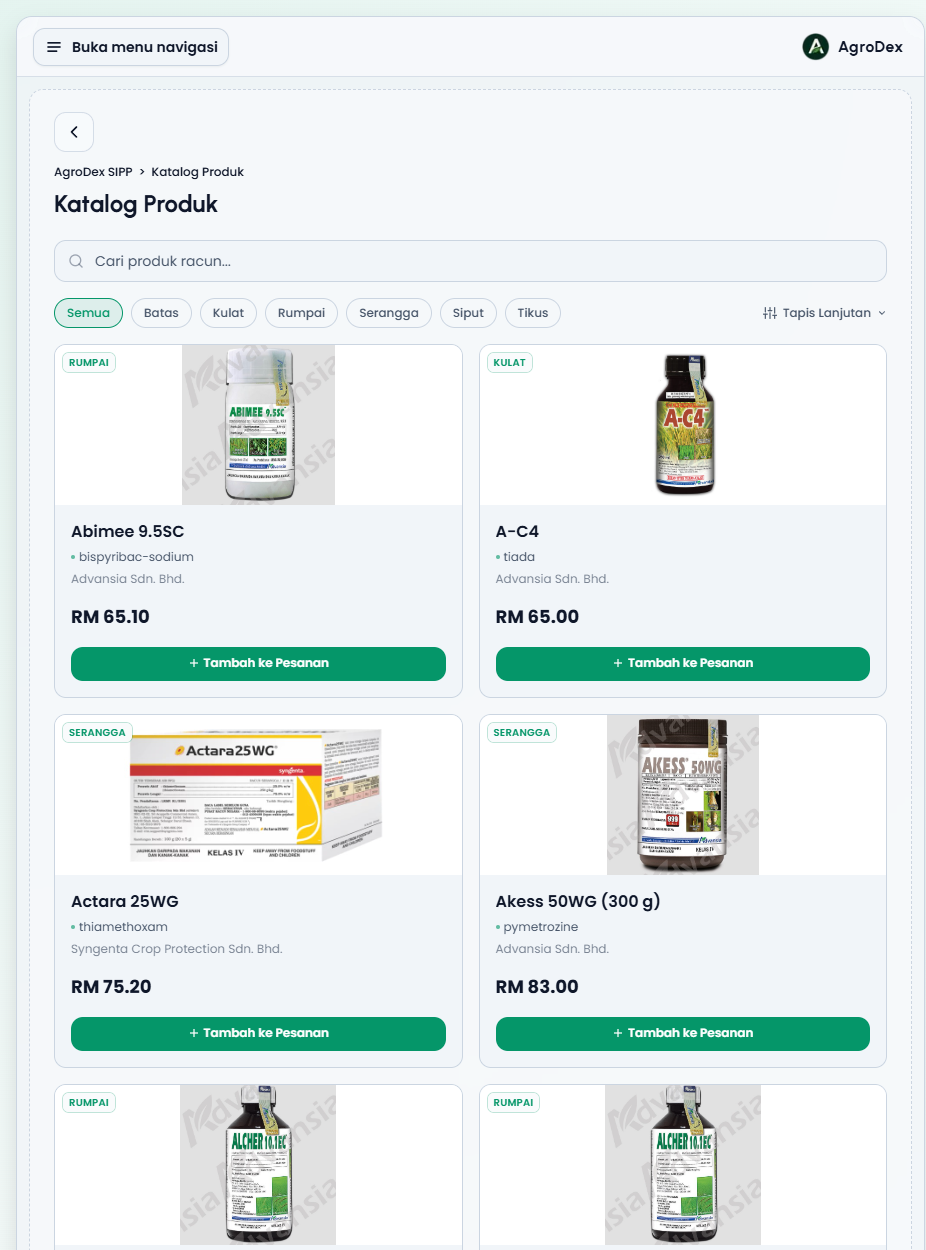
Finding products
- Type a product name, active ingredient, or part of a word in the search box (
Search pesticide products...). - Use the category chips: All, Other, Fungicide, Herbicide, Insecticide, Molluscicide, Rodenticide. The category shortcut cards on the landing page open the catalog already filtered to that category.
Advanced Filters
Press Advanced Filters to open extra filters:
| Field | Use it for |
|---|---|
| Price Range (Min Price (RM) and Max Price (RM)) | Limit products to a price band |
| Active Ingredient | Find products that contain a specific active ingredient |
| Pest Target | Find products that target a specific pest |
| Manufacturer | Limit results to one manufacturer |
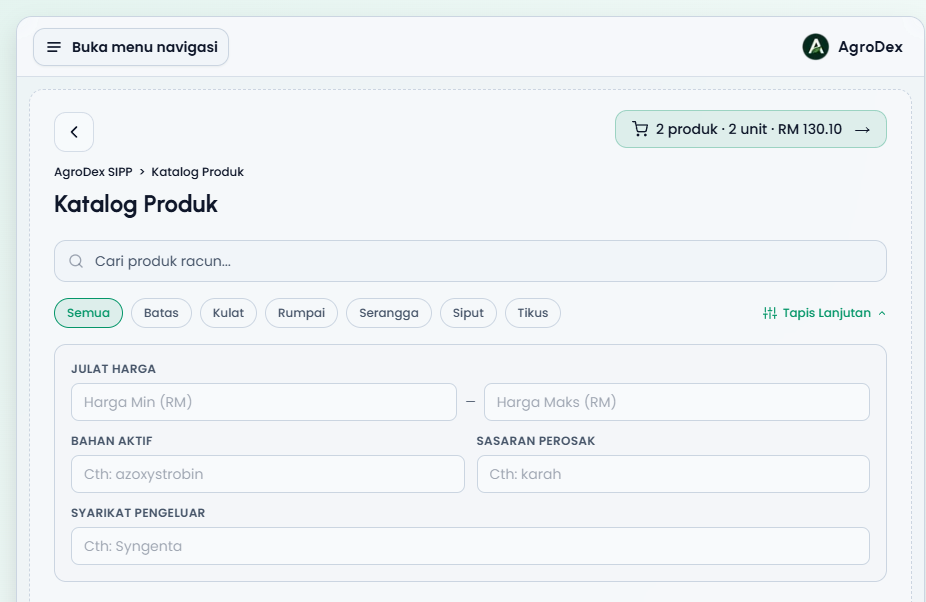
Each filter you fill in appears as a chip below the Advanced Filters button. Remove them one by one with the cross, or all at once with Clear All. If nothing matches, the catalog shows No products match your filters.
Product card
Every card shows:
- A category badge on the product image.
- The product name and active ingredient (or
tiadawhen no active ingredient is recorded). - The manufacturing company.
- The price in Malaysian Ringgit.
- An Add to Order button.
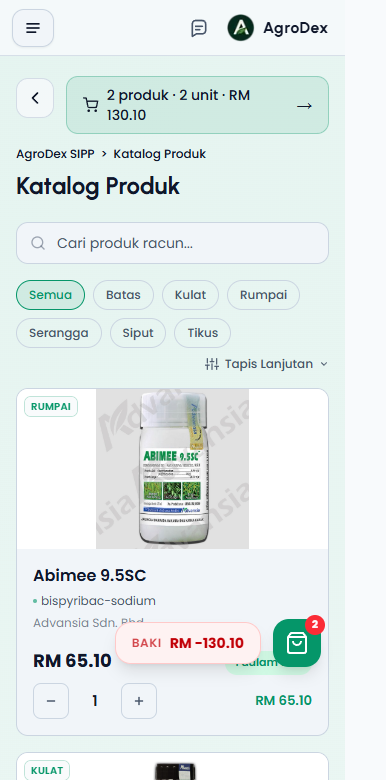
Once a product is added, the card shows how many units are in the order plus - and + quantity controls. Every change is saved immediately.
Phone view:
5. Product detail
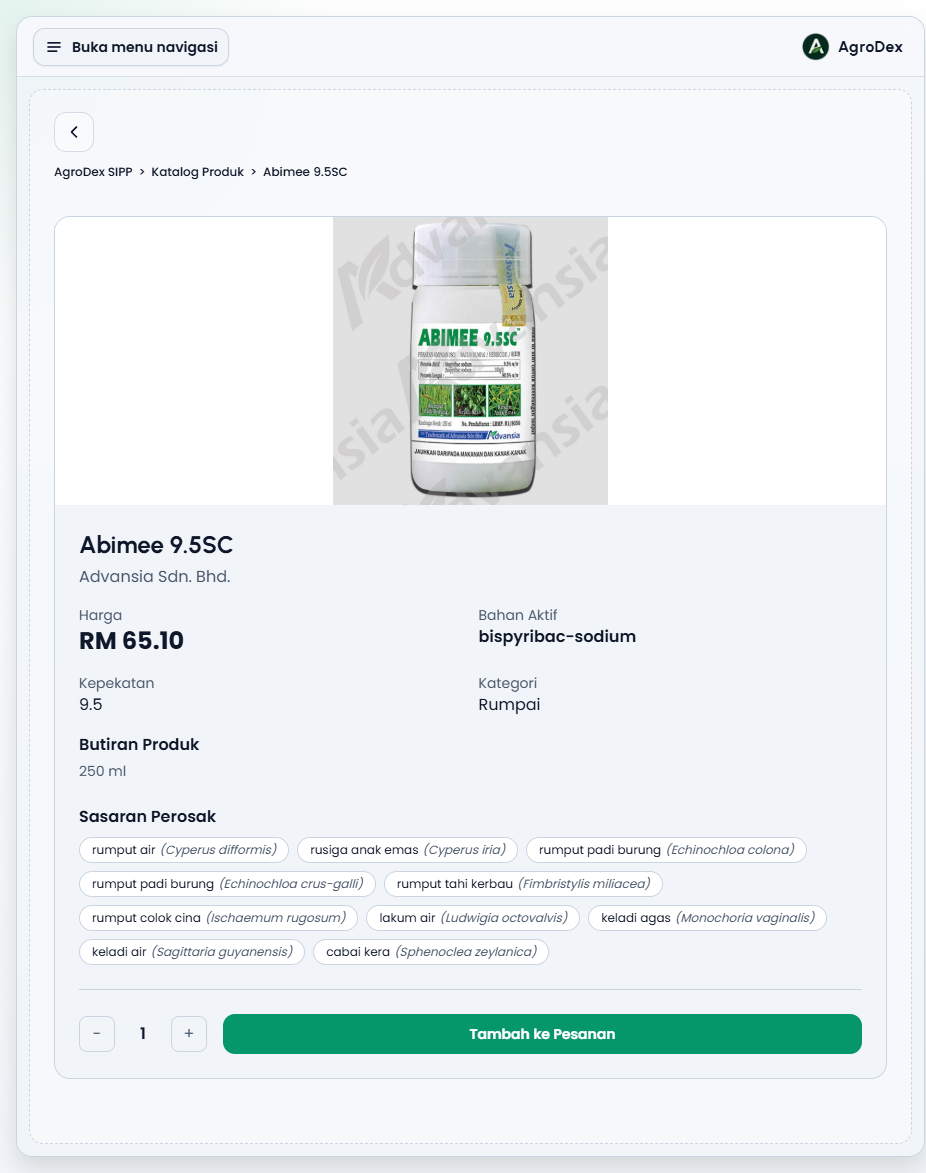
Click a product card to open its detail page. It shows:
| Section | Content |
|---|---|
| Price | Unit price in Malaysian Ringgit |
| Active Ingredient | The product's main active ingredient |
| Concentration | The formulation concentration value |
| Category | The product's pesticide category |
| Product Details | Pack size or volume |
| Pest Targets | Target pest list with local and scientific names |
At the bottom there is a quantity control and the Add to Order button. After adding, the button shows Added to Order!.
6. Step 3: the order page and submission
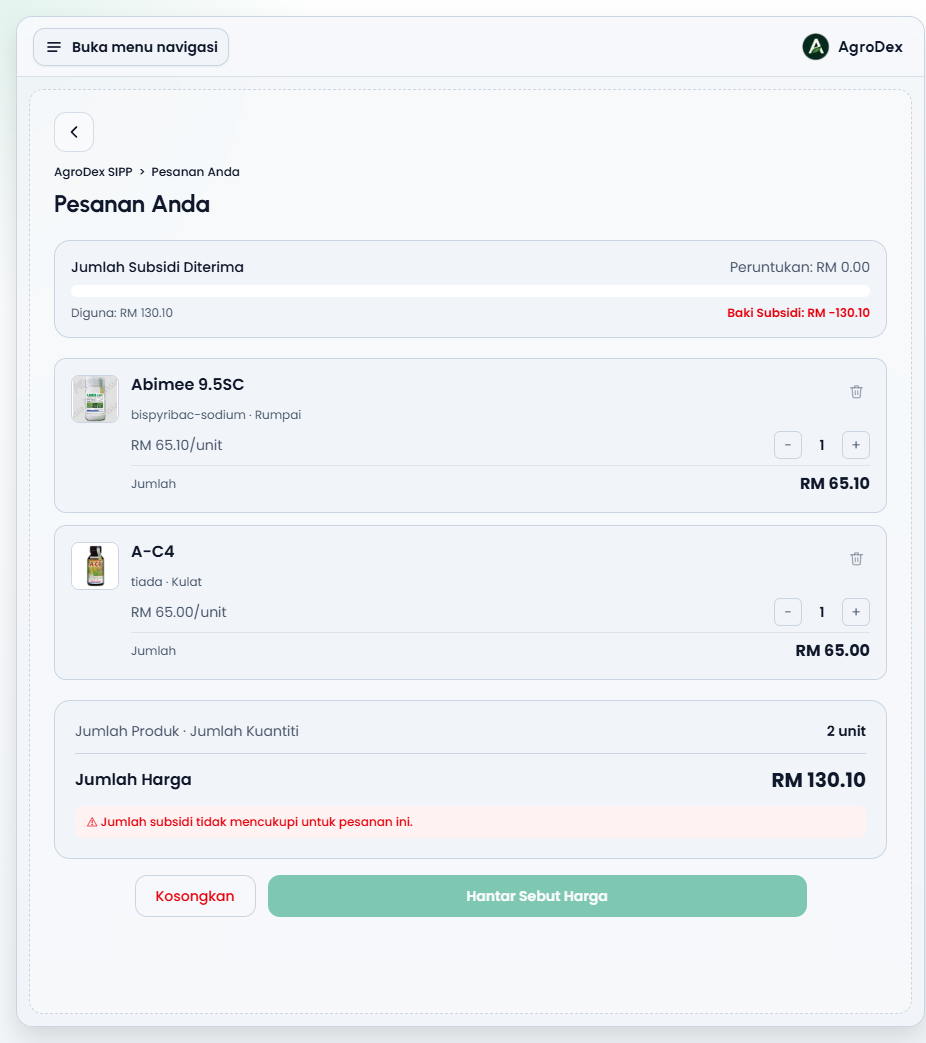
The order page is at /sipp/cart, headed Your Order, with the breadcrumb AgroDex SIPP > Your Order.
Subsidy summary
The top panel shows Total Subsidy Received:
| Row | Meaning |
|---|---|
| Subsidy Allocation | The subsidy amount you set on the landing page |
| Used | The total value currently in the order |
| Remaining Balance | Allocation minus the used amount |
The remaining balance is also shown as a progress bar so you can see how much of the allocation has been used.
Product list
Each order line shows:
- The product name and a remove button to drop that product.
- The active ingredient and category.
- The unit price (RM xx.xx/unit).
- - and + quantity controls.
- The line Total.
Below the list, Total Items · Total Quantity shows the unit count, followed by the overall Total Price.
If the order total exceeds the remaining balance, the system shows the warning Total subsidy insufficient for this order and Submit Quotation cannot be pressed.
Clearing the order
The Clear Order button removes every product from the order, with a confirmation that the action cannot be undone.
Submitting the quotation
- Press Submit Quotation.
- The confirmation dialog shows Total Price and Remaining Balance.
- Press Submit to send it, or Cancel to go back.
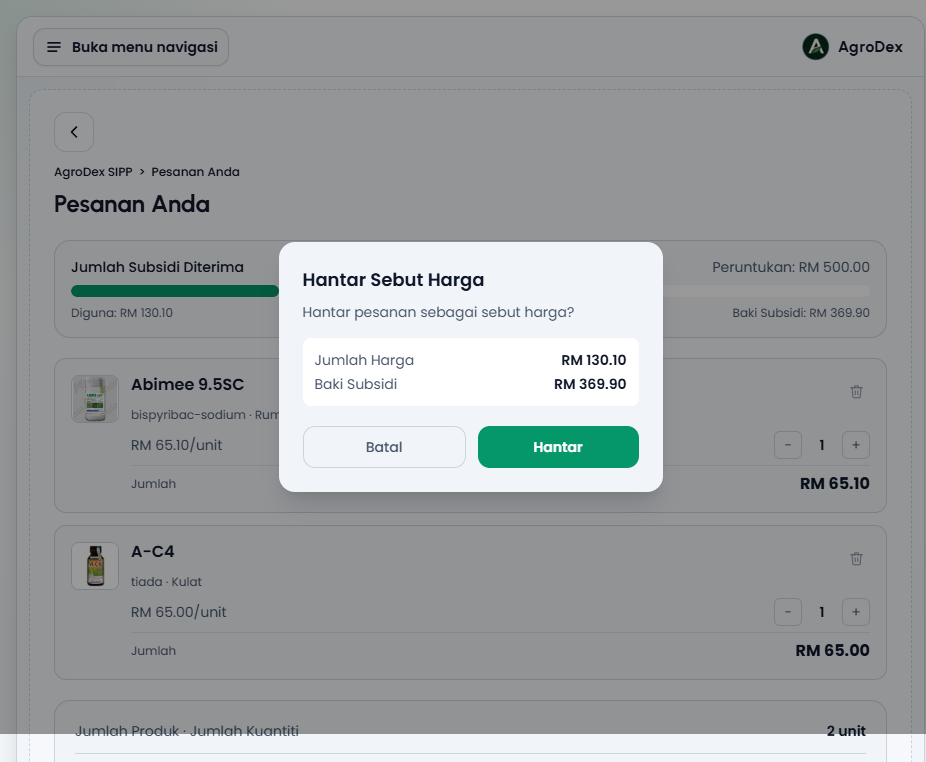
After a successful submission you are taken to the new order's detail page.
7. Order history, order detail, and printing
Order history
/sipp/orders lists all your orders in a table:
| Column | Content |
|---|---|
| Select box | To pick orders for Delete Selected |
| Order No. | The order number, for example SIPP-2026-0051 |
| Date | The submission date |
| Products | The number of product types |
| Units | The total quantity |
| Order Total | The order value |
| Status | The current status, for example Submitted |
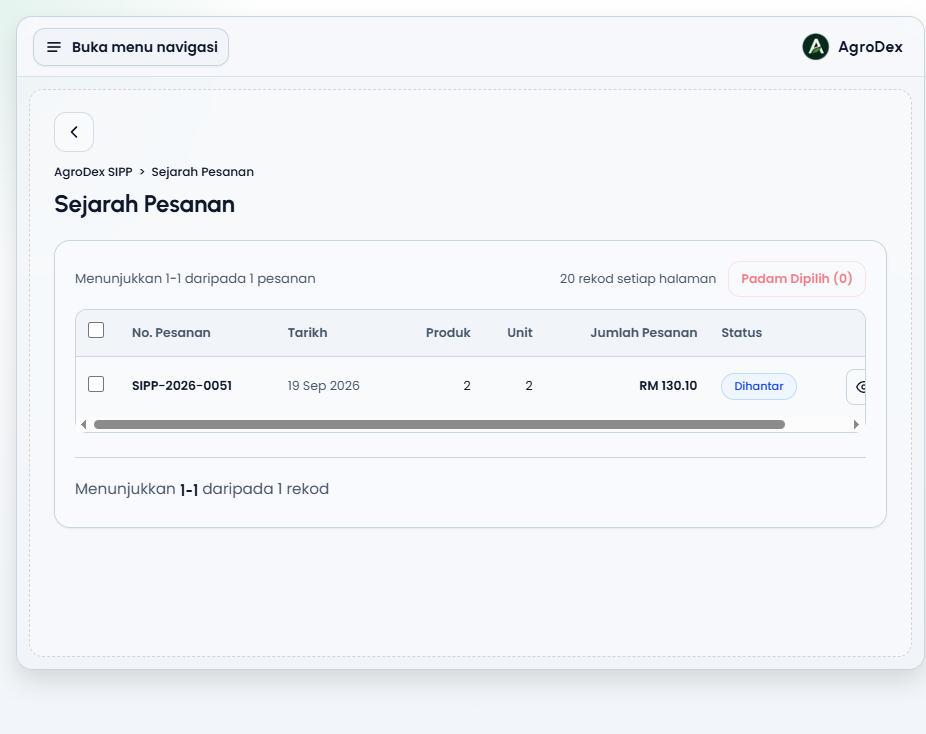
The record count is shown as Showing X-Y of Z orders, with a 20 records per page option and page controls below the table.
Order detail
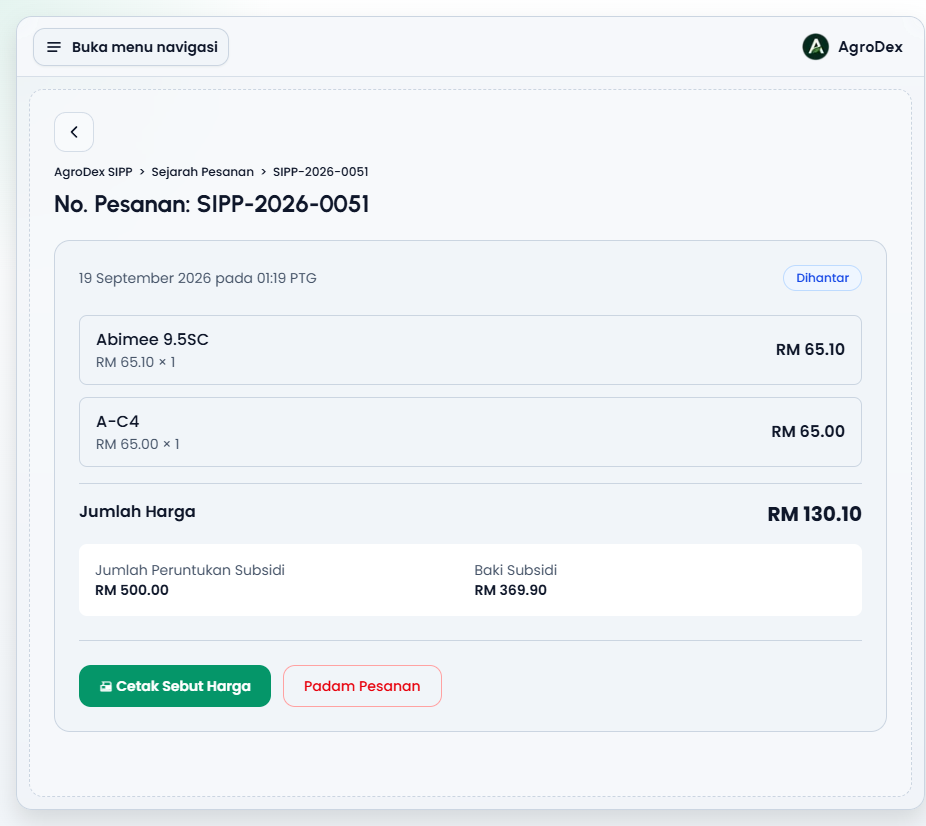
Click the order number or the view icon to open the detail page. It shows:
- Order No. as the heading, the full date, and a status badge.
- The product list with unit price, quantity, and line total.
- Total Price, Subsidy Allocation, and Remaining Balance.
- The Print Quotation and Delete Order buttons.
Deleting an order
- Press Delete Order on the detail page, or the delete icon in the order history table.
- Confirm in the Delete Order dialog asking This order will be removed from the records. Are you sure?
- Choose Yes, Delete, or Cancel.
For several orders at once, tick the box on each row and press Delete Selected. Deleted orders return their value to your subsidy balance.
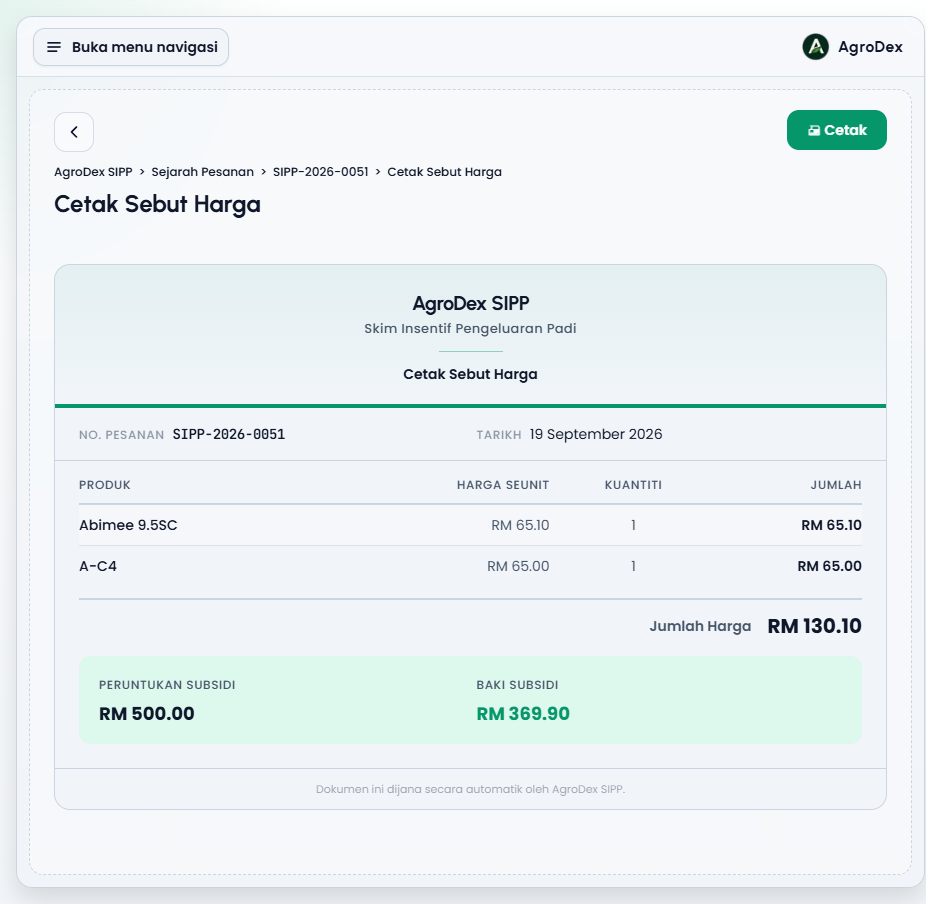
Printing the quotation
The print page is at /sipp/orders/<id>/print, headed Print Quotation. The document contains:
- The AgroDex SIPP and Skim Insentif Pengeluaran Padi letterhead.
- Order No. and Date.
- A table of Product, Unit Price, Quantity, and Total.
- Total Price, Subsidy Allocation, and Remaining Balance.
- A footer noting the document was generated automatically by AgroDex SIPP.
The Print button in the top right corner opens the browser print dialog. You can print directly or save as PDF.
8. Common messages and how to fix them
| Message | Meaning | What to do |
|---|---|---|
Login to start | You are not signed in | Sign in to your AgroDex account, then reopen /sipp |
Select products first | The order is still empty | Add at least one product |
Total subsidy insufficient for this order | The order total exceeds the remaining balance | Reduce quantities, remove products, or raise the allocation |
No products match your filters | The filters are too narrow |
9. Tips and limits
- Allocation first, then order. Set the subsidy allocation before submitting a quotation; otherwise the submit button stays disabled.
- Quantities can be changed in two places. On the product card in the catalog and on the order page. Both update the totals immediately.
- A quotation is not a payment. No payment is processed in SIPP and no subsidy approval happens here.
- Prices follow the SIPP catalog. Confirm the final price and actual allocation with PPK.
- Keep the printout. The printed quotation is your official reference for PPK counter matters.
- Delete carefully. A deleted order cannot be restored; you have to select the products and submit again.