AgroDexAgroDex
  1. Help Center
  2. >
  3. SIPP Kiosk

SIPP Kiosk Quick Start

Quick StartFull GuideFAQ
On this page
  • Three steps
  • Step 1: Choose a branch
  • Step 2: Choose products
  • Step 3: Review and print
  • Important notes

On this page

  • Three steps
  • Step 1: Choose a branch
  • Step 2: Choose products
  • Step 3: Review and print
  • Important notes

Time: about 5 minutes. Result: you can pick a branch, add subsidised products to the cart, and print an order quotation.

SIPP Kiosk is the subsidised pesticide order page for farmers. It works without an account. All you need is the correct PPK branch.
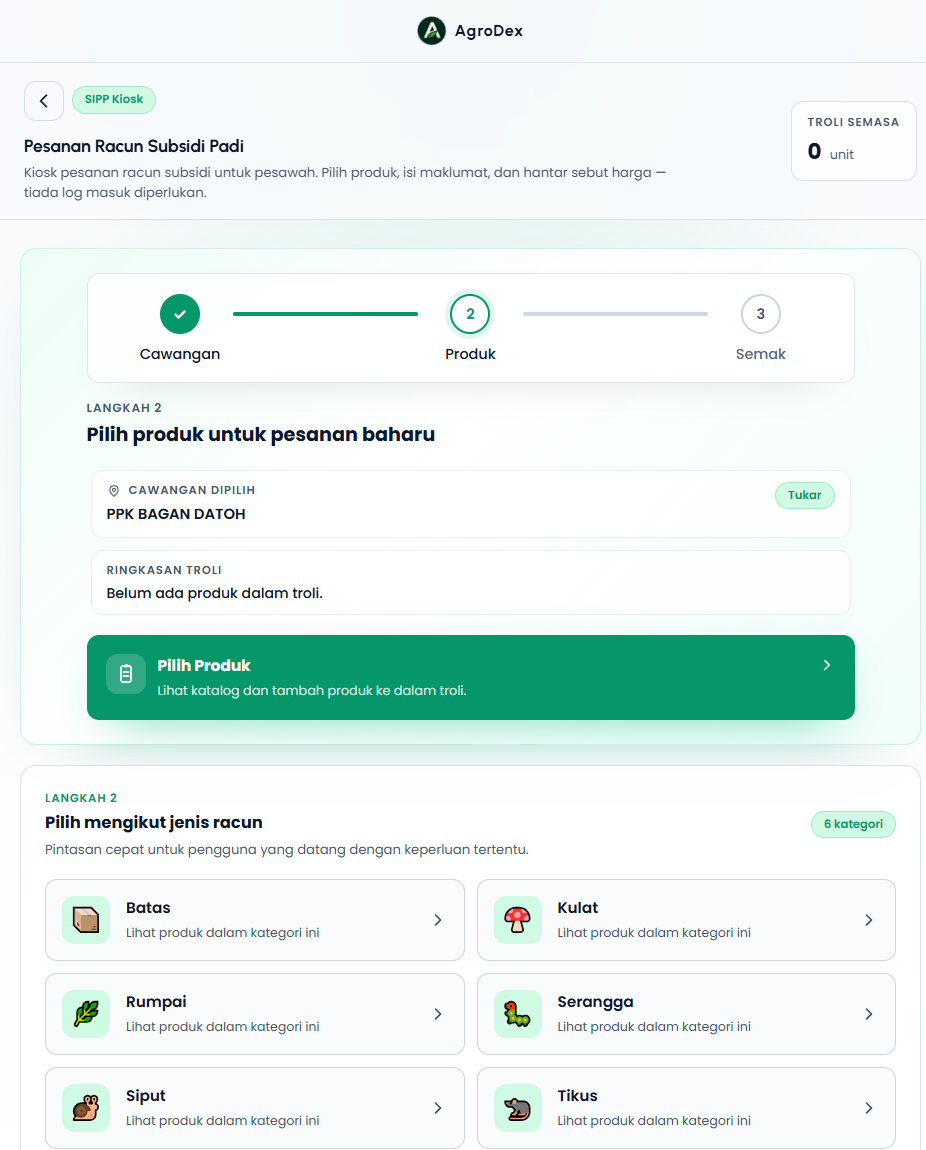
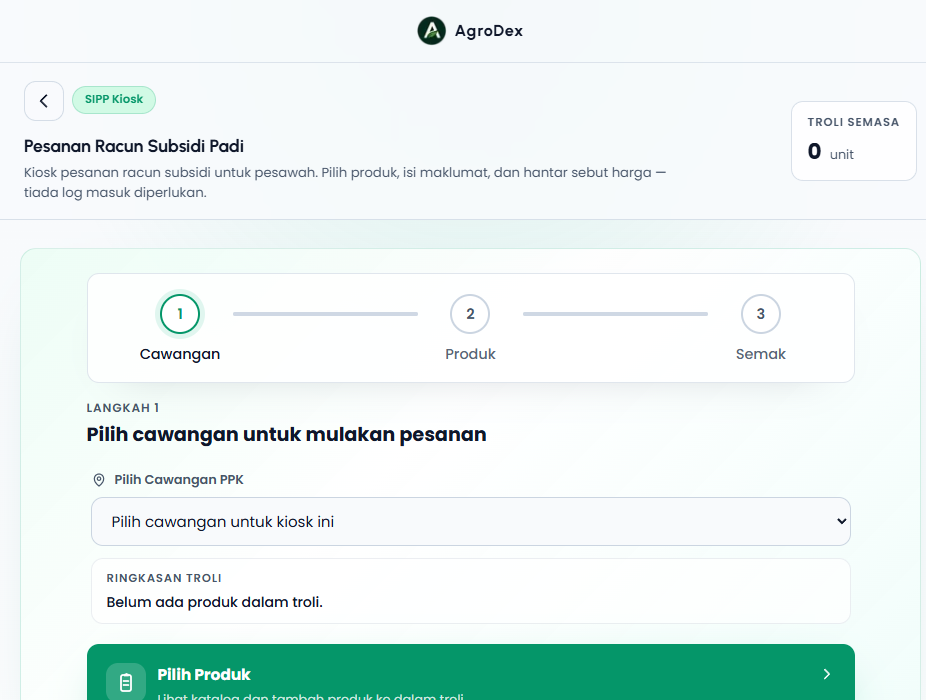
SIPP Kiosk landing page

Three steps

StepWhat you doWhere
1 BranchPick the PPK branch for this order/sipp-kiosk
2 ProductsPick pesticides and set quantities/sipp-kiosk/products
3 Review
Check the total and print the quotation
/sipp-kiosk/checkout

Watch the step bar at the top of every page. It shows which step you are on.


Step 1: Choose a branch

  • Open /sipp-kiosk.
  • In Choose PPK Branch, pick the branch you are ordering for, for example PPK BAGAN DATOH.
  • The branch you selected appears as Selected Branch. You can press Change at any time.
Choose a PPK branch
Choose a PPK branch

Once a branch is selected, the page offers Choose Products to open the catalog, or a shortcut straight to review if the cart already has items.


Step 2: Choose products

  • Press Choose Products on the landing page, or open /sipp-kiosk/products.
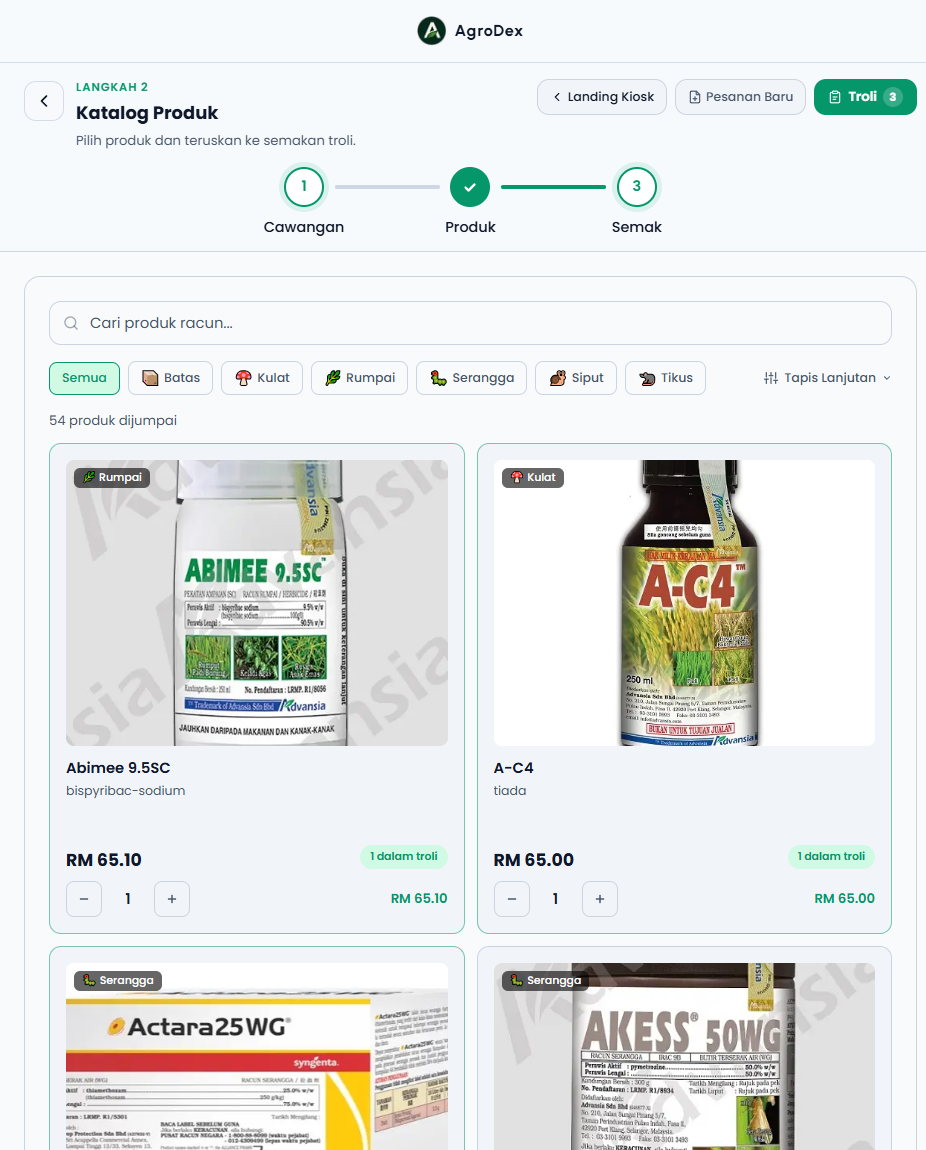
  • Use the search box to find a product name, or use the category chips such as Batas, Kulat, Rumpai, Serangga, Siput, and Tikus.
  • Press Add on the product you want. A notice appears and the cart updates immediately.
  • Use the - and + buttons on the product card or on the review page to change quantity.
SIPP product catalog with cart

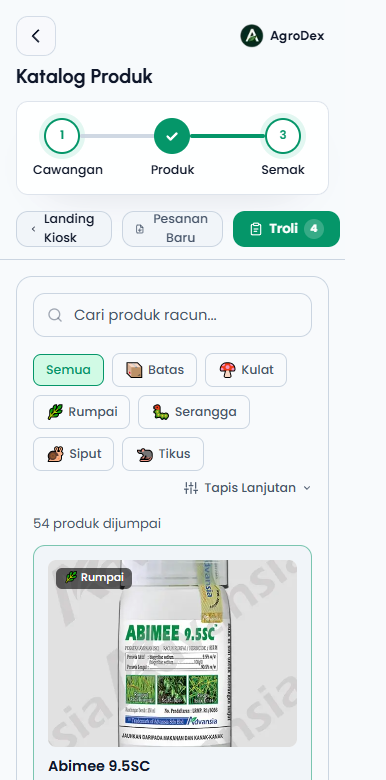
Phone view:

Product catalog on a phone

The Cart button at the top shows how many units are in the cart. Press it to go straight to the review page.


Step 3: Review and print

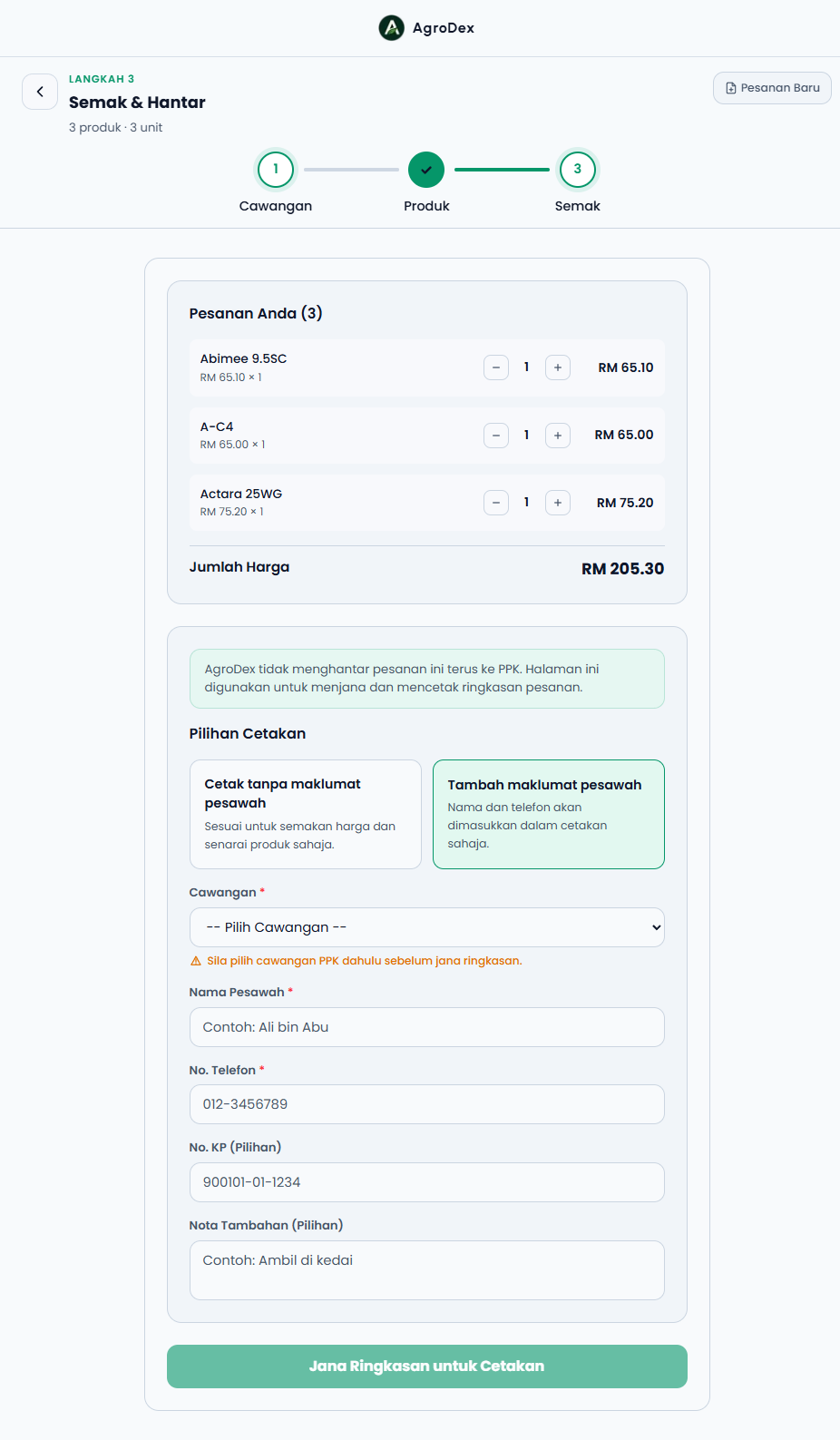
  • Check the Your Order list and the Total Price.
  • Choose a print option: Print without farmer details or Add farmer details.
  • Choose a Branch if the field is still empty.
  • Press Generate Print Summary.
  • On the success screen, press Print Quotation.
Review the order and print options

Important notes

  • AgroDex does not send this order directly to PPK. This page generates the summary and quotation for you to bring to or show the PPK office.
  • Farmer details (name, phone, IC number) are used for the printout only. If you choose Print without farmer details, the printed summary shows the products, quantities, total price, and branch only.
  • The cart is stored in this device's browser. If you switch devices or clear browser data, the cart is lost.
  • If this is your first time using the kiosk, always start at Step 1 so the order branch is set correctly.