
This guide explains how to use SIPP Kiosk to prepare a subsidised pesticide order and print a quotation.
SIPP Kiosk is built for farmers and kiosk operators. It works without an account, so you can start right away. No order is sent to PPK automatically - the end result is a printed quotation.
Contents:
- Why use SIPP Kiosk
- Page layout
- Step 1: choose a branch
- Step 2: choose products
- Step 3: review, fill in details, and print
- What the printout contains
- Common messages and how to fix them
- Tips and limits
1. Why use SIPP Kiosk
Use SIPP Kiosk when you want to:
- Prepare a list of subsidised pesticides to check prices before going to the PPK office.
- Print a quotation you can show or hand over to PPK staff.
- Add several products at once and see the total immediately.
All you need is a web browser. No account, no password.
2. Page layout
Every kiosk page has three parts:
| Part | Contents |
|---|---|
| Header | Back button, page name, New Order button, and a Cart button with the unit count |
| Step bar | Three steps: Branch, Products, Review. The current step is highlighted |
| Content | The form or catalog for that step |
The Cart button always shows the total units. You can jump to the review page from any kiosk page.
Note: the New Order button starts a new order and clears the current cart. Make sure you have printed your quotation before pressing it.
3. Step 1: choose a branch
The first page is /sipp-kiosk.
- In the Choose PPK Branch field, pick your branch. The list contains every PPK branch registered in the system.
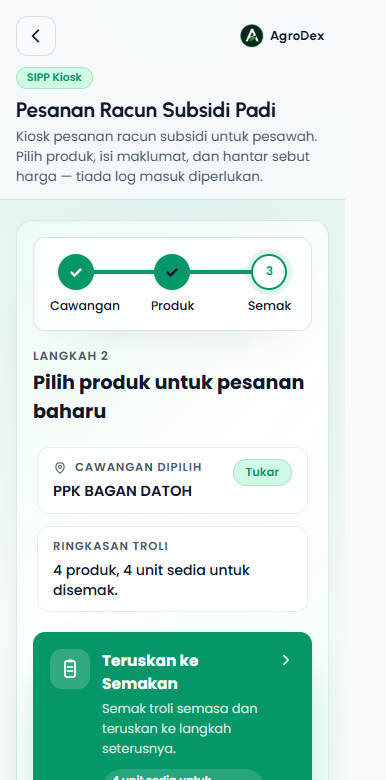
- Once selected, a Selected Branch card appears with the branch name. The Change button lets you pick a different branch or clear the selection.
- The Cart Summary card shows whether the cart is empty or already has products.
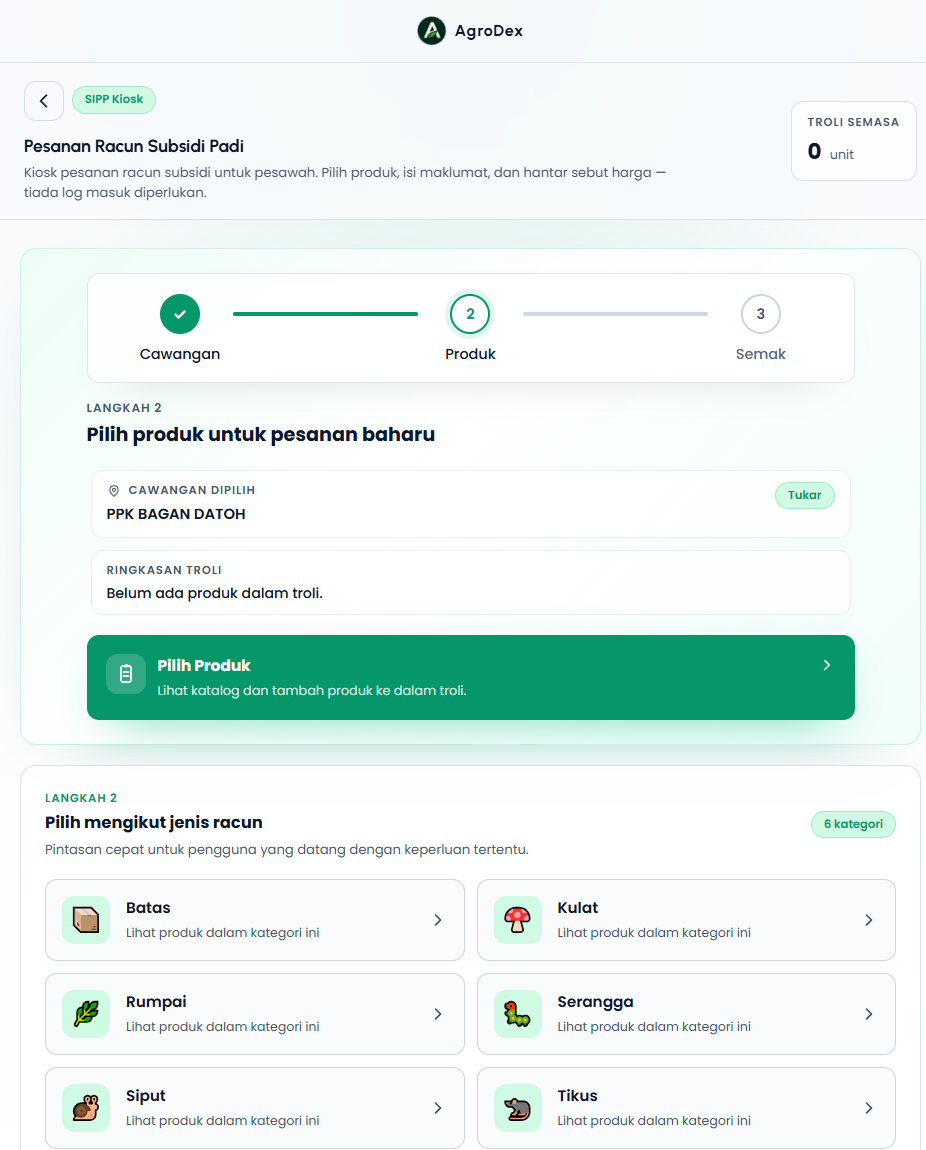
After a branch is selected, the main button becomes Choose Products and takes you to the catalog.
Category shortcuts. Below the cart card, the page lists pesticide type cards: Batas, Kulat, Rumpai, Serangga, Siput, and Tikus (weed, fungus, insect, snail, and rodent categories). Press any card to open the catalog filtered by that category.
Phone view:
4. Step 2: choose products
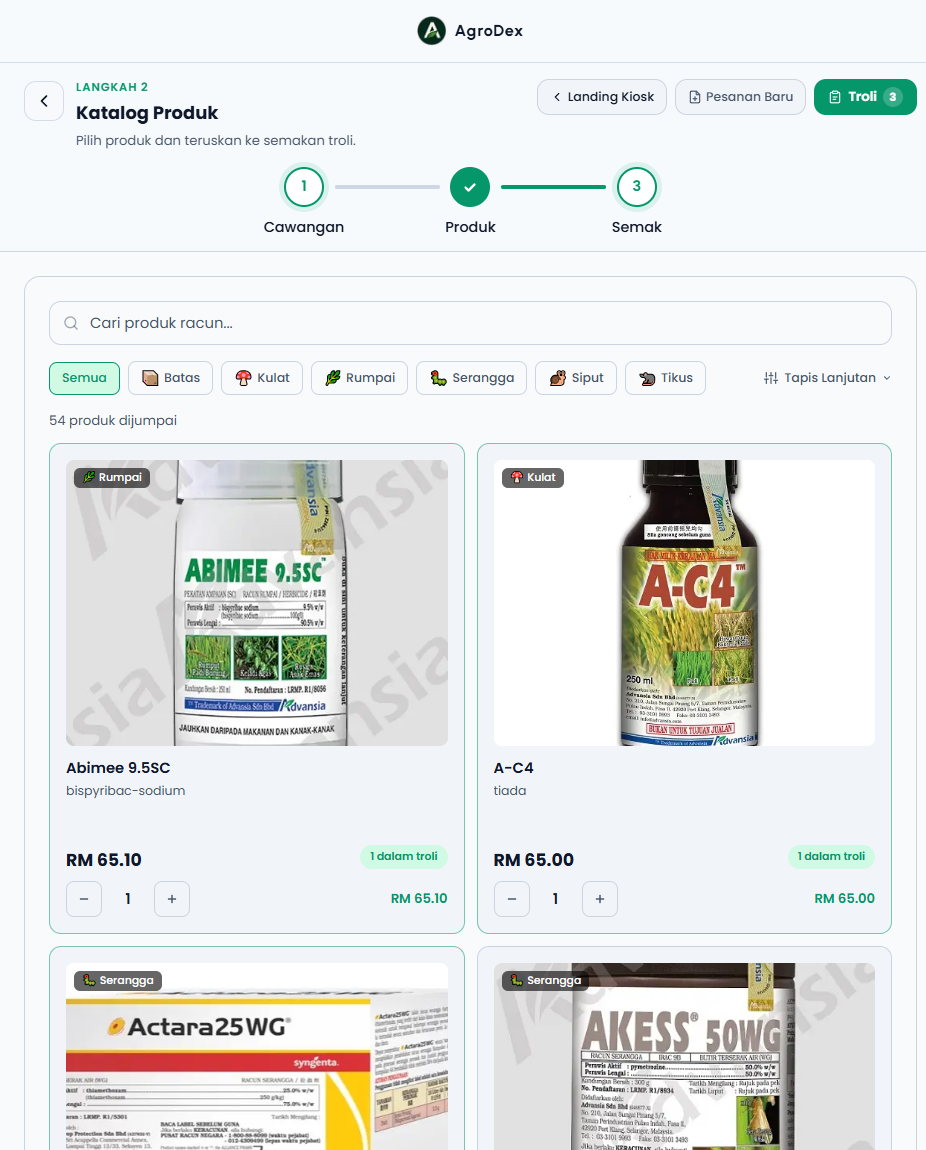
The catalog is at /sipp-kiosk/products. Its heading is Product Catalog.
Finding products
- Type a product name, active ingredient, or part of a word in the search box (
Search pesticide products...). The list filters as you type. - Use the category chips: All, Batas, Kulat, Rumpai, Serangga, Siput, Tikus.
- The number of results appears below the chips, for example
54 products found.
Advanced Filters
Press Advanced Filters to open extra filters:
| Field | Use it for |
|---|---|
| Price Range (min and max) | Limit products to a price band |
| Active Ingredient | Find products that contain a specific active ingredient |
| Pest Target | Find products that target a specific pest |
| Manufacturer | Limit results to one manufacturer |
Each filter you fill in becomes a removable chip. The Clear All button removes every filter at once.
Adding products to the cart
- Press Add on a product card.
- An Added to cart notice appears with Continue Browsing and Review Cart buttons. The notice closes by itself after a few seconds.
- A product already in the cart shows
1 in cartwith-and+buttons to change the quantity, plus that line's total. - Press Load More below the list to load more products.
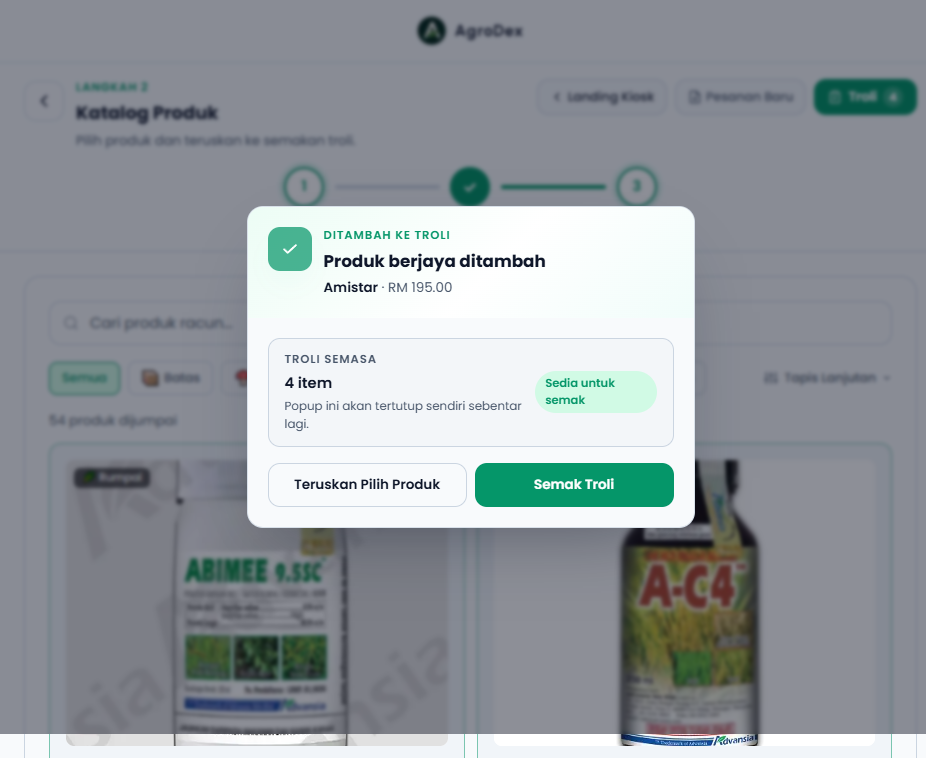
Phone view:
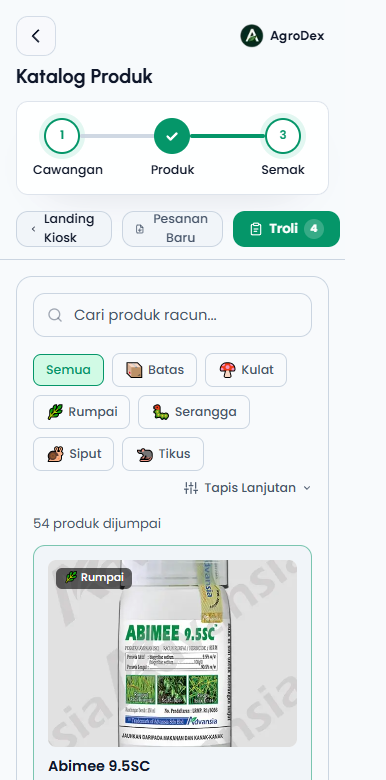
When the cart has items, the main header button takes you to the review page.
5. Step 3: review, fill in details, and print
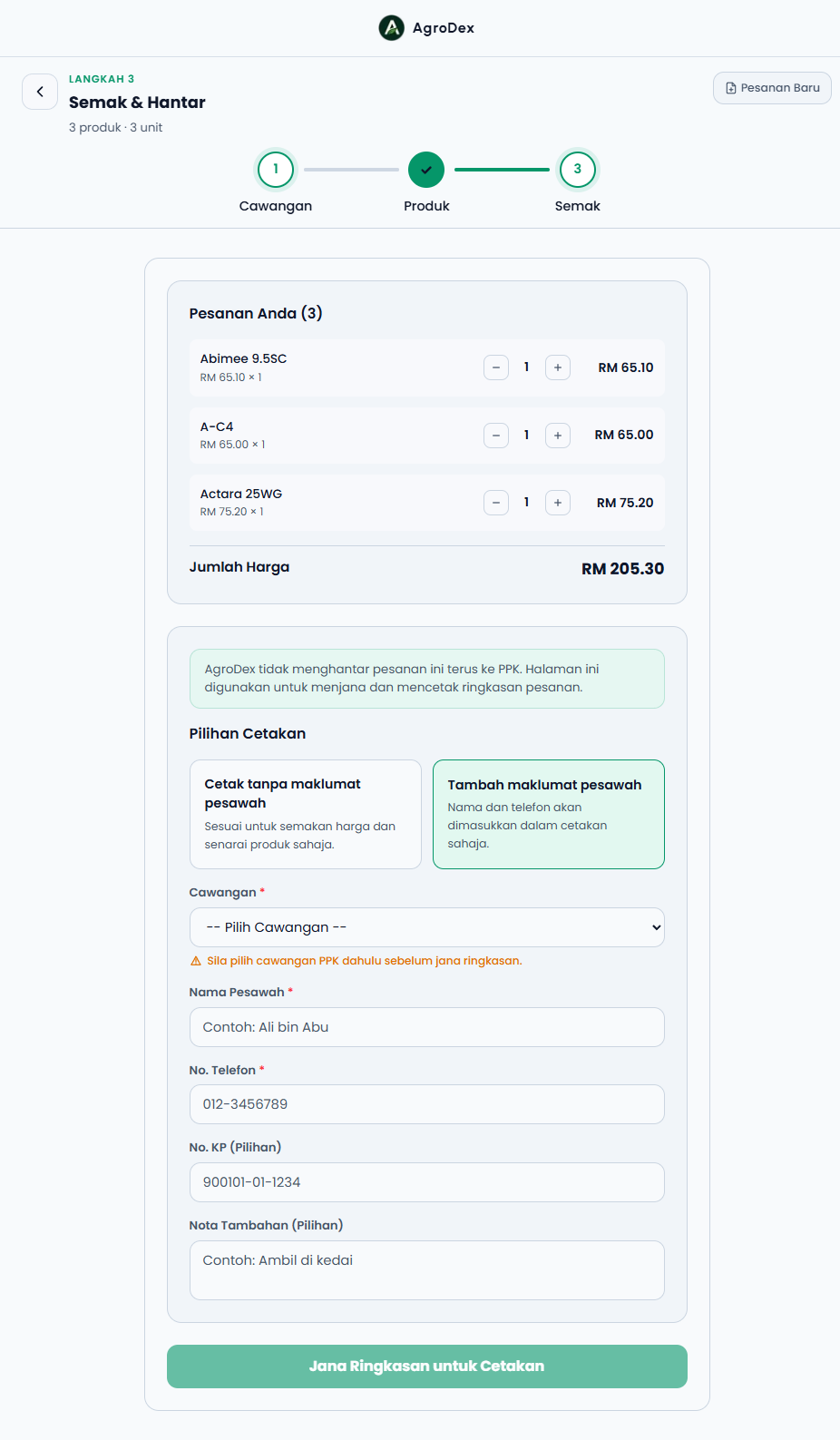
The review page is at /sipp-kiosk/checkout. Its heading is Review & Submit, with a summary such as 3 products · 3 units.
Review the order
- Your Order lists each product with its unit price, quantity, and line total. You can still change quantities here using the
-and+buttons. - Total Price below the list shows the overall total in Malaysian Ringgit.
Print Options
Choose one:
| Option | Description |
|---|---|
| Print without farmer details | Best for reviewing price and selected products only |
| Add farmer details | Name and phone will be included in the printed summary only |
If you choose Print without farmer details, the farmer section on the printout is marked as not provided.
Branch
The Branch field is required. If no branch is selected, the system shows the warning Please select a PPK branch before generating the summary. Pick a branch from the list before continuing.
Farmer details
These fields appear when you choose Add farmer details:
| Field | Required | Notes |
|---|---|---|
| Farmer Name | Yes | Maximum 120 characters |
| Phone Number | Yes | A normal Malaysian number, for example 012-3456789 |
| IC No. (Optional) | No | Extra reference if needed |
| Additional Notes (Optional) | No | For example pickup instructions |
Generating and printing
- Press Generate Print Summary. While it runs, the button shows Generating summary....
- A success screen appears with the order summary, including branch, item count, and total price.
- Press Print Quotation to open the printout.
- On a phone, the printout opens in a new window. Choose a printer or save it as PDF, then press Print Again if you need another copy.
- On a computer, the printout is generated from the kiosk page itself without a new window.
- When you are done, use New Order to start the next order.
6. What the printout contains
The printed quotation contains:
- The document title SIPP Kiosk Order Summary, marked as a reference document.
- The product list: product name, quantity, unit price, and line total.
- Total Items and the overall total price.
- The selected Branch.
- Farmer Name and Phone if you chose to include them.
This printout is a reference document. It is not an official receipt and it is not proof of a subsidy payment.
7. Common messages and how to fix them
| Message | Meaning | What to do |
|---|---|---|
Please choose a PPK branch first. | No branch selected on the review form | Pick a branch in the Branch field |
Please select a PPK branch before generating the summary. | The same warning, shown directly under the field | Pick a branch before pressing generate |
Please fill in the farmer name. | Name is empty while farmer details are enabled | Fill in the farmer's full name |
Please fill in the phone number. | Phone number is empty |
If the screen looks out of date after adding a product, reload the page or press the Cart button again.
8. Tips and limits
- The cart lives in this device only. On a shared kiosk computer, press New Order or clear the cart when you finish so the next person starts clean.
- One order, one branch. If you need a quotation for a different branch, start a new order with that branch.
- Prices are in Malaysian Ringgit and follow the current SIPP catalog. Confirm the final price with PPK before paying.
- The kiosk has no fixed quantity cap, but PPK may limit quantities according to the current subsidy allocation.
- AgroDex does not store payments. The kiosk does not process payment and does not send the order to PPK.
- Past quotations. The order list page is provided for kiosk staff with internal access. As a farmer, keep your printed quotation as your reference.