AgroDexAgroDex
  1. Help Center
  2. >
  3. Account & Settings

Account Quick Start

Quick StartFull GuideFAQ
On this page
  • Three sections
  • Step 1: Update your profile
  • Step 2: Change your password
  • Step 3: Review active sessions
  • Important notes

On this page

  • Three sections
  • Step 1: Update your profile
  • Step 2: Change your password
  • Step 3: Review active sessions
  • Important notes

Time: about 5 minutes. Result: your profile is updated, your password is changed, and unknown sessions are revoked.

The Account page is at /account. It requires a sign-in. Here you manage three things: profile details, your password, and active sessions across all devices.
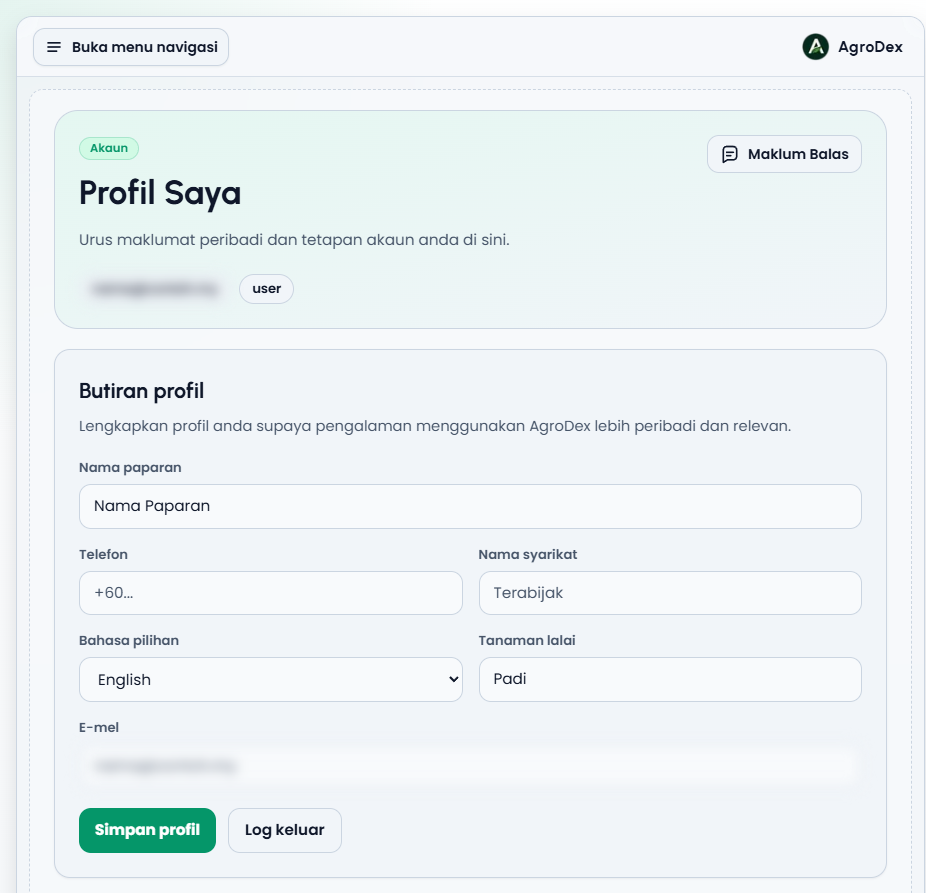
Account page
Account page

Three sections

SectionWhat it is for
Profile detailsDisplay name, phone, company name, language, default crop
Change passwordSet a new password
Active sessionsView and revoke sign-ins on other devices

Step 1: Update your profile

  • Open /account.
  • Fill in or update the fields you need:
    • Display name (required).
    • Phone.
    • Company name.
    • Preferred language: Use app default, Bahasa Melayu, or English.
    • Default crop.
    • Press Save profile. The message Profile updated. appears.

    Email cannot be changed on this page. It is shown so you can confirm you are on the right account.


    Step 2: Change your password

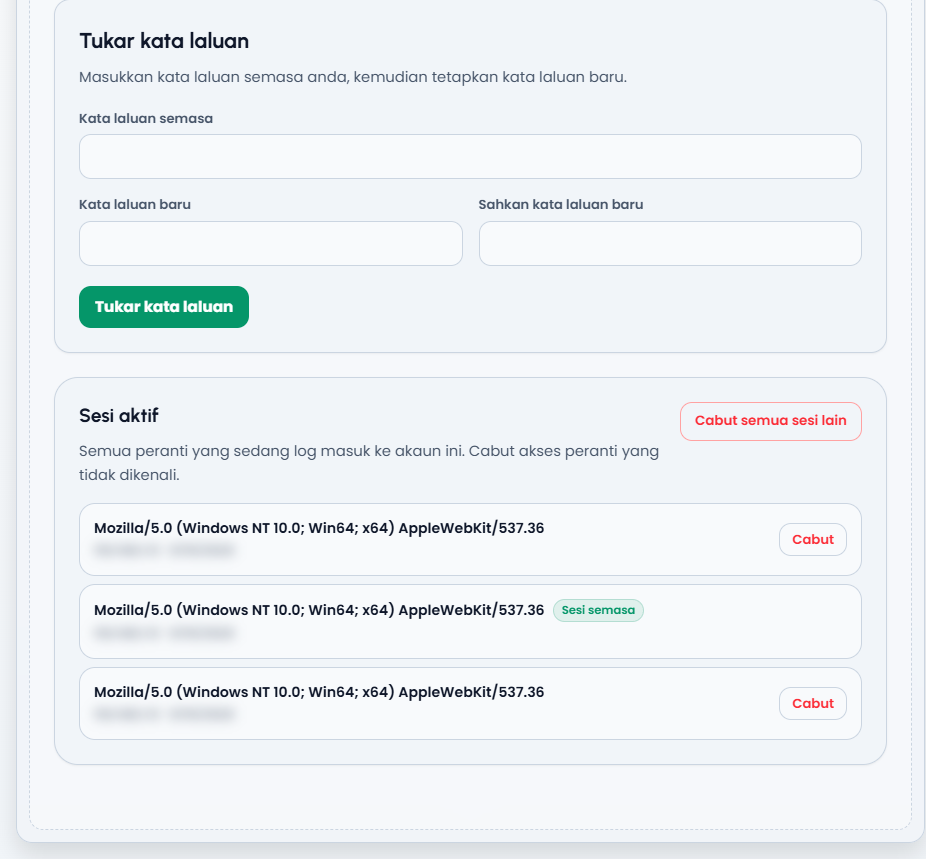
    • In the Change password section, fill in Current password.
    • Fill in New password (at least 8 characters).
    • Repeat the same password in Confirm new password.
    • Press Change password. The message Password changed successfully. appears.
    Password and active sessions sections
    Password and active sessions sections

    If the new passwords do not match or are too short, the form is rejected before submitting.


    Step 3: Review active sessions

    • Scroll to the Active sessions section.
    • Each row shows the device (browser type), IP address, and date. Your own row is marked Current session.
    • Press Revoke on any session you do not recognise.
    • To end every other device at once, press Revoke all other sessions.

    Your current session cannot be revoked from this list. To leave this device, use the Sign out button in the profile section.


    Important notes

    • Never share your password. Keep it somewhere safe and avoid reusing it on other services.
    • Check Active sessions from time to time. If a device looks unfamiliar, revoke it and change your password.
    • The preferred language applies after saving. Once you press Save profile, the app switches to the language you chose.
    • Sign out in the profile section ends the session on this device only.

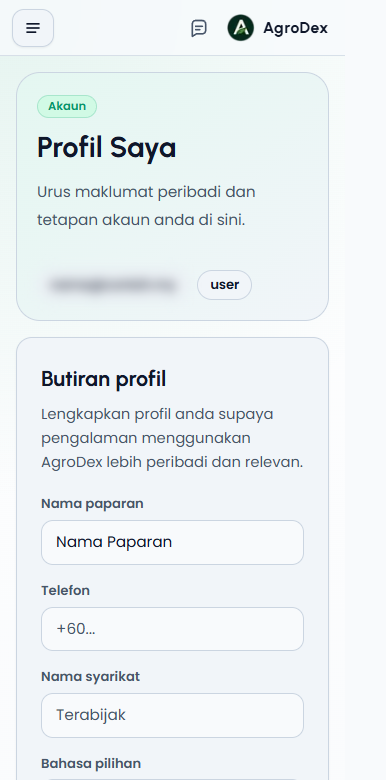
    Phone view:

    Account page on a phone
    Account page on a phone